
Appliances / Keel WordPress
Keel WordPressWordPress 7.1.4
Keel release 19.0-21 · image debian-13-keel-wordpress_19.0-21_amd64.tar.zst
WordPress is a state-of-the-art publishing platform with a focus on aesthetics, web standards, and usability. It is one of the worlds most popular blog publishing applications, includes tons of powerful core functionality, extendable via literally thousands of plugins, and supports full theming.
Install
LXC template, for Proxmox VE
debian-13-keel-wordpress_19.0-21_amd64.tar.zst
sha256 7c8c6a07bbc6f3a75eeac2715f3faab22d9619265037cede314178c788669ce2
With the Keel index
keel-pve gets the signed index of the Keel templates and checks the template against it. The Templates dialog of the Proxmox web interface does not show Keel templates. Install keel-pve from the Keel archive, suite trixie-testing, as its README says. Then run these commands on the Proxmox node:
keel-pve update
keel-pve download local keel-wordpress
With the file
- Download the template, its
.sha512and its.sha512.asc. - Check the signature. Then check the digest.
- Copy the template to
/var/lib/vz/template/cache/on the Proxmox node.
curl -fLO https://mirror.keellinux.org/images/debian-13-keel-wordpress_19.0-21_amd64.tar.zst -O https://mirror.keellinux.org/images/debian-13-keel-wordpress_19.0-21_amd64.tar.zst.sha512 -O https://mirror.keellinux.org/images/debian-13-keel-wordpress_19.0-21_amd64.tar.zst.sha512.asc
curl -fLO https://archive.keellinux.org/keel-images-keyring.asc
sqv --keyring keel-images-keyring.asc debian-13-keel-wordpress_19.0-21_amd64.tar.zst.sha512.asc debian-13-keel-wordpress_19.0-21_amd64.tar.zst.sha512
sha512sum -c debian-13-keel-wordpress_19.0-21_amd64.tar.zst.sha512
cp debian-13-keel-wordpress_19.0-21_amd64.tar.zst /var/lib/vz/template/cache/
If sqv prints E71DB9C3CA6AC18075395CC3ED3A709C4F3E2F3C, the signature is good. It also prints "Missing key" for the main key of the project. This is expected.
Make the container
pct create 200 local:vztmpl/debian-13-keel-wordpress_19.0-21_amd64.tar.zst --hostname wordpress \
  --unprivileged 1 --features nesting=1 \
  --net0 name=eth0,bridge=vmbr0,ip6=auto
Start the container and log in on its console as root. The first boot asks its questions there.
ISO, for a virtual or a real machine
debian-13-keel-wordpress_19.0-21_amd64.iso
sha256 6832859de264d90b3d74b9245ccd70fc971dcd925f6d0fc99084be1275261022
curl -fLO https://mirror.keellinux.org/images/debian-13-keel-wordpress_19.0-21_amd64.iso -O https://mirror.keellinux.org/images/debian-13-keel-wordpress_19.0-21_amd64.iso.sha512 -O https://mirror.keellinux.org/images/debian-13-keel-wordpress_19.0-21_amd64.iso.sha512.asc
curl -fLO https://archive.keellinux.org/keel-images-keyring.asc
sqv --keyring keel-images-keyring.asc debian-13-keel-wordpress_19.0-21_amd64.iso.sha512.asc debian-13-keel-wordpress_19.0-21_amd64.iso.sha512
sha512sum -c debian-13-keel-wordpress_19.0-21_amd64.iso.sha512
Boot the machine from the ISO and install. The first boot of the installed system asks the same questions as the template.
The first boot
The questions of the first boot, of all the modes and roles. A node asks only those of its mode and role (the guides below show each one):
- Root Password password
- MariaDB password password
- WordPress password password
- System Notifications
- Installation mode
- Role of this node
- Invite a node
- Join a mesh
No password is copied between nodes: only the invite lines (decision 0076).
Services
nginx, mariadb, php8.4-fpm, webmin, cron, postfix, ssh, monit
Addresses the commissioning checked
https://127.0.0.1/https://127.0.0.1/wp-login.phphttps://127.0.0.1:12321/http://127.0.0.1/http://127.0.0.1/keel-health
Screenshots

open /
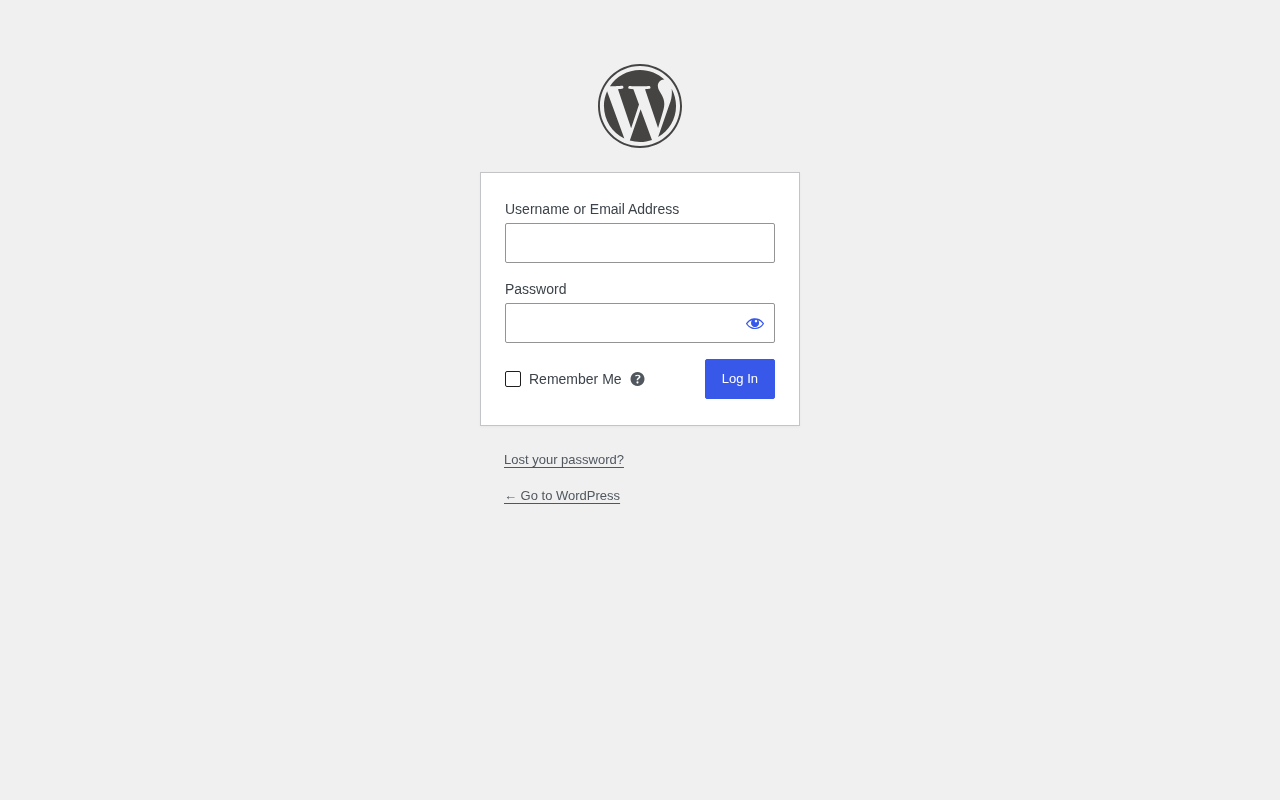
user admin, the app secret

after the login: /wp-admin/
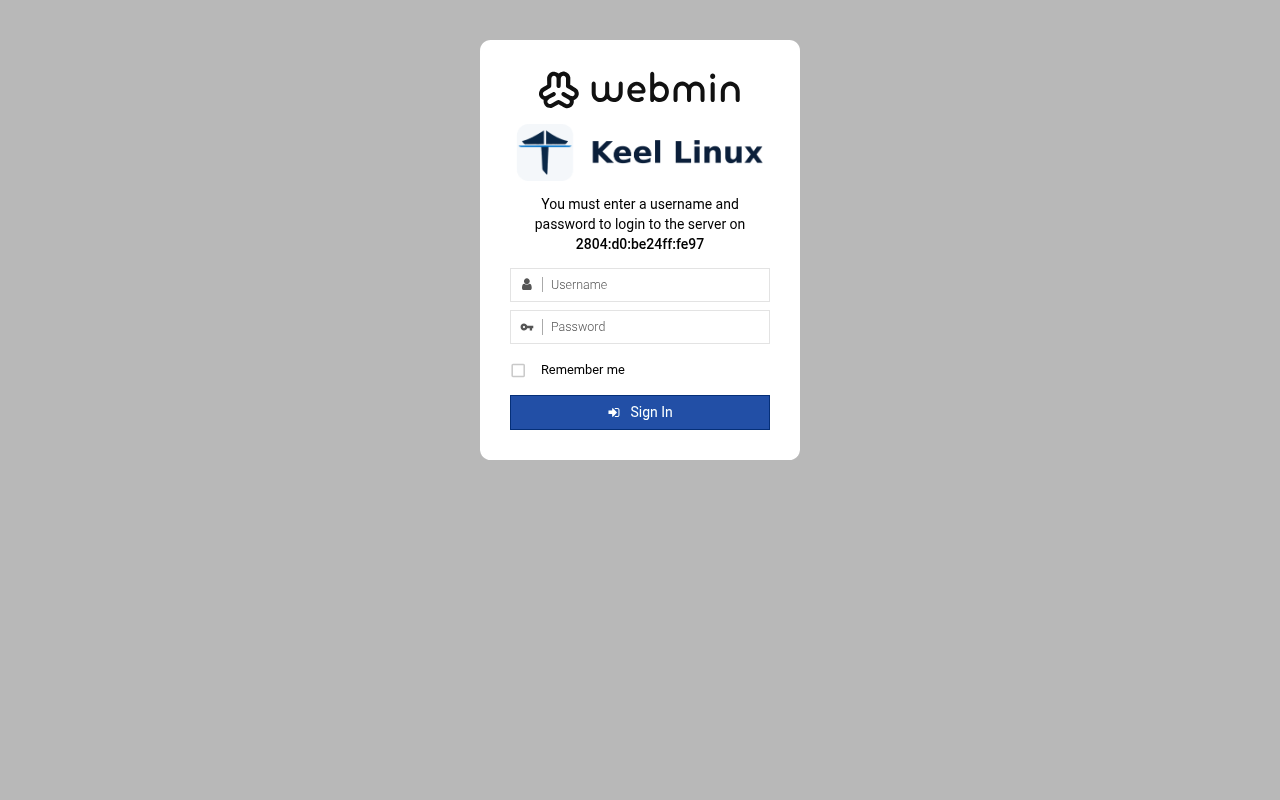
user root, the root secret
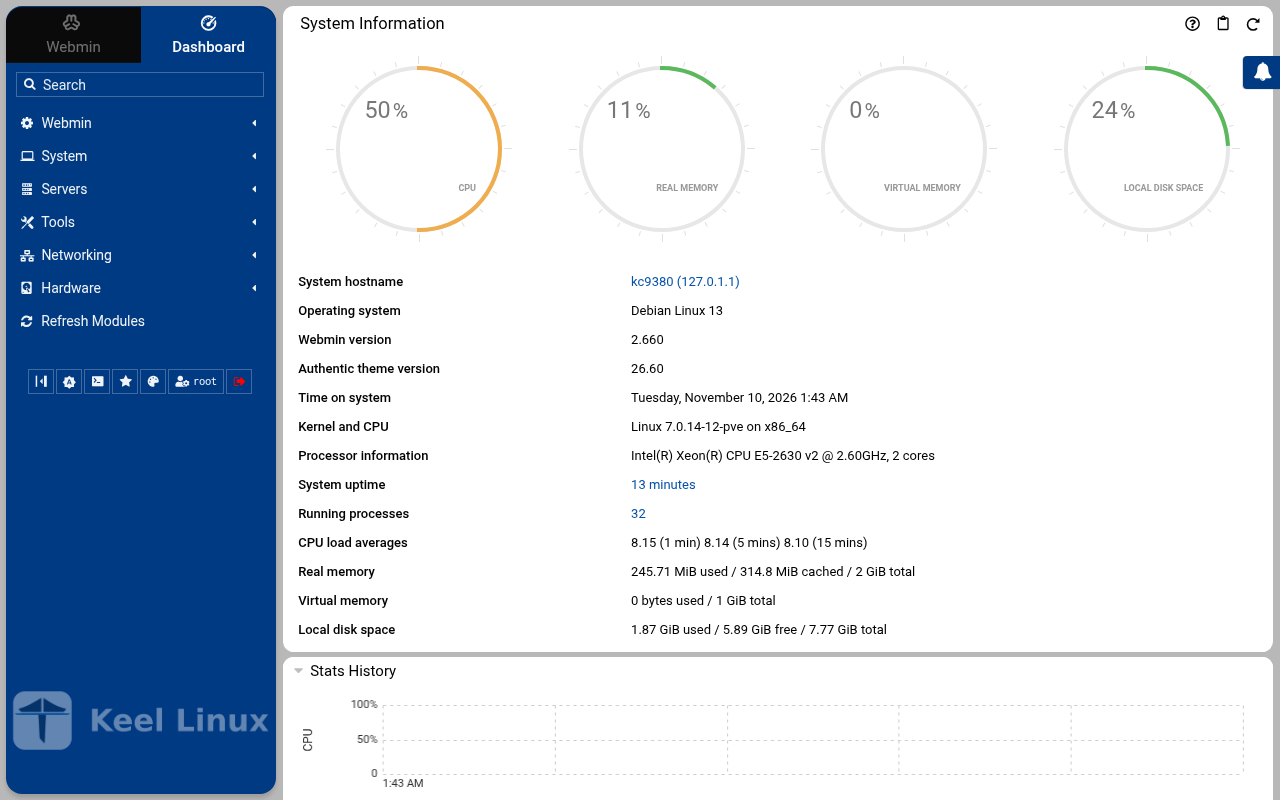
after the login: the page the login opened
Installation modes
Each column is one machine. Each row is one screen, in the order the machine showed it, with what the operator typed or chose. A secret is named, never shown.
Simple: one node
the LXC template, answered on the console (br1)
- 1
root password
the screen, as text
Connected to tty 1
Type <Ctrl+a q> to exit the console, <Ctrl+a Ctrl+a> to enter Ctrl+a itself
press Enter within 5 s to answer first-boot questions
Keel Linux Configuration Console KC9380 appliance services                                                    < Quit >         Blog:https://[2804:710:d0:5:be24:11ff:fe97:3802]Admin:https://[2804:710:d0:5:be24:11ff:fe97:3802]/wp-admin/Webmin:     https://[2804:710:d0:5:be24:11ff:fe97:3802]:12321SSH/SFTP:   root@2804:710:d0:5:be24:11ff:fe97:3802 (port 22) Keel Linux Configuration Console KC9380 appliance services                                  < Quit >       Blog:https://[2804:710:d0:5:be24:11ff:fe97:3802]Admin:https://[2804:710:d0:5:be24:11ff:fe97:3802]/wp-admin/Webmin:     https://[2804:710:d0:5:be24:11ff:fe97:3802]:12321SSH/SFTP:   root@2804:710:d0:5:be24:11ff:fe97:3802 (port 22)
Debian GNU/Linux 13 kc9380 tty1
kc9380 login: root
Password:
Keel Linux wordpress 19.0-trixie-amd64
IPv6 SSH:  root@2804:710:d0:5:be24:11ff:fe97:3802
Welcome to kc9380, Keel Linux 19.0 (Debian 13/Trixie)
System information for Tue Nov 10 01:31:10 2026 (UTC+0000)
System load:  8.36              Memory usage:  17.4%
Processes:    36                Swap usage:    0.0%
Usage of /:   18.7% of 7.78GB   Networking not configured
This system is not initialized yet: run keel-init to set it up.
For Advanced commandline config run:    confconsole
For more info see: https://github.com/Keel-Linux/confconsole
Linux kc9380 7.0.14-12-pve #1 SMP PREEMPT_DYNAMIC PMX 7.0.14-12 (2026-08-11T11:05Z) x86_64
=== Keel Linux - First boot configuration
Root Password
Please enter new password for the root account.
Choose how to set this password:
Generate  A strong random password (recommended)
Manual    Type my own password
<  OK  >Generate  A strong random password (recommended)Manual    Type my own password
Keel Linux - First boot configuration
Root Password
Please enter new password for the root account.
Password Requirements
- must be at least 8 characters long
- must contain characters from at least 3 of the
following categories: uppercase, lowercase, numbers,
symbols
<  OK  >x
typed:
(the root secret) - 2
root password
the screen, as text
********
Keel Linux - First boot configuration
Root Password
Confirm password
Password Requirements
- must be at least 8 characters long
- must contain characters from at least 3 of the
following categories: uppercase, lowercase, numbers,
symbols
<  OK  >x
typed:
(the root secret) - 3
db password
the screen, as text
********
Keel Linux - First boot configuration
kc9380.pop.coop
Domain name
xxx The name this machine is reached by, with its domain,    xx for example blog.example.org. It becomes the hostname,   xx the name /etc/hosts answers for this machine, and the    xx domain a TLS certificate is requested for in             xx confconsole.xxxx Leave the field empty to keep the name the machine has.  xxxx Fully qualified domain name:x
<Apply>x
>fqdn: /etc/keel/instance.yaml already declares the name, not written
=== Keel - First boot configuration
MariaDB password
Enter the password for the MariaDB administrative
account.
Choose how to set this password:
Generate  A strong random password (recommended)
Manual    Type my own password
<  OK  >Generate  A strong random password (recommended)Manual    Type my own password
Keel - First boot configuration
MariaDB password
Enter the password for the MariaDB administrative
account.
Password Requirements
- must be at least 8 characters long
- must contain characters from at least 3 of the
following categories: uppercase, lowercase, numbers,
symbols
tq
qu   x<  OK  >x
typed:
(the db secret) - 4
db password
the screen, as text
********
Keel - First boot configuration
MariaDB password
Confirm password
Password Requirements
- must be at least 8 characters long
- must contain characters from at least 3 of the
following categories: uppercase, lowercase, numbers,
symbols
<  OK  >x
typed:
(the db secret) - 5
wordpress password
the screen, as text
********>WARNING: option --ssl-verify-server-cert is disabled, because of an insecure passwordless login.
MariaDB account 'admin' set from DB_PASS (24 characters), verified on [::1]:3306
=== Keel - First boot configuration
WordPress password
Enter the password for the WordPress administrator
account.
Choose how to set this password:
Generate  A strong random password (recommended)
Manual    Type my own password
<  OK  >Generate  A strong random password (recommended)Manual    Type my own password
Keel - First boot configuration
WordPress password
Enter the password for the WordPress administrator
account.
Password Requirements
- must be at least 8 characters long
- must contain characters from at least 3 of the
following categories: uppercase, lowercase, numbers,
symbols
tq
qu   x<  OK  >x
typed:
(the app secret) - 6
wordpress password
the screen, as text
********
Keel - First boot configuration
WordPress password
Confirm password
Password Requirements
- must be at least 8 characters long
- must contain characters from at least 3 of the
following categories: uppercase, lowercase, numbers,
symbols
<  OK  >x
typed:
(the app secret) - 7
alert email
the screen, as text
********>wp-config.php written: database 'wordpress' as 'www-data' over the socket of localhost, with no password and no salt
Success: WordPress installed successfully.
WordPress installed: 'WordPress' at http://localhost, administrator 'admin'
the salts are options of the database
WordPress administrator 'admin' set from APP_PASS (24 characters), authenticated against the site itself
=== Keel Linux - First boot configuration
Installation mode
How this appliance is installed (decision 0028). You choose it once.
Simple: one node. Everything is on this machine, with no mesh.
Cloud simple: two nodes, a primary and a replica on a WireGuard mesh. The data follows the primary. When the
primary stops, you promote the replica by hand.
Cloud advanced: two data nodes and a witness, three sites, etcd of three. When the primary stops, the replica
takes over by itself.
Choose the same mode on every node of the set.
Simple          one node, no mesh
Cloud simple    two nodes, failover by hand
Cloud advanced  two nodes and a witness, failover by itself
<Select>
Keel Linux - First boot configuration
Installation mode
<  ok  >x
/etc/keel/instance.yaml: installation.mode: simple$ keel spec apply --system-only --non-interactive --skip-network --defer-certificate --spec/etc/keel/instance.yamlapply --system-only: /etc/inithooks.conf not read or writteninstance.hostname: unchanged (kc9380)instance.fqdn: unchanged (/etc/hosts maps kc9380 to kc9380.pop.coop)derived.monit: write /etc/keel/monit/keel-manifest.conf: 6 unit(s) and 5 probe(s) of wordpress (mode 0600): doneoverlays.syncthing: unchanged (disabled: syncthing.service)overlays.anubis: run /usr/lib/keel/overlays/anubis/state.d/50keel-web: the overlay is disabled(/usr/lib/keel/overlays/anubis/state.d/50keel-web disabled): doneoverlays.anubis: record disabled and the hooks' digest in /var/lib/keel/overlays/anubis (mode 0644): doneoverlays.coraza: run /usr/lib/keel/overlays/coraza/state: the overlay is disabled(/usr/lib/keel/overlays/coraza/state disabled): doneoverlays.coraza: record disabled and the hooks' digest in /var/lib/keel/overlays/coraza (mode 0644): doneoverlays.vip: unchanged (disabled: keel-vip.service)overlays.crowdsec: unchanged (disabled: crowdsec.service, crowdsec-firewall-bouncer.service)overlays.etcd: unchanged (disabled: etcd.service)overlays.nginx: unchanged (enabled: nginx.service)apply --system-only: 5 change(s), 0 failedkeel apply: exit 0, the spec was applied>keelfirstboot role: recorded database.server.role: standalone (mariadb)
keelfirstboot cloud: Keel Cloud is not available yet: no key is asked, and this node runs standalone. It is offered once /etc/keel/cloud-endpoint names the service.
=== Keel Linux - First boot configuration
System Notifications and Critical Security Alerts
Enable local system notifications (root@localhost) to be
forwarded to your regular inbox. Notifications include
security updates and system messages.
Email:
<Enable>        < Skip >x
typed:
admin@example.org - 8
web: site
typed:
open / - 9
web: wp-admin
typed:
user admin, the app secret - 10
web: wp-admin-after
typed:
after the login: /wp-admin/ - 11
web: webmin
typed:
user root, the root secret - 12
web: webmin-after
typed:
after the login: the page the login opened
the ISO in a virtual machine (br1)
- 1
installer-boot
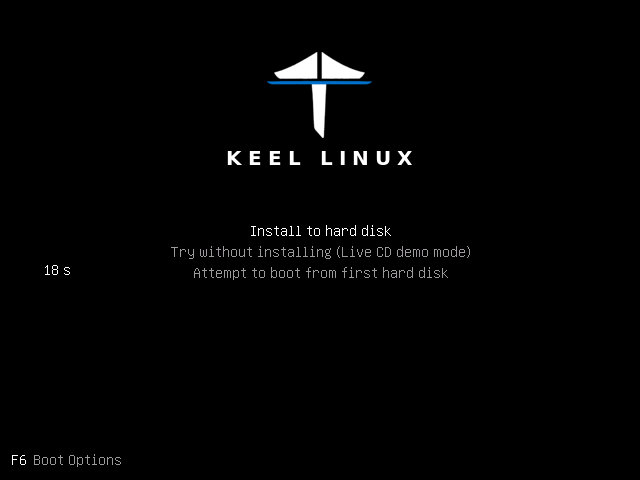
- 2
installer-boot
- 3
installer-boot
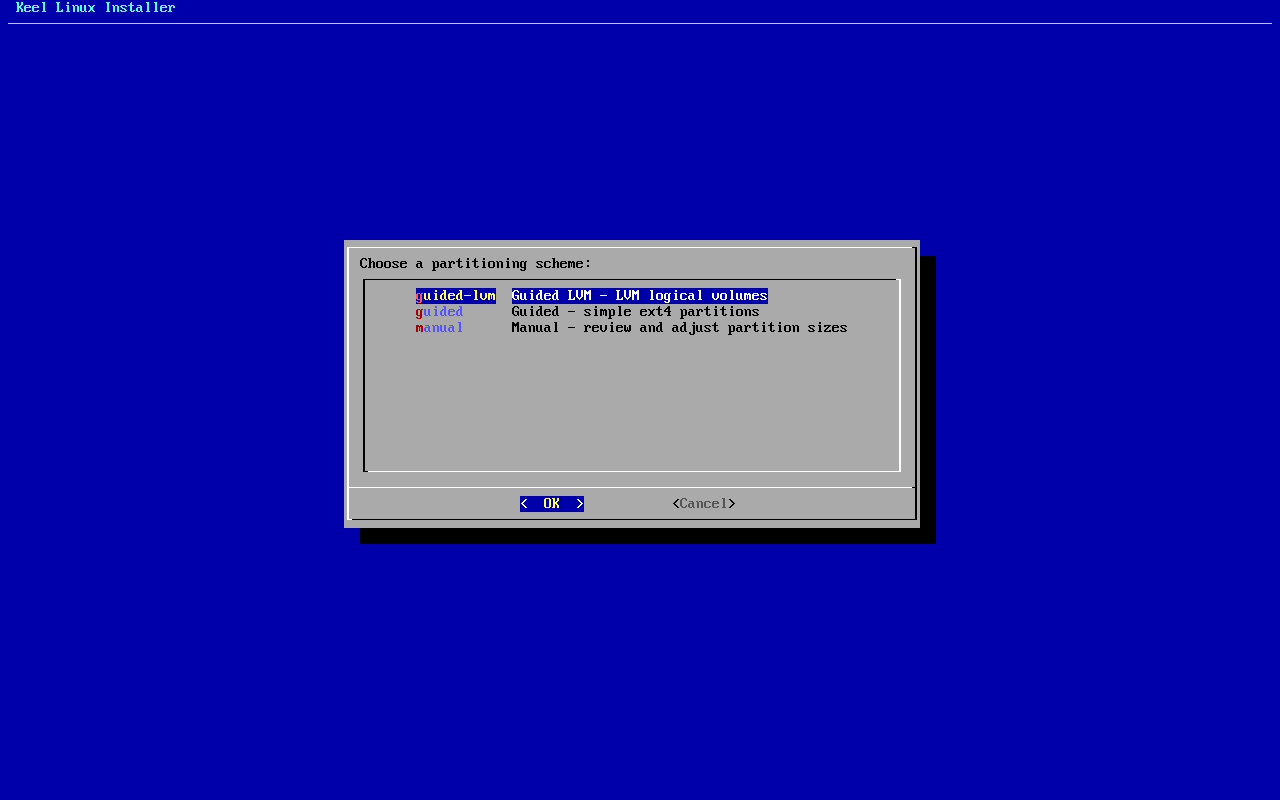
- 4
partitioning
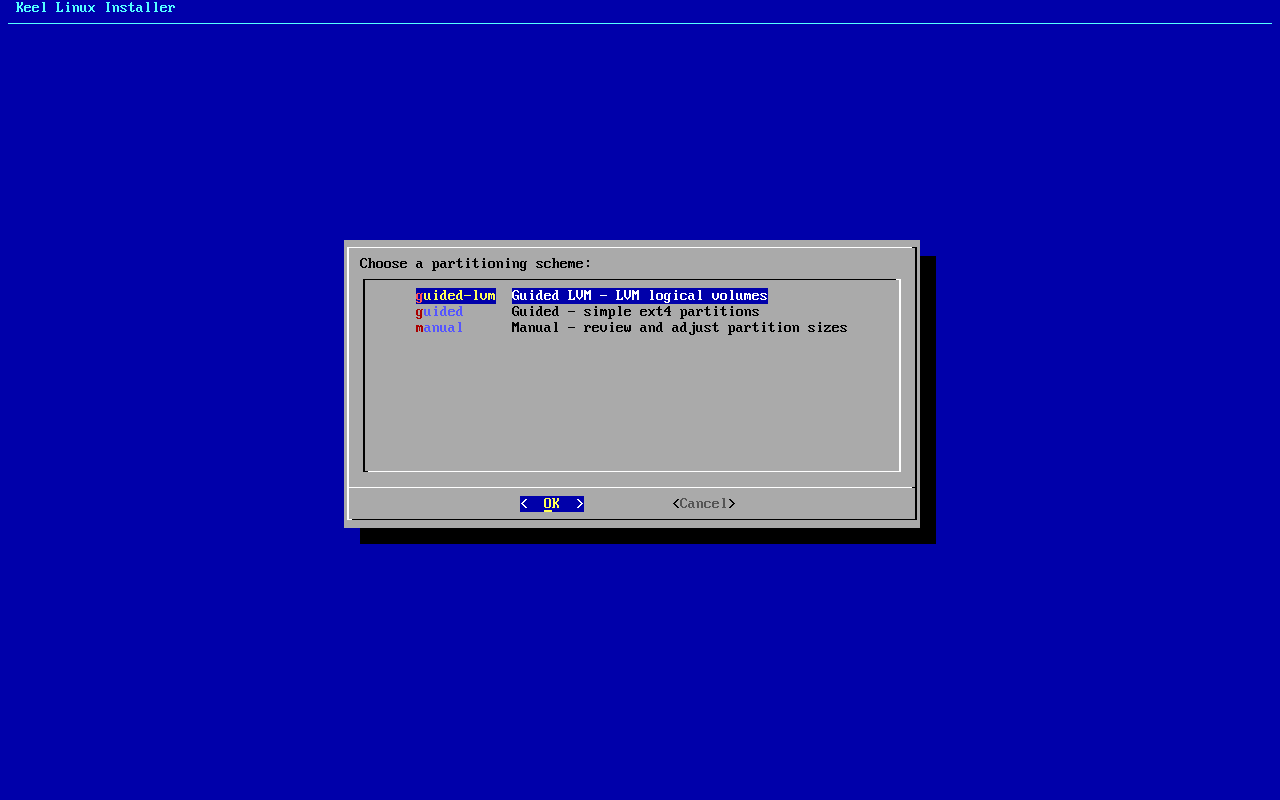
typed:
<ret> - 5
separate boot
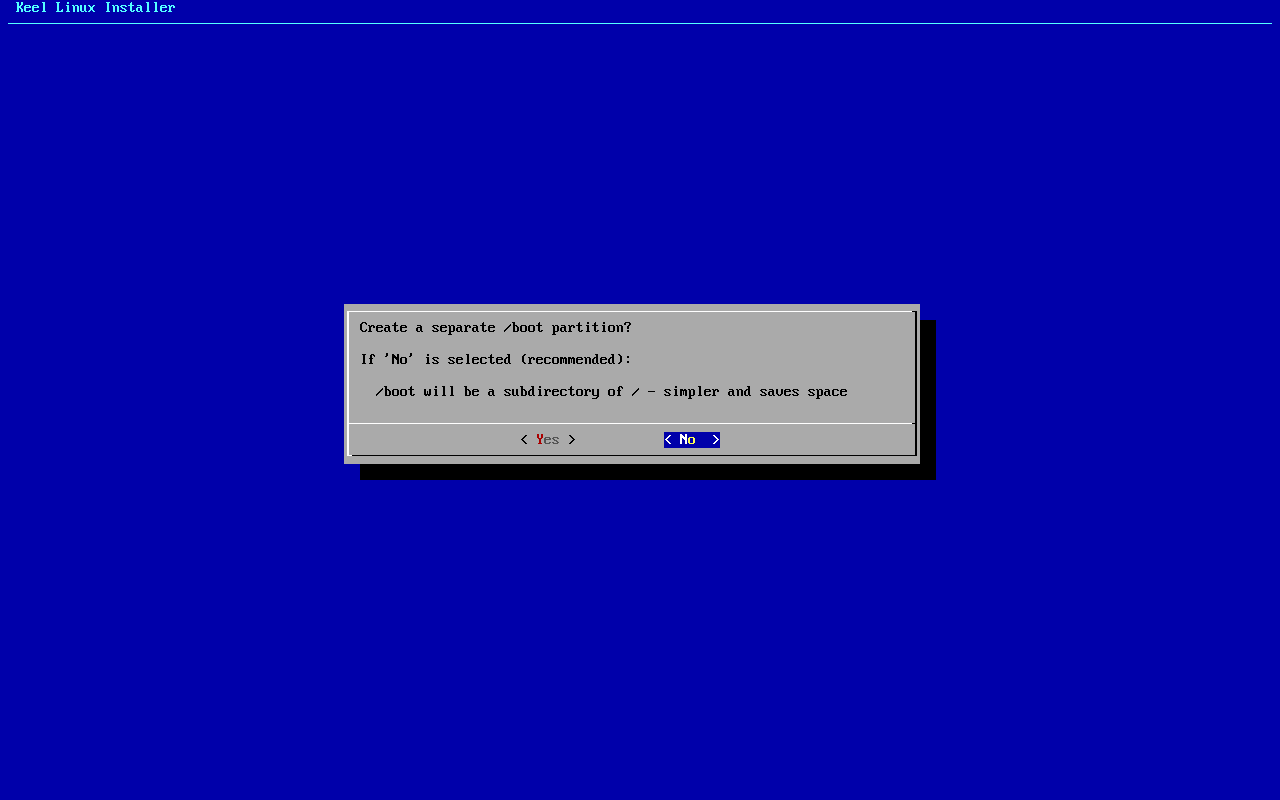
typed:
n - 6
scheme
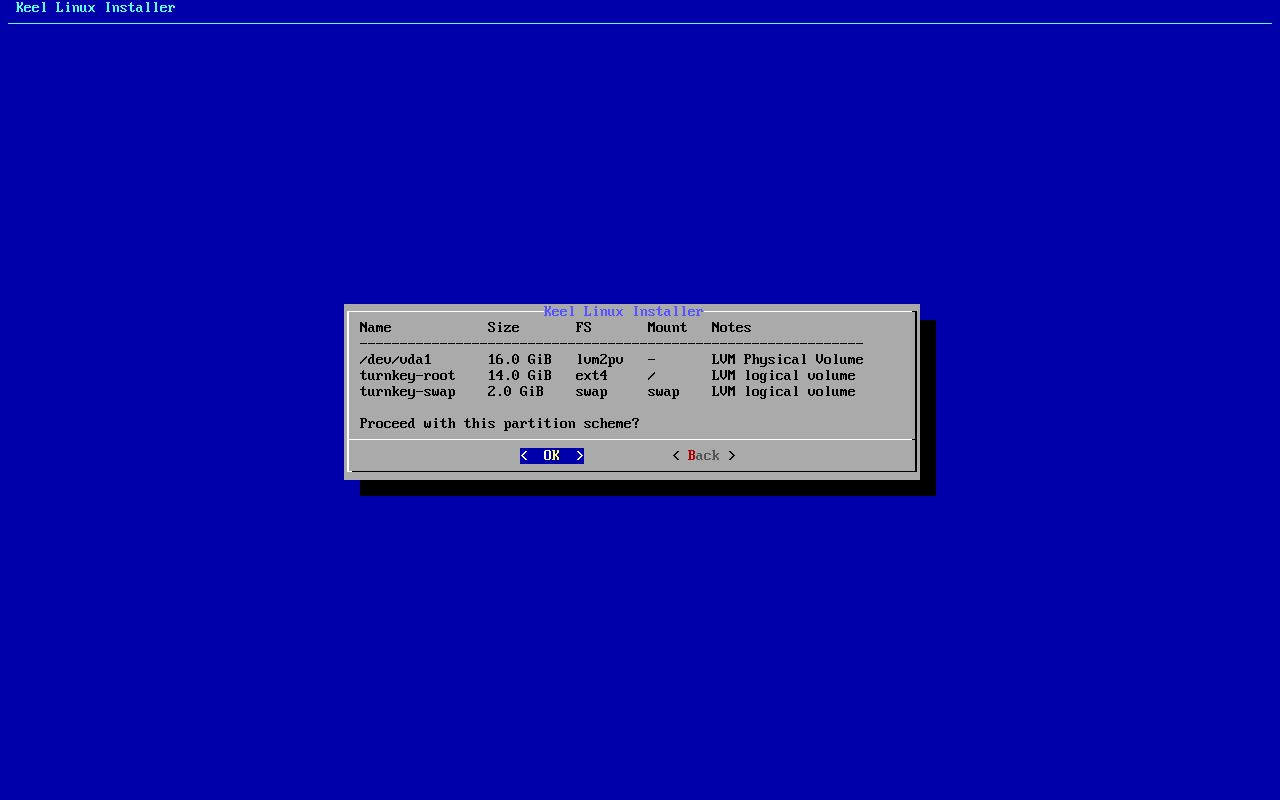
typed:
<ret> - 7
erase
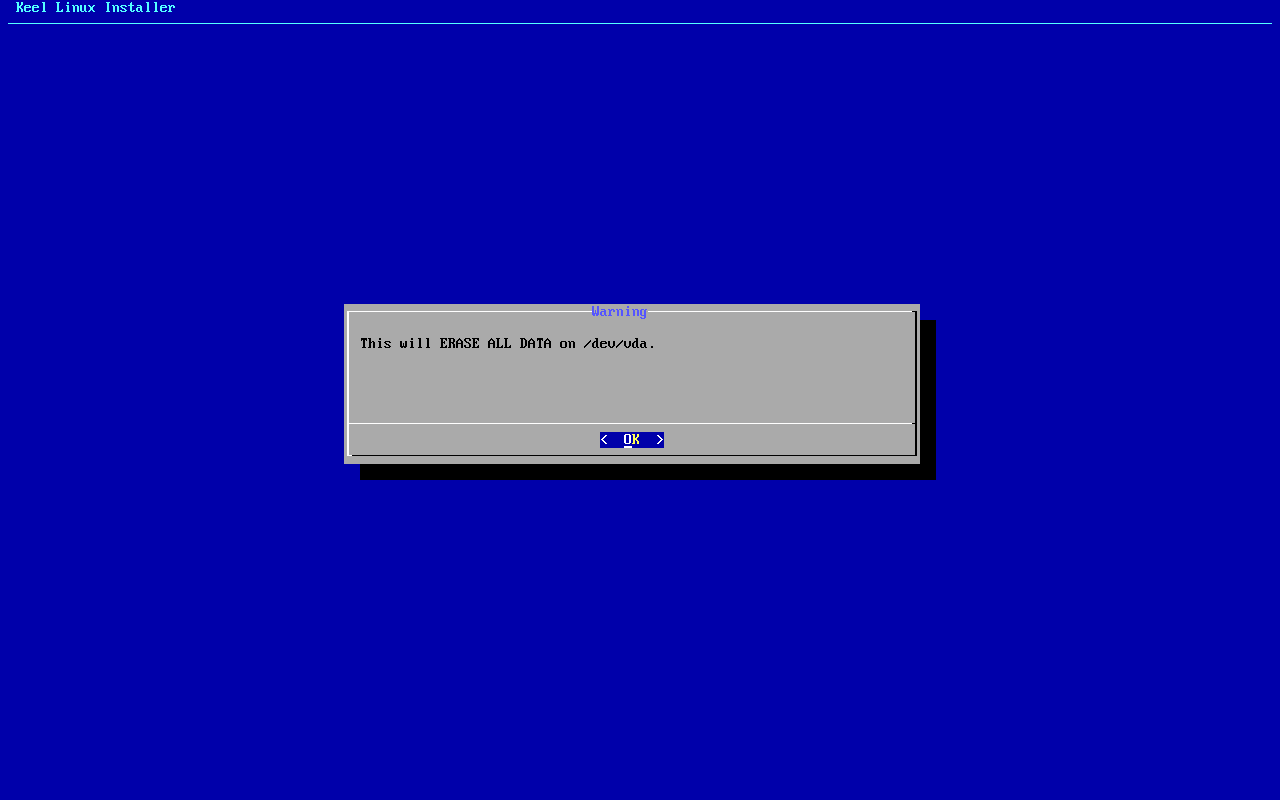
typed:
<ret> - 8
begin
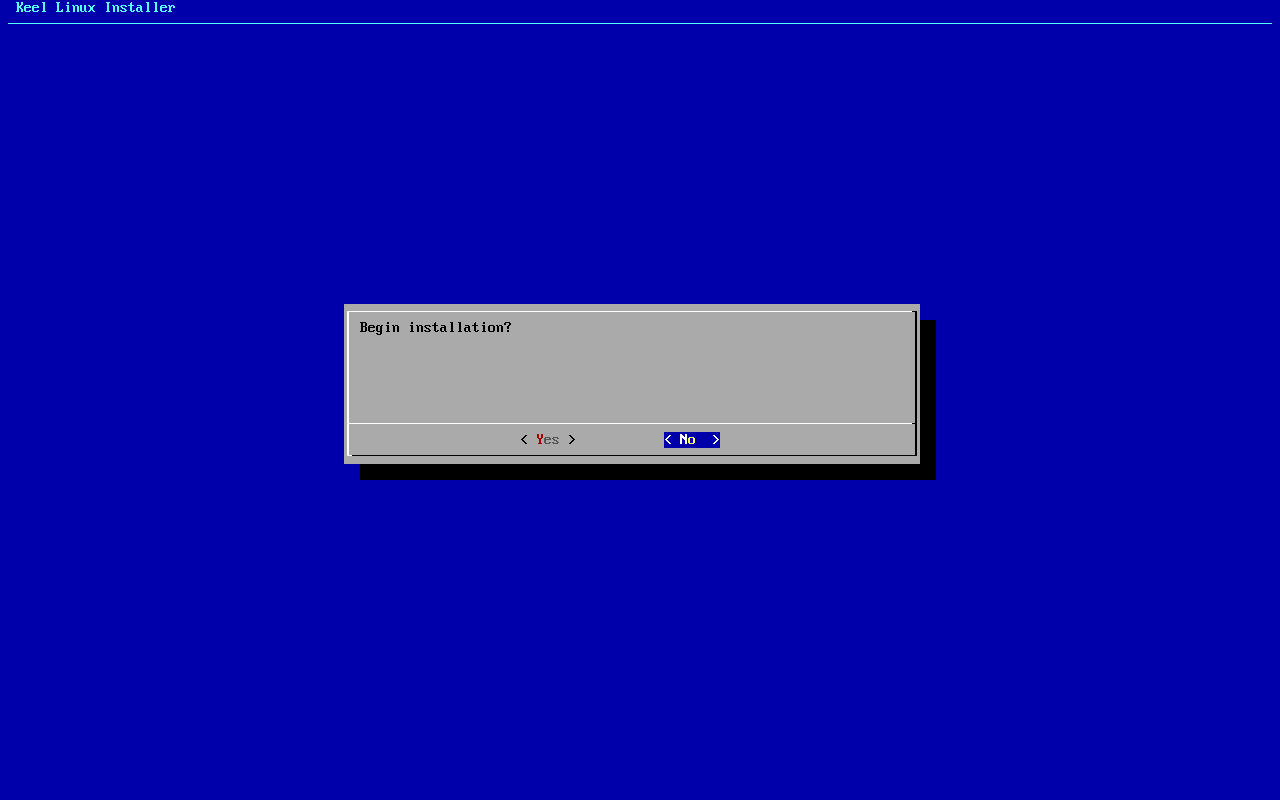
typed:
y - 9
installer-wait
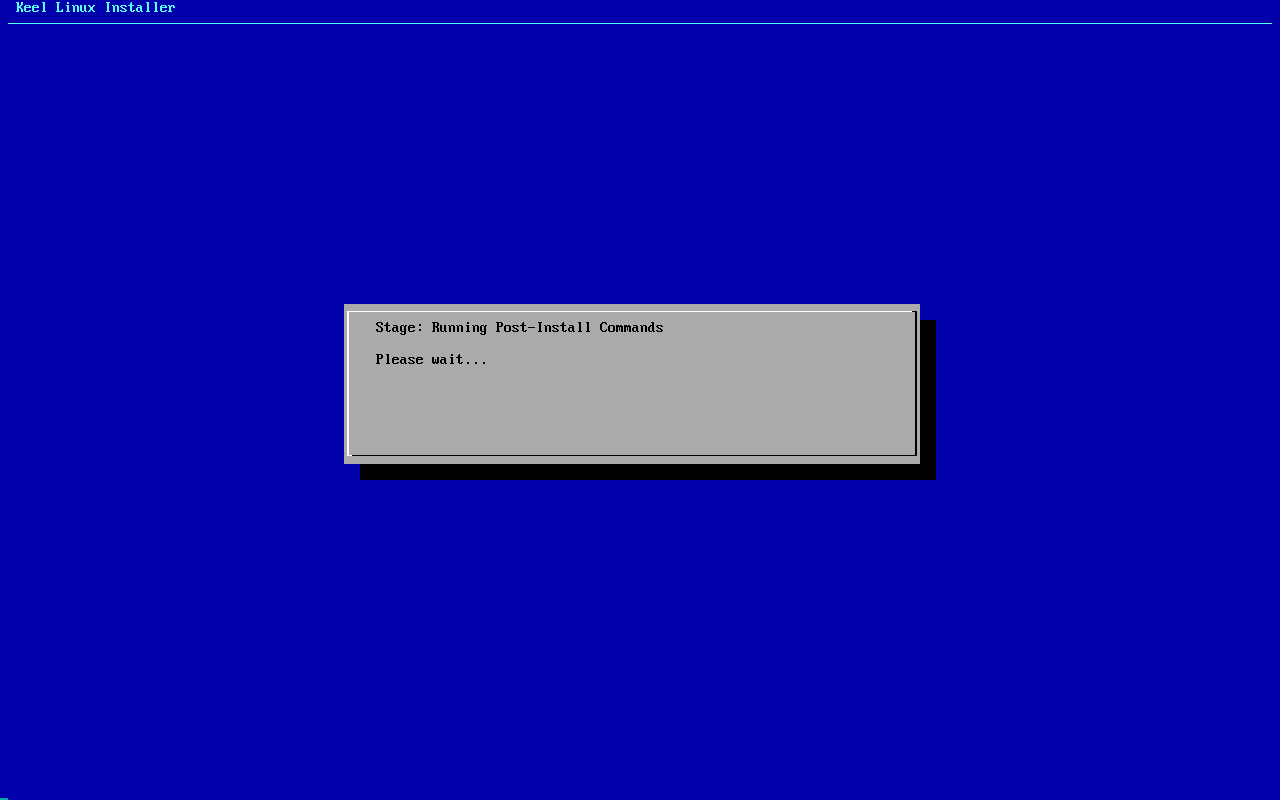
- 10
reboot
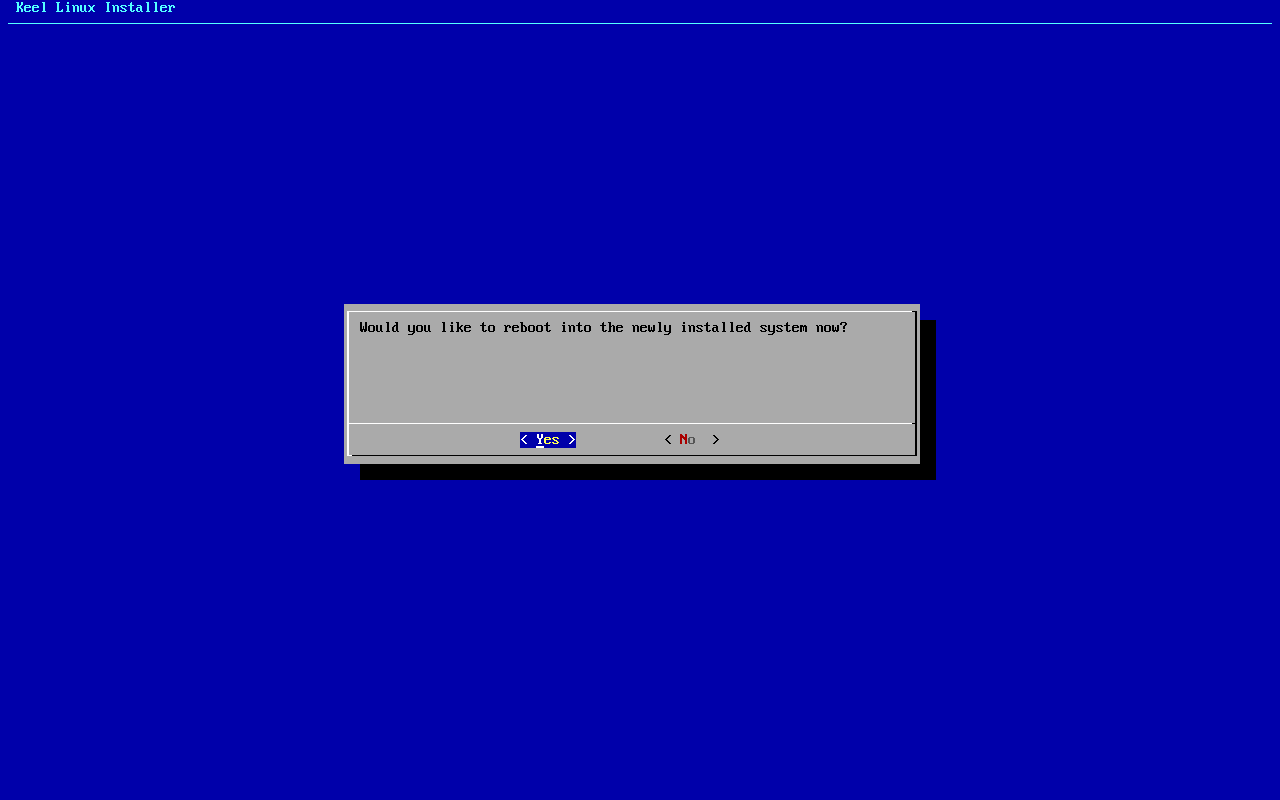
typed:
y - 11
medium
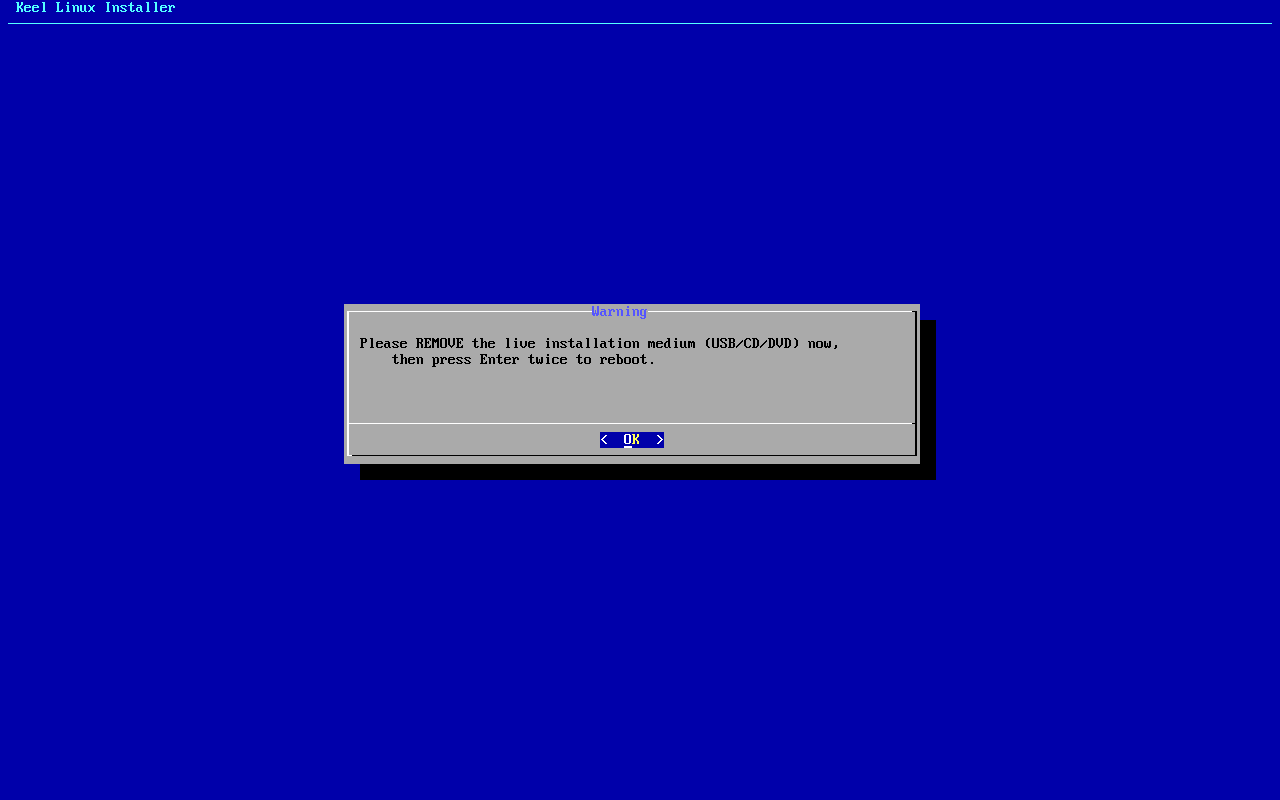
typed:
<ret><ret> - 12
root password-menu
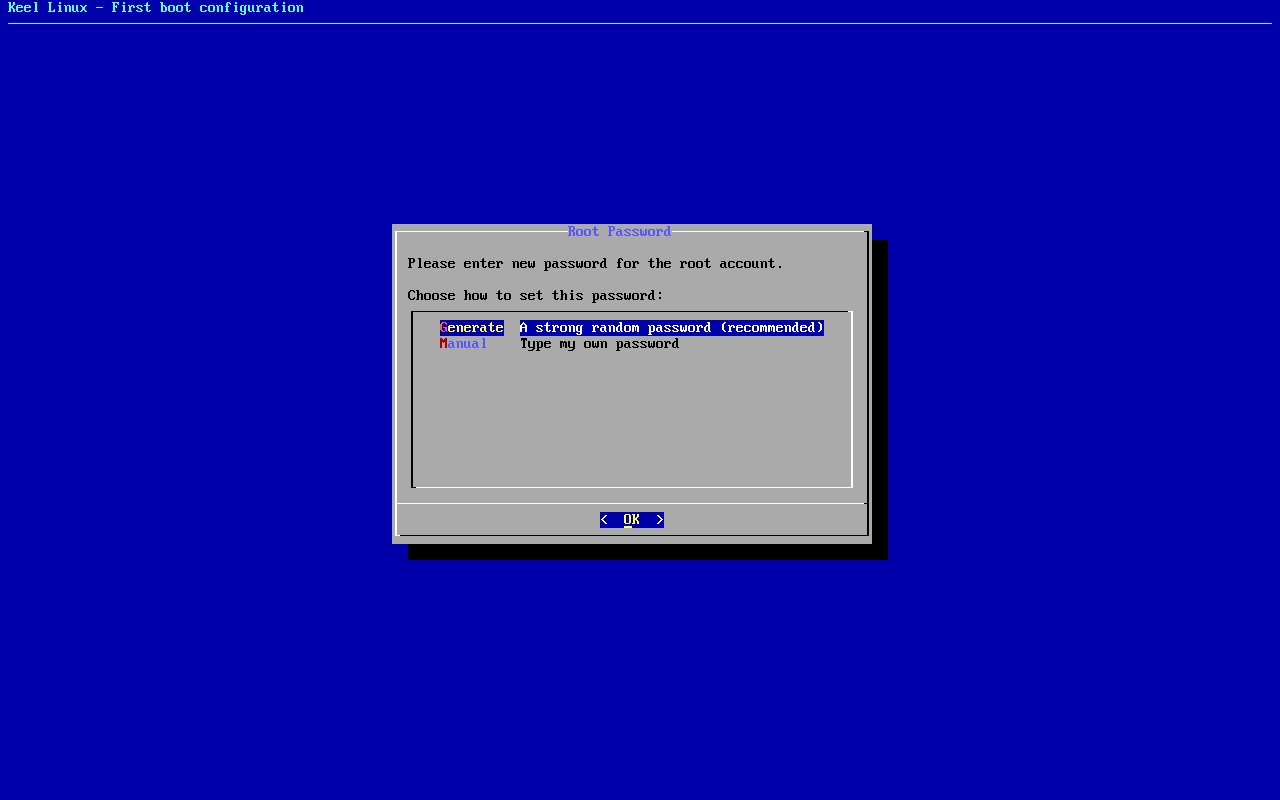
typed:
m<ret> - 13
root password
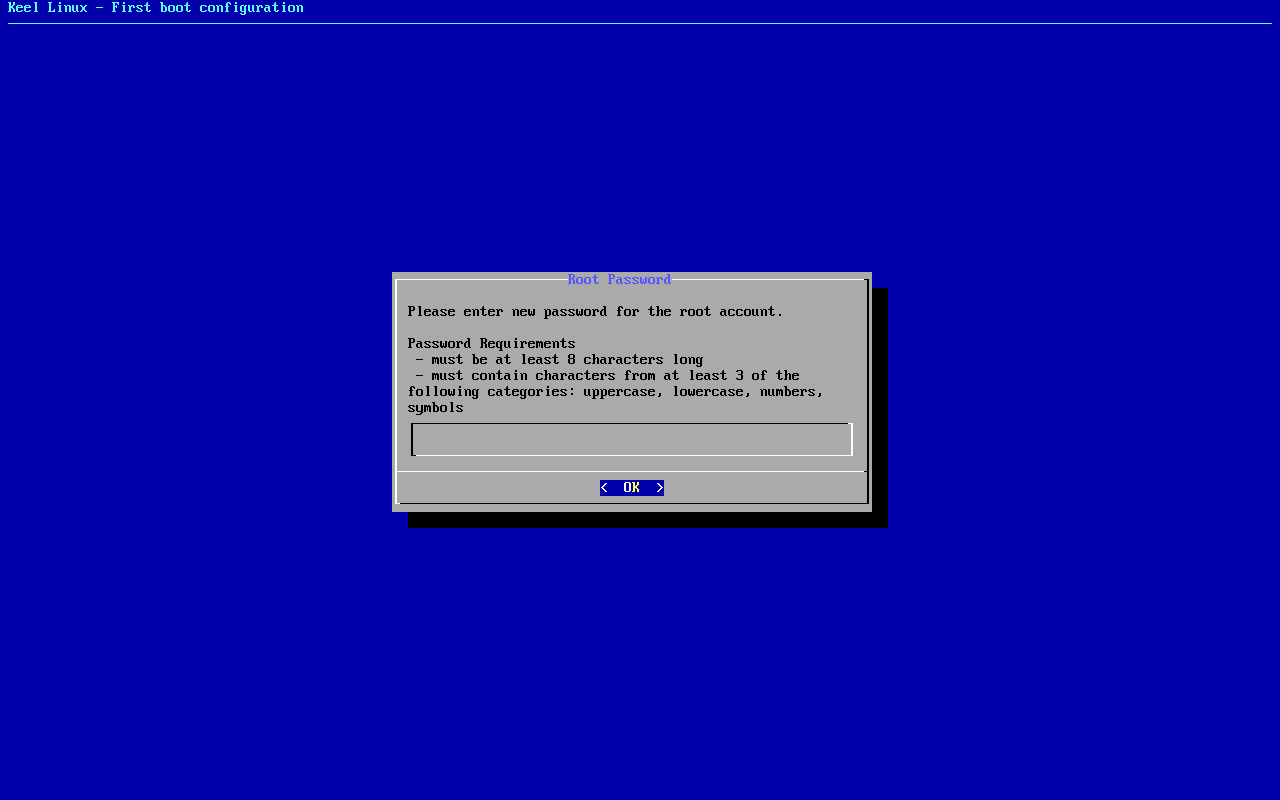
typed:
(the root secret)<ret> - 14
root password
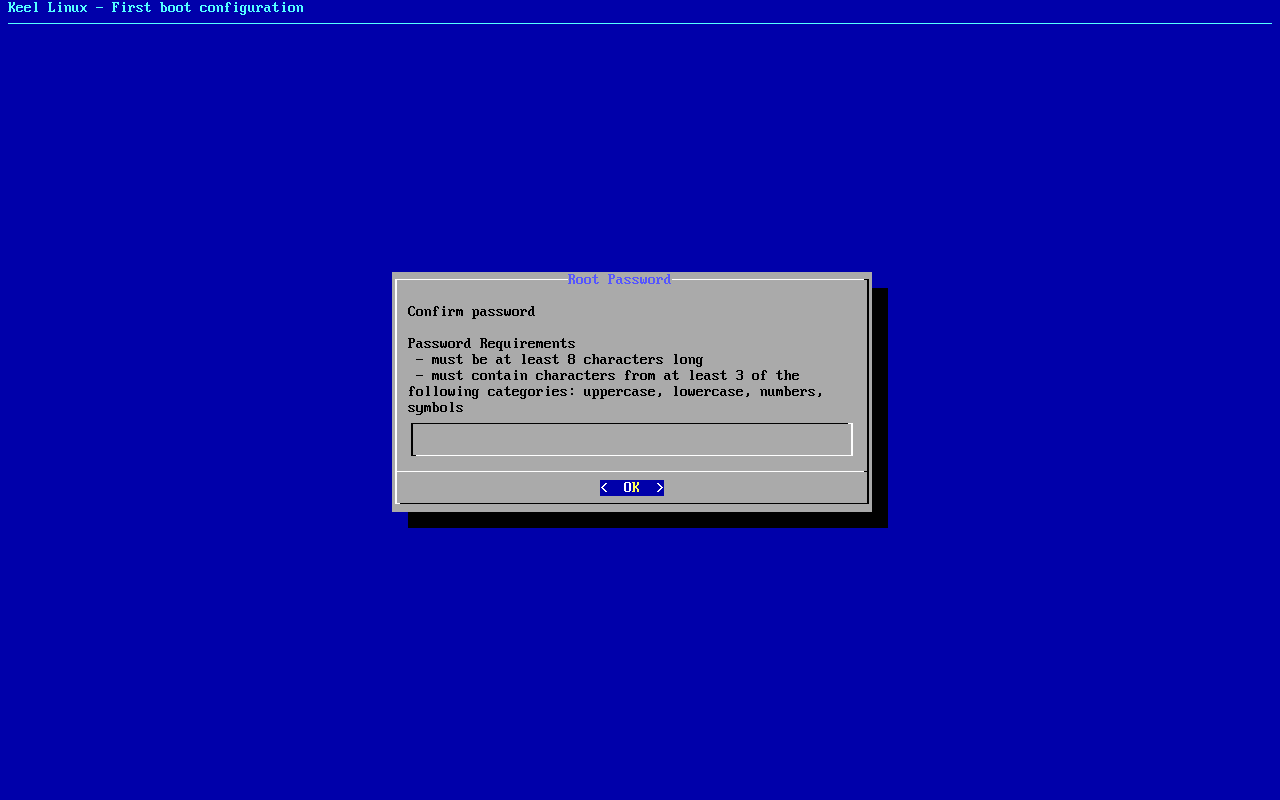
typed:
(the root secret)<ret> - 15
firstboot-screen
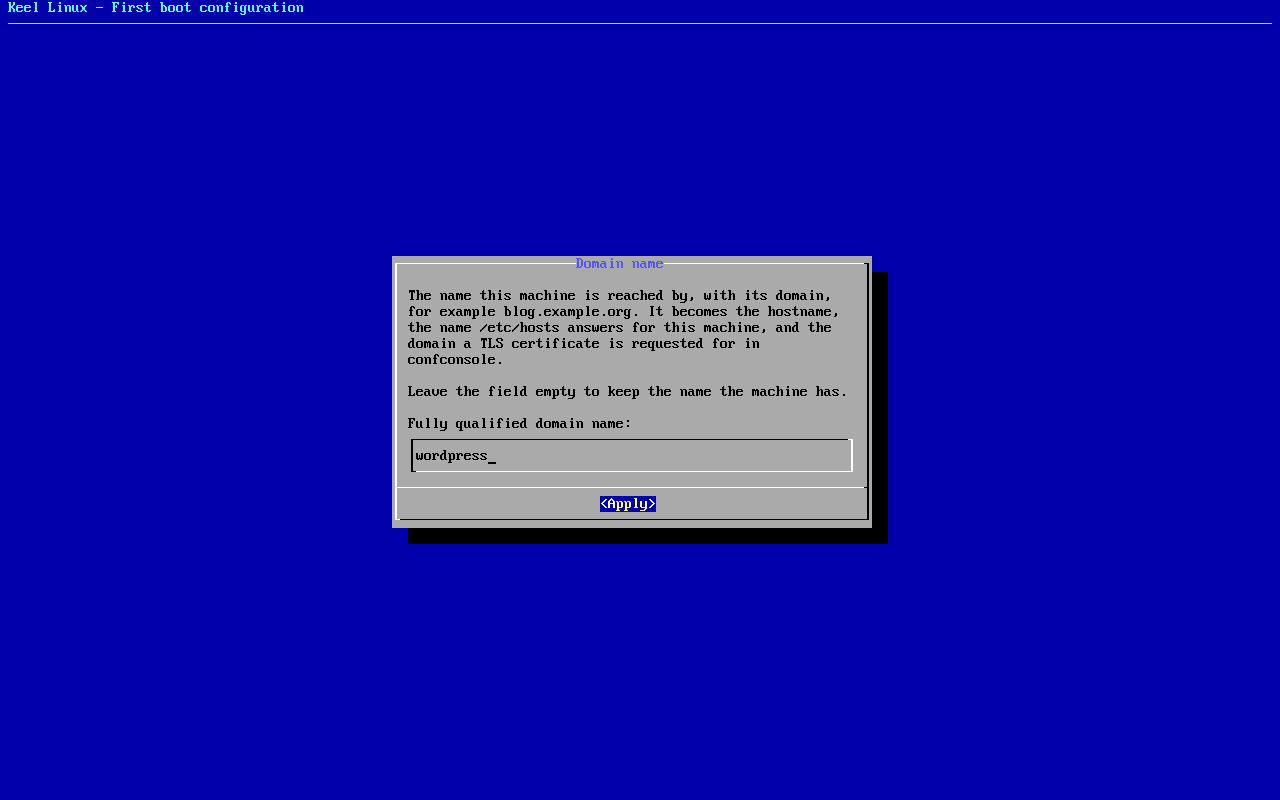
typed:
<ret> - 16
firstboot-screen
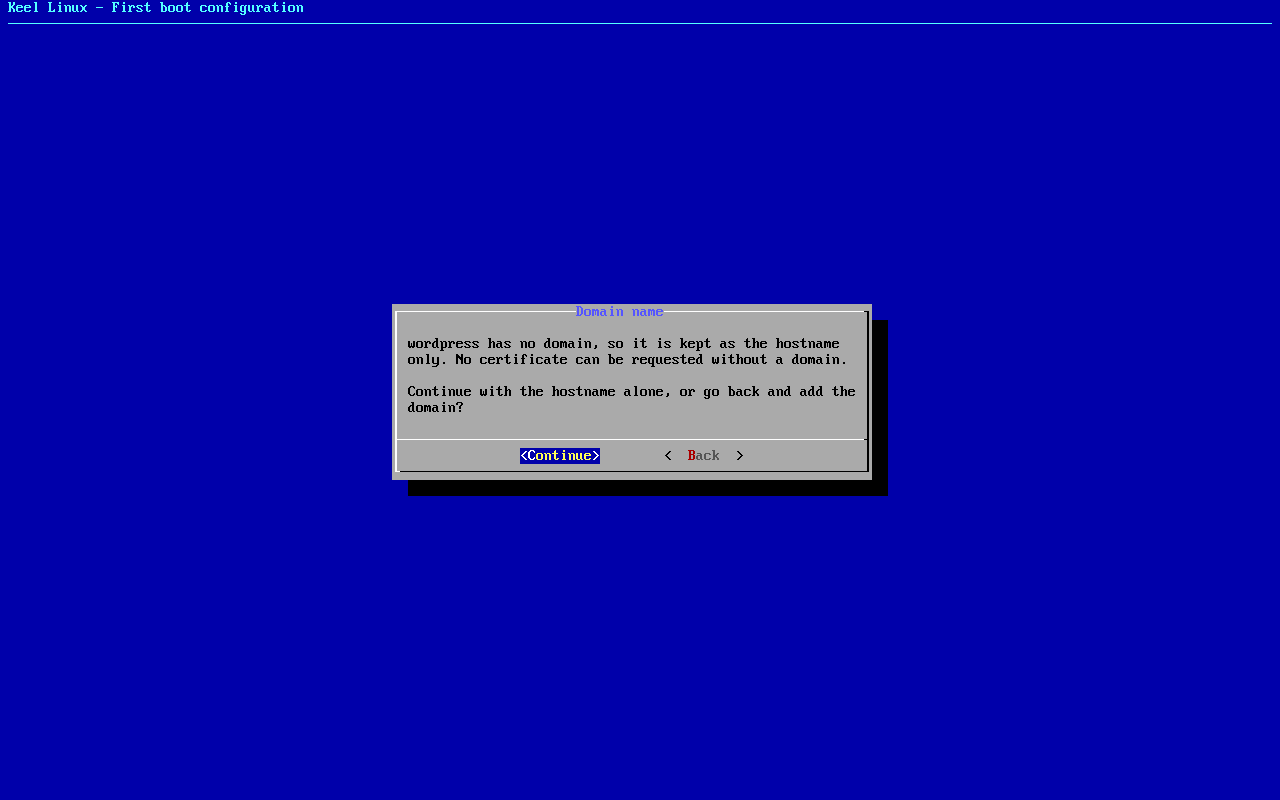
typed:
<ret> - 17
db password-menu
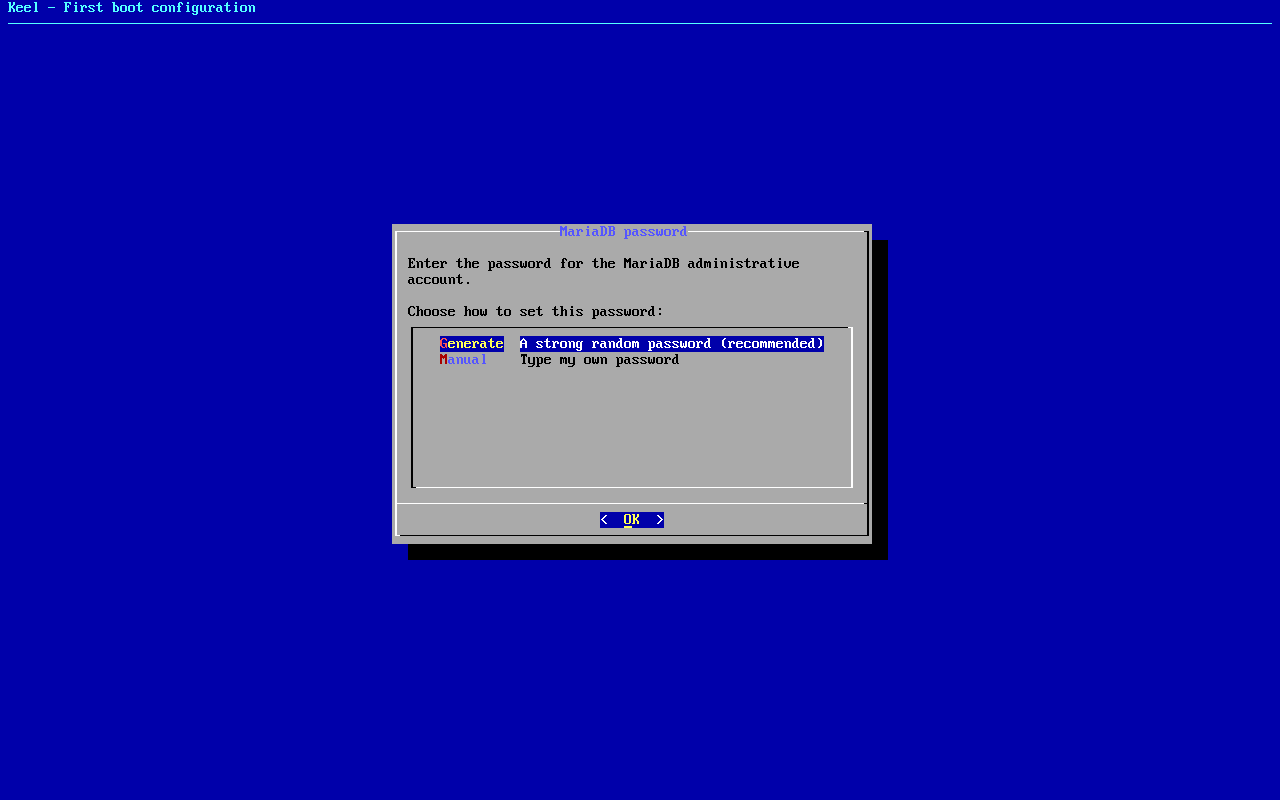
typed:
m<ret> - 18
db password
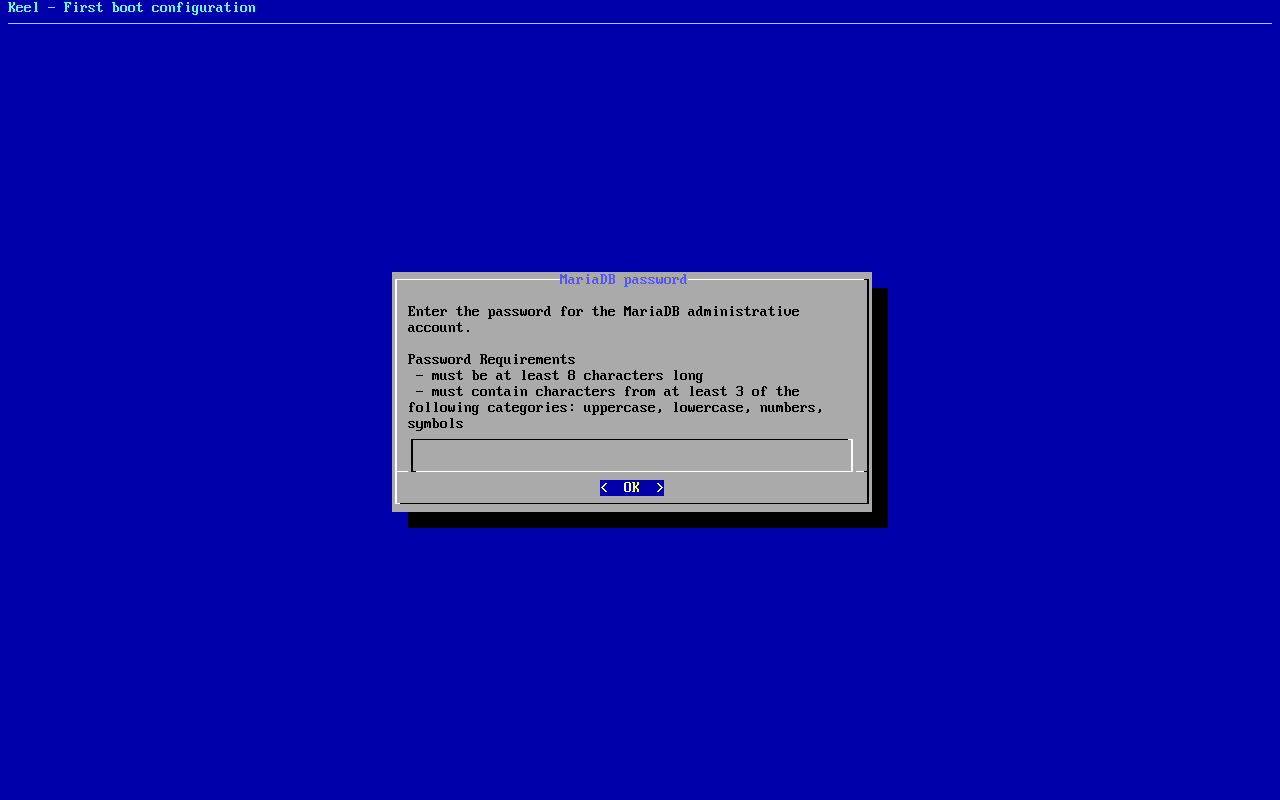
typed:
(the db secret)<ret> - 19
db password
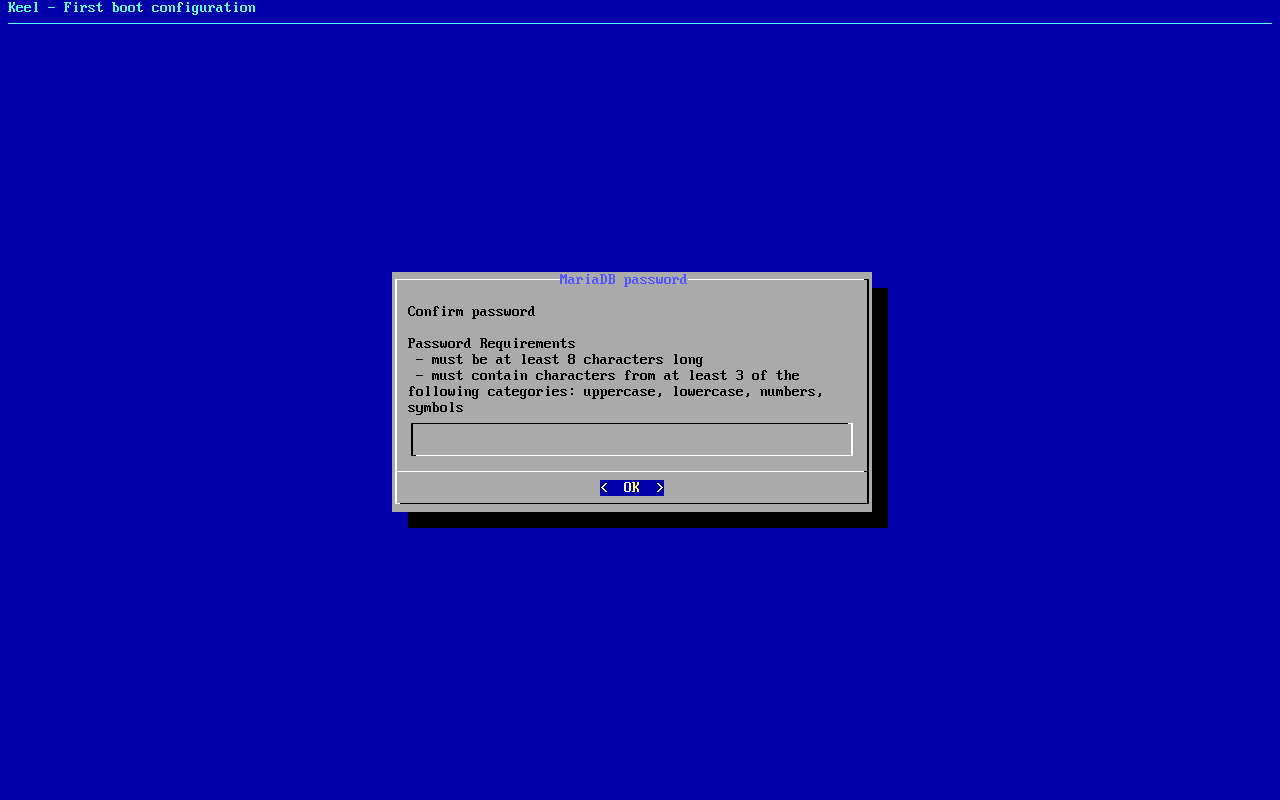
typed:
(the db secret)<ret> - 20
wordpress password-menu
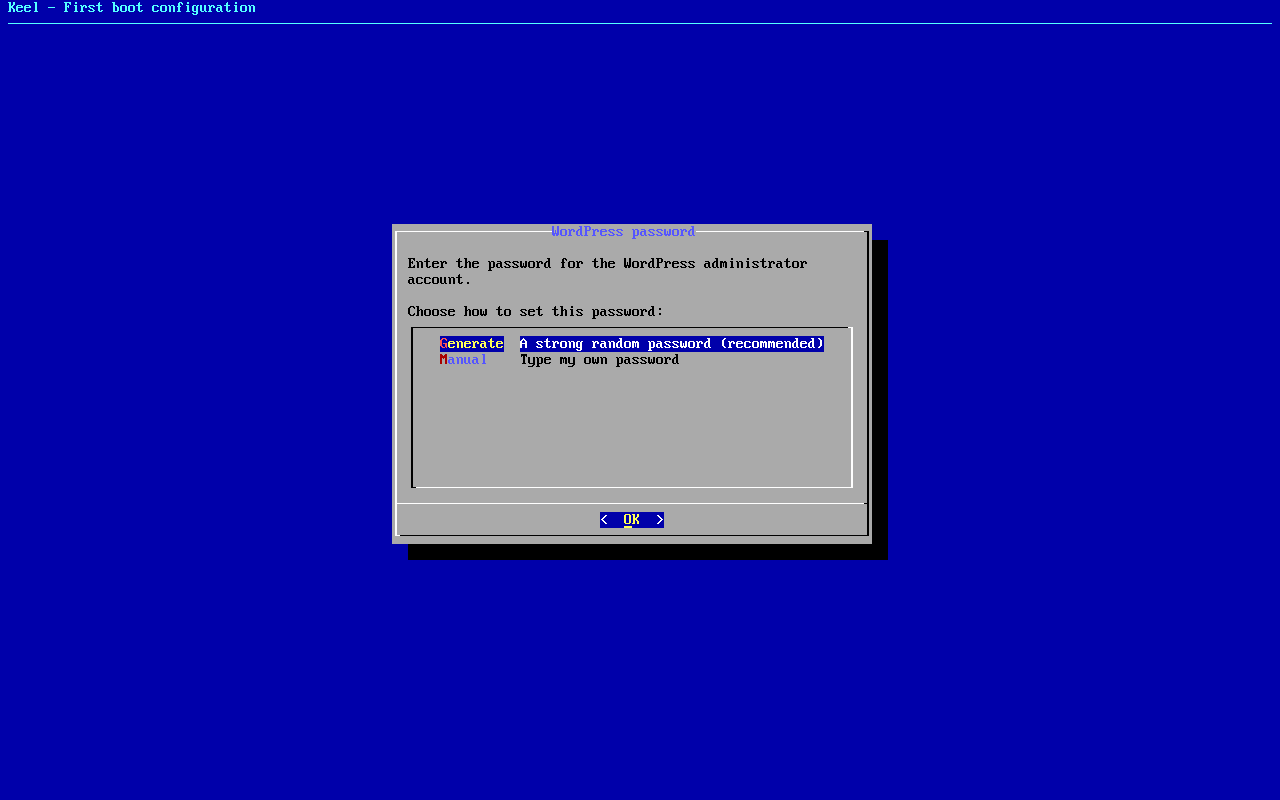
typed:
m<ret> - 21
wordpress password
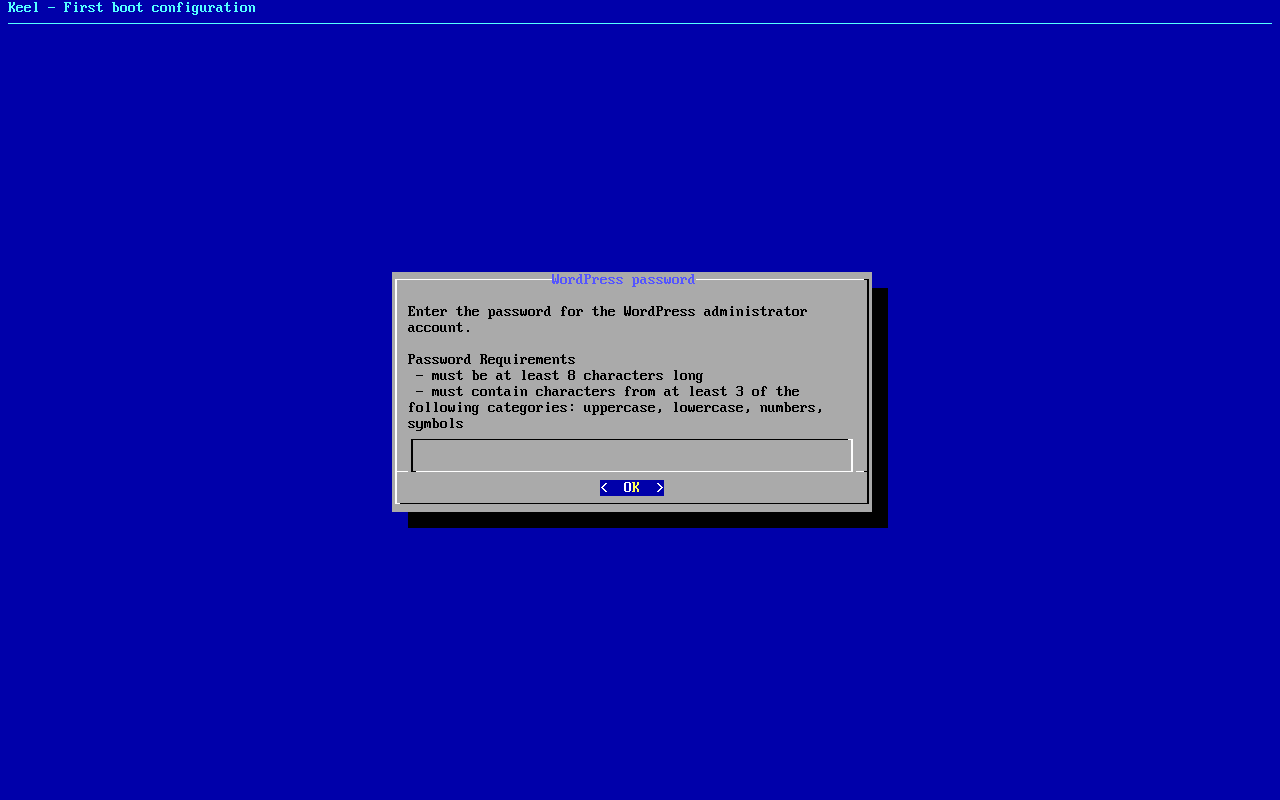
typed:
(the app secret)<ret> - 22
wordpress password
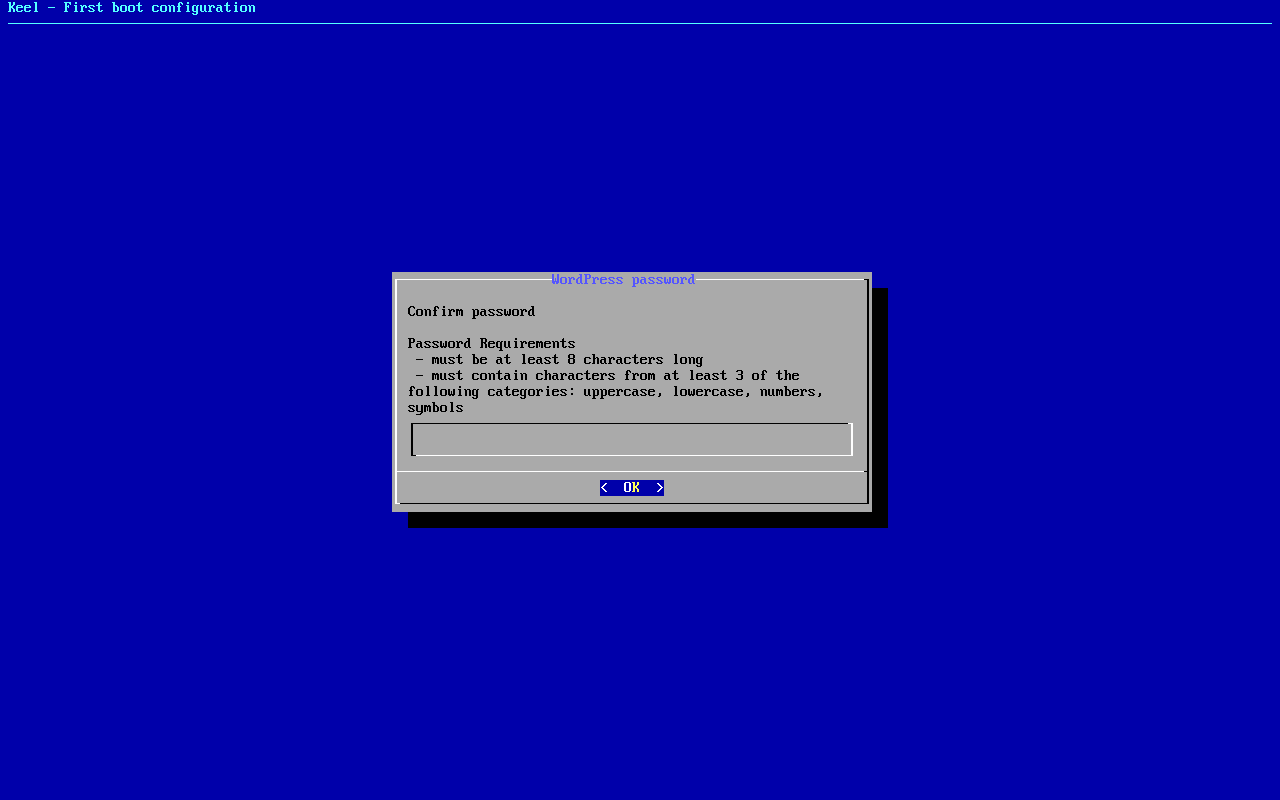
typed:
(the app secret)<ret> - 23
firstboot-screen
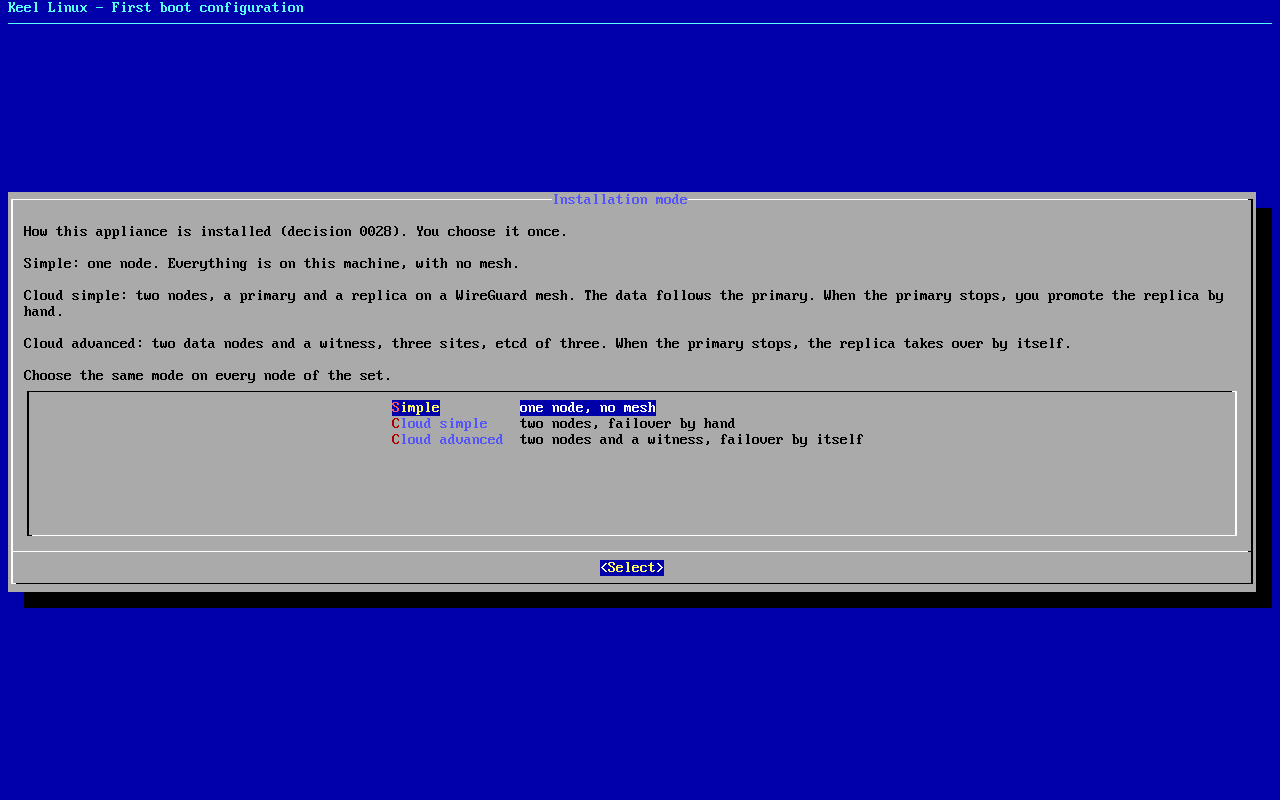
typed:
<ret> - 24
firstboot-screen
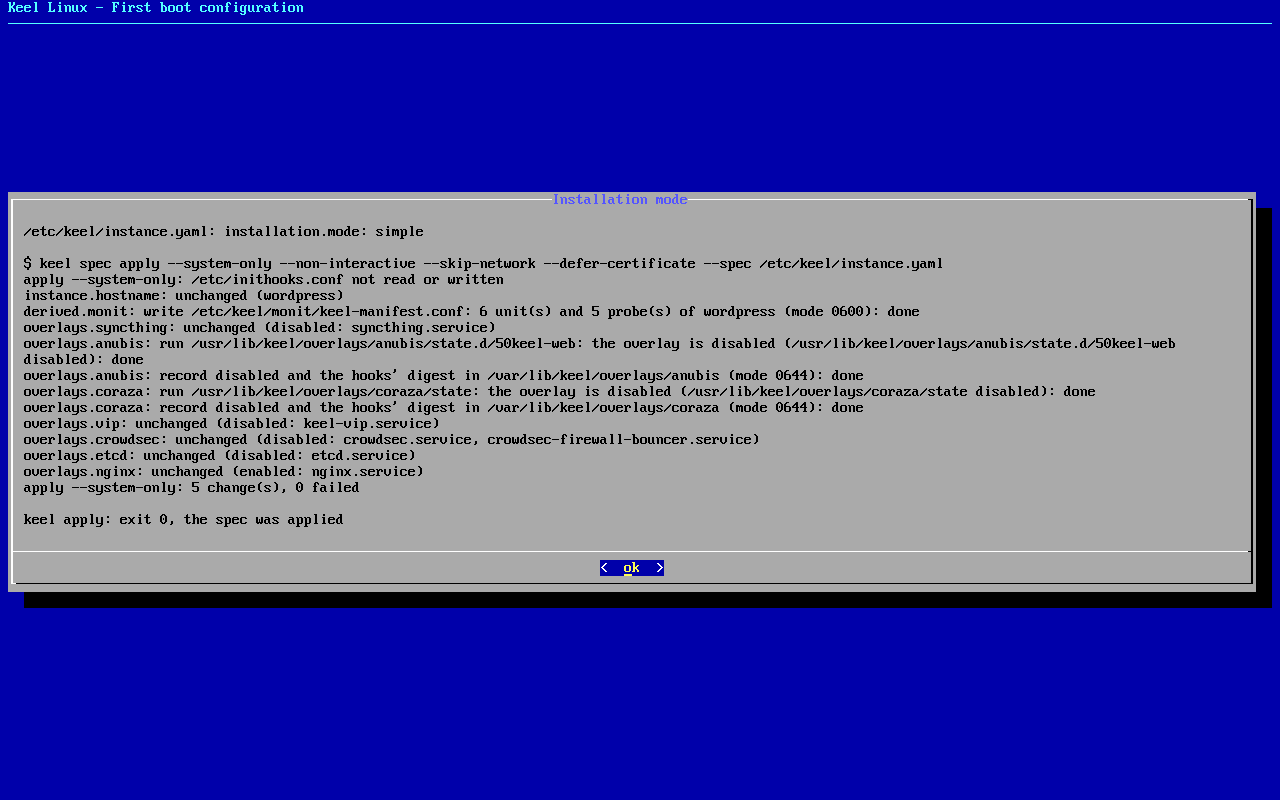
typed:
<ret> - 25
alert email
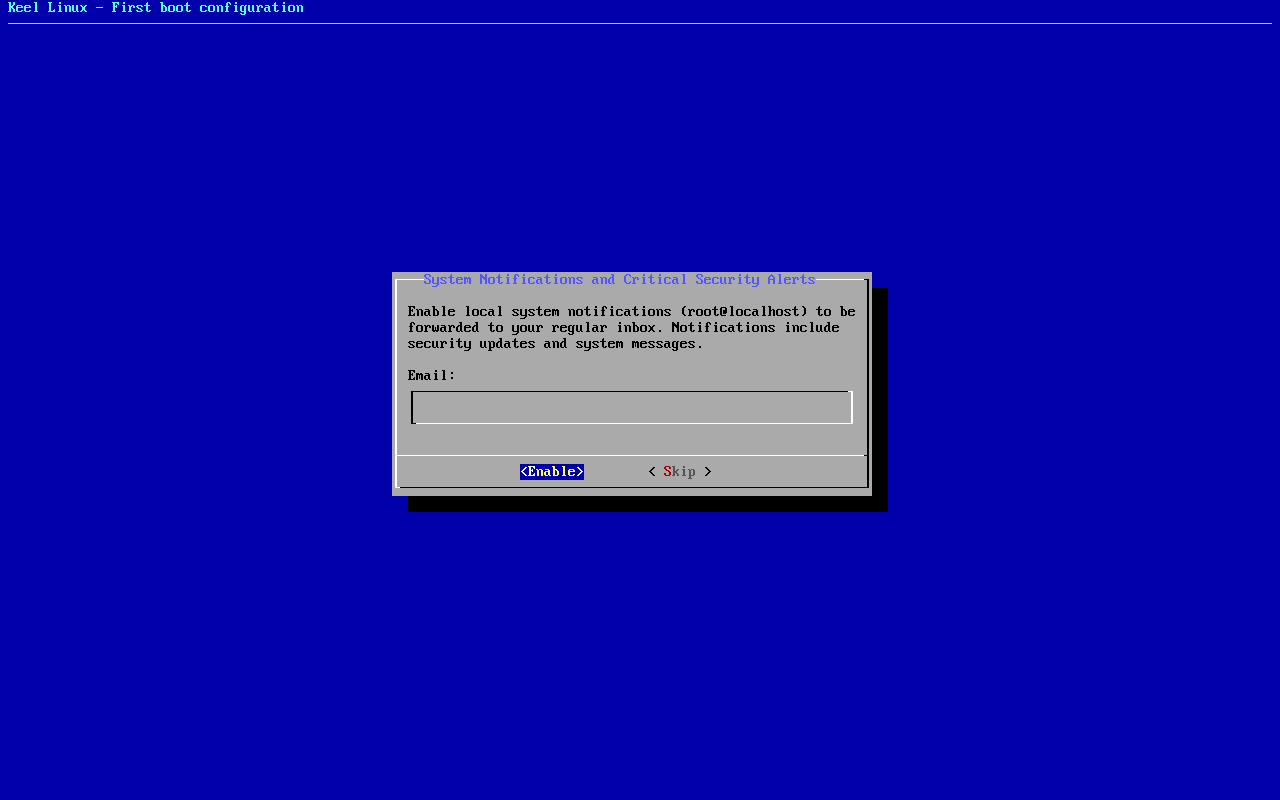
typed:
admin@example.org<ret> - 26
firstboot-screen
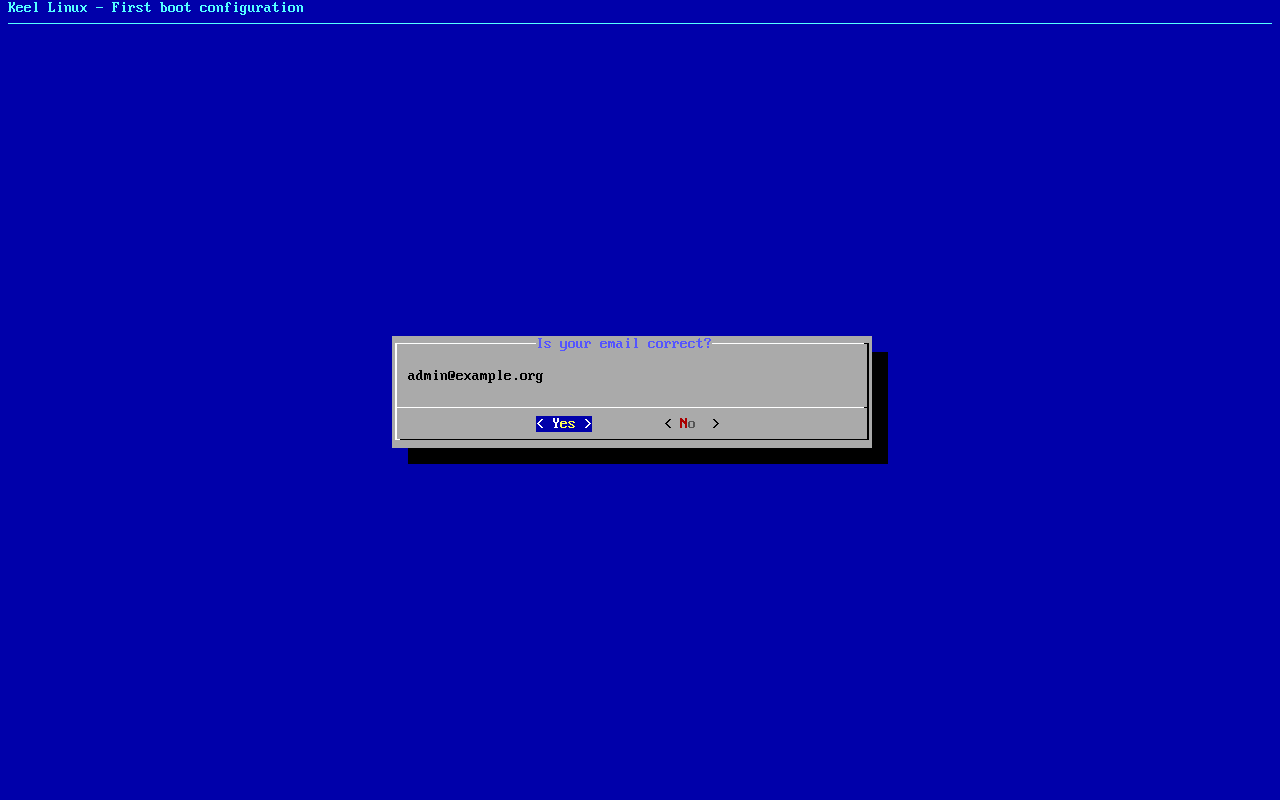
typed:
<ret> - 27
firstboot-screen
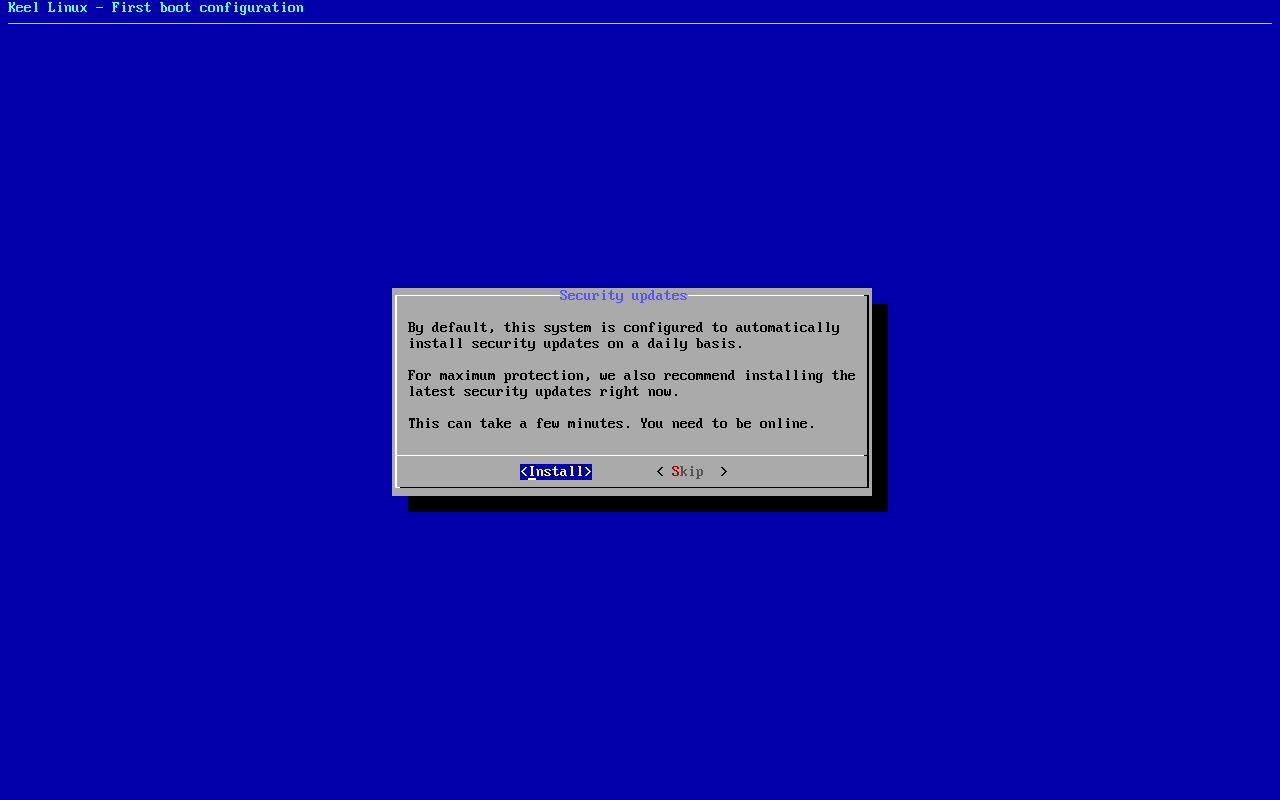
typed:
<ret> - 28
firstboot-end
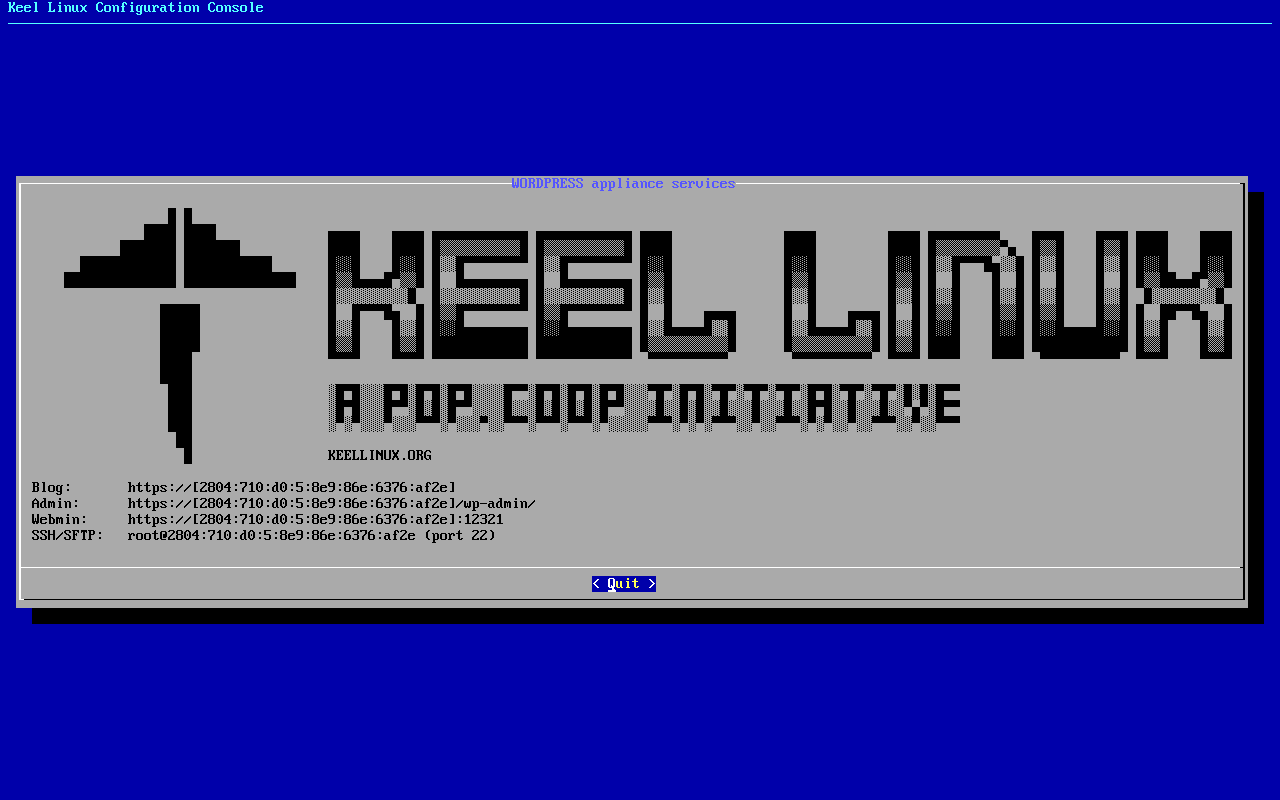
- 29
web: site

typed:
open / - 30
web: wp-admin
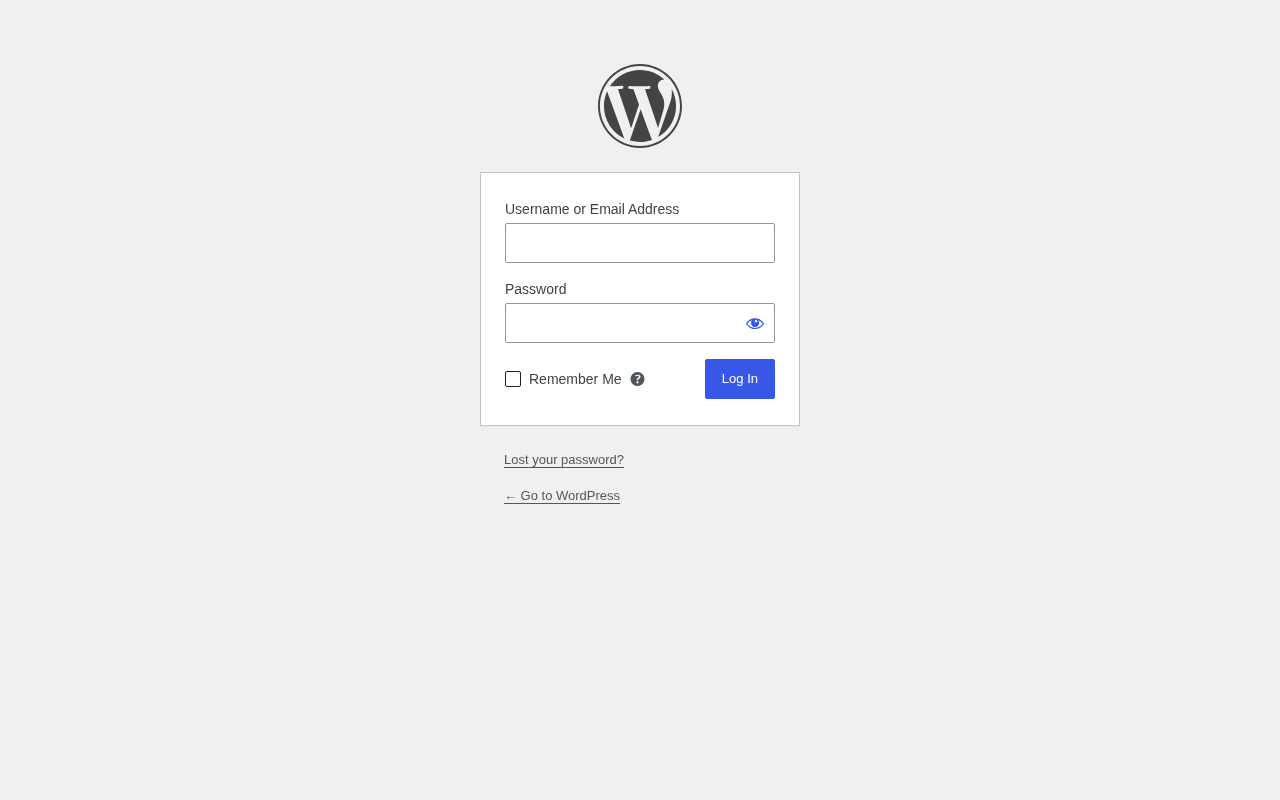
typed:
user admin, the app secret - 31
web: wp-admin-after

typed:
after the login: /wp-admin/ - 32
web: webmin
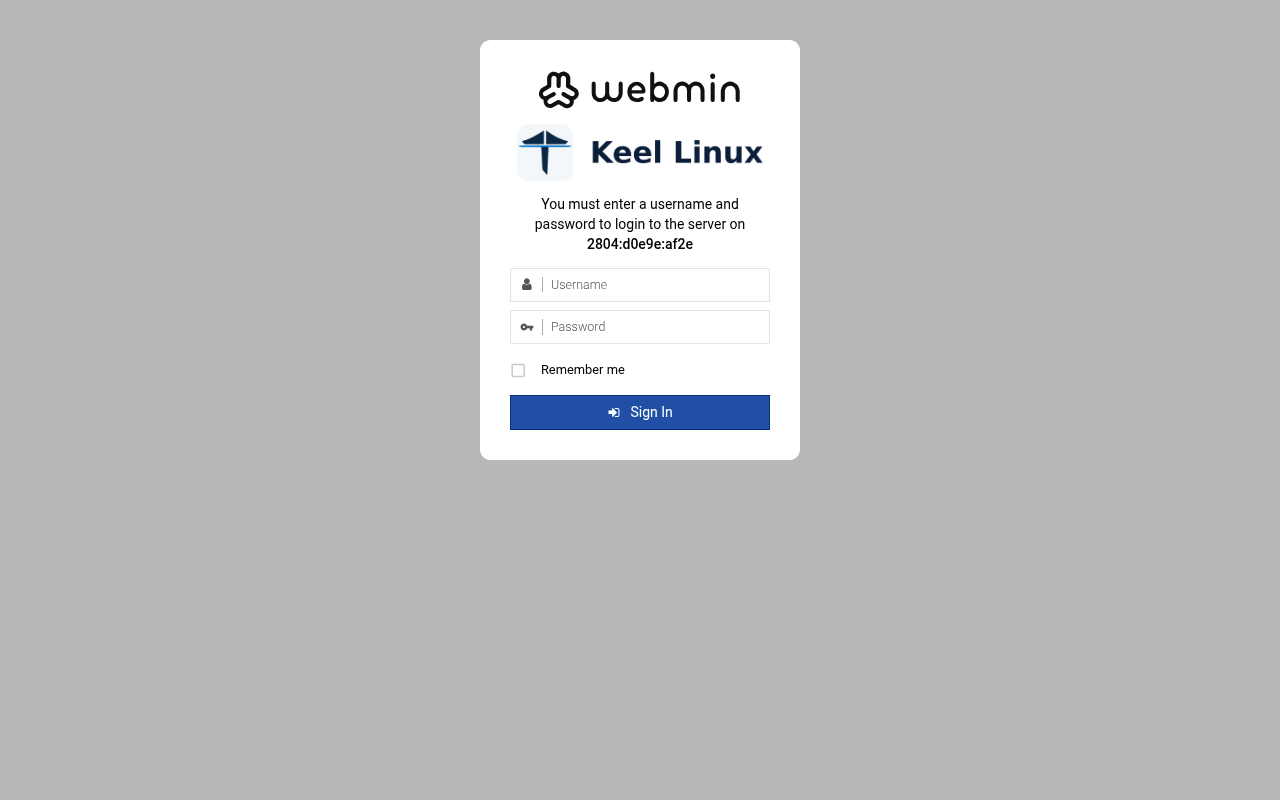
typed:
user root, the root secret - 33
web: webmin-after
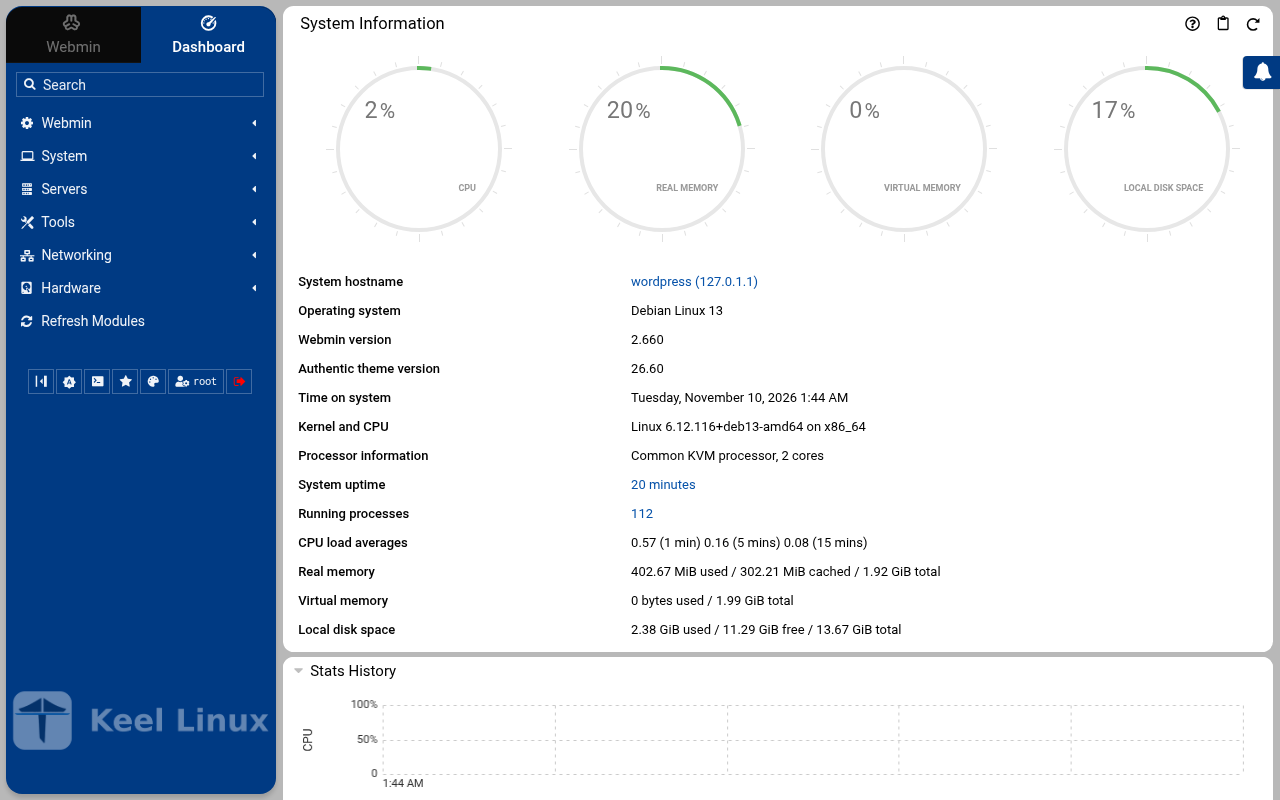
typed:
after the login: the page the login opened
Cloud simple: two nodes, failover by hand
| Step | Primary, BR1 | Replica, BR2 |
|---|---|---|
| 1 | root password the screen, as textConnected to tty 1 Type <Ctrl+a q> to exit the console, <Ctrl+a Ctrl+a> to enter Ctrl+a itself press Enter within 5 s to answer first-boot questions Keel Linux Configuration Console KC9383 appliance services < Quit > Blog:https://[2804:710:d0:5:be24:11ff:fe2c:6363]Admin:https://[2804:710:d0:5:be24:11ff:fe2c:6363]/wp-admin/Webmin: https://[2804:710:d0:5:be24:11ff:fe2c:6363]:12321SSH/SFTP: root@2804:710:d0:5:be24:11ff:fe2c:6363 (port 22) Keel Linux Configuration Console KC9383 appliance services < Quit > Blog:https://[2804:710:d0:5:be24:11ff:fe2c:6363]Admin:https://[2804:710:d0:5:be24:11ff:fe2c:6363]/wp-admin/Webmin: https://[2804:710:d0:5:be24:11ff:fe2c:6363]:12321SSH/SFTP: root@2804:710:d0:5:be24:11ff:fe2c:6363 (port 22) Debian GNU/Linux 13 kc9383 tty1 kc9383 login: root Password: Keel Linux wordpress 19.0-trixie-amd64 IPv6 SSH: root@2804:710:d0:5:be24:11ff:fe2c:6363 Welcome to kc9383, Keel Linux 19.0 (Debian 13/Trixie) System information for Tue Nov 10 02:39:02 2026 (UTC+0000) System load: 8.43 Memory usage: 17.4% Processes: 36 Swap usage: 0.0% Usage of /: 18.7% of 7.78GB Networking not configured This system is not initialized yet: run keel-init to set it up. For Advanced commandline config run: confconsole For more info see: https://github.com/Keel-Linux/confconsole Linux kc9383 7.0.14-12-pve #1 SMP PREEMPT_DYNAMIC PMX 7.0.14-12 (2026-08-11T11:05Z) x86_64 === Keel Linux - First boot configuration Root Password Please enter new password for the root account. Choose how to set this password: Generate A strong random password (recommended) Manual Type my own password < OK >Generate A strong random password (recommended)Manual Type my own password Keel Linux - First boot configuration Root Password Please enter new password for the root account. Password Requirements - must be at least 8 characters long - must contain characters from at least 3 of the following categories: uppercase, lowercase, numbers, symbols < OK >x typed: | root password the screen, as textConnected to tty 1 Type <Ctrl+a q> to exit the console, <Ctrl+a Ctrl+a> to enter Ctrl+a itself press Enter within 5 s to answer first-boot questions Keel KC9384 appliance services < Quit > Blog:https://[fd00:218:88:0:d21c:6a4b:e3ed:70f0]Admin:https://[fd00:218:88:0:d21c:6a4b:e3ed:70f0]/wp-admin/Webmin: https://[fd00:218:88:0:d21c:6a4b:e3ed:70f0]:12321SSH/SFTP: root@fd00:218:88:0:d21c:6a4b:e3ed:70f0 (port 22)Blog:https://10.218.88.103Admin:https://10.218.88.103/wp-admin/Webmin: https://10.218.88.103:12321SSH/SFTP: root@10.218.88.103 (port 22) Keel Linux Configuration Console KC9384 appliance services < Quit > Blog:https://[fd00:218:88:0:d21c:6a4b:e3ed:70f0]Admin:https://[fd00:218:88:0:d21c:6a4b:e3ed:70f0]/wp-admin/Webmin: https://[fd00:218:88:0:d21c:6a4b:e3ed:70f0]:12321SSH/SFTP: root@fd00:218:88:0:d21c:6a4b:e3ed:70f0 (port 22)Blog:https://10.218.88.103Admin:https://10.218.88.103/wp-admin/Webmin: https://10.218.88.103:12321SSH/SFTP: root@10.218.88.103 (port 22) Debian GNU/Linux 13 kc9384 tty1 kc9384 login: root Password: Keel Linux wordpress 19.0-trixie-amd64 IPv6 SSH: root@2804:7f0:9880:6c3:f672:d2db:7eb7:843 IPv4 SSH: root@10.218.88.103 Welcome to kc9384, Keel Linux 19.0 (Debian 13/Trixie) System information for Tue Nov 10 02:43:11 2026 (UTC+0000) System load: 6.27 Memory usage: 13.2% Processes: 39 Swap usage: 0.0% Usage of /: 11.4% of 8.00GB IP address for eth0: 10.218.88.103 This system is not initialized yet: run keel-init to set it up. For Advanced commandline config run: confconsole For more info see: https://github.com/Keel-Linux/confconsole Linux kc9384 7.0.14-19-pve #1 SMP PREEMPT_DYNAMIC PMX 7.0.14-19 (2026-09-18T07:31Z) x86_64 === Keel Linux - First boot configuration Root Password Please enter new password for the root account. Choose how to set this password: Generate A strong random password (recommended) Manual Type my own password < OK >Generate A strong random password (recommended)Manual Type my own password Keel Linux - First boot configuration Root Password Please enter new password for the root account. Password Requirements - must be at least 8 characters long - must contain characters from at least 3 of the following categories: uppercase, lowercase, numbers, symbols < OK >x typed: |
| 2 | root password the screen, as text******** Keel Linux - First boot configuration Root Password Confirm password Password Requirements - must be at least 8 characters long - must contain characters from at least 3 of the following categories: uppercase, lowercase, numbers, symbols < OK >x typed: | root password the screen, as text******** Keel Linux - First boot configuration Root Password Confirm password Password Requirements - must be at least 8 characters long - must contain characters from at least 3 of the following categories: uppercase, lowercase, numbers, symbols < OK >x typed: |
| 3 | db password the screen, as text******** Keel Linux - First boot configuration kc9383.pop.coop Domain name xxx The name this machine is reached by, with its domain, xx for example blog.example.org. It becomes the hostname, xx the name /etc/hosts answers for this machine, and the xx domain a TLS certificate is requested for in xx confconsole.xxxx Leave the field empty to keep the name the machine has. xxxx Fully qualified domain name:x <Apply>x >fqdn: /etc/keel/instance.yaml already declares the name, not written === Keel - First boot configuration MariaDB password Enter the password for the MariaDB administrative account. Choose how to set this password: Generate A strong random password (recommended) Manual Type my own password < OK >Generate A strong random password (recommended)Manual Type my own password Keel - First boot configuration MariaDB password Enter the password for the MariaDB administrative account. Password Requirements - must be at least 8 characters long - must contain characters from at least 3 of the following categories: uppercase, lowercase, numbers, symbols tq qu x< OK >x typed: | db password the screen, as text******** Keel Linux - First boot configuration kc9384.pop.coop Domain name xxx The name this machine is reached by, with its domain, xx for example blog.example.org. It becomes the hostname, xx the name /etc/hosts answers for this machine, and the xx domain a TLS certificate is requested for in xx confconsole.xxxx Leave the field empty to keep the name the machine has. xxxx Fully qualified domain name:x <Apply>x >fqdn: /etc/keel/instance.yaml already declares the name, not written === Keel - First boot configuration MariaDB password Enter the password for the MariaDB administrative account. Choose how to set this password: Generate A strong random password (recommended) Manual Type my own password < OK >Generate A strong random password (recommended)Manual Type my own password Keel - First boot configuration MariaDB password Enter the password for the MariaDB administrative account. Password Requirements - must be at least 8 characters long - must contain characters from at least 3 of the following categories: uppercase, lowercase, numbers, symbols tq qu x< OK >x typed: |
| 4 | db password the screen, as text******** Keel - First boot configuration MariaDB password Confirm password Password Requirements - must be at least 8 characters long - must contain characters from at least 3 of the following categories: uppercase, lowercase, numbers, symbols < OK >x typed: | db password the screen, as text******** Keel - First boot configuration MariaDB password Confirm password Password Requirements - must be at least 8 characters long - must contain characters from at least 3 of the following categories: uppercase, lowercase, numbers, symbols < OK >x typed: |
| 5 | wordpress password the screen, as text********>WARNING: option --ssl-verify-server-cert is disabled, because of an insecure passwordless login. MariaDB account 'admin' set from DB_PASS (24 characters), verified on [::1]:3306 === Keel - First boot configuration WordPress password Enter the password for the WordPress administrator account. Choose how to set this password: Generate A strong random password (recommended) Manual Type my own password < OK >Generate A strong random password (recommended)Manual Type my own password Keel - First boot configuration WordPress password Enter the password for the WordPress administrator account. Password Requirements - must be at least 8 characters long - must contain characters from at least 3 of the following categories: uppercase, lowercase, numbers, symbols tq qu x< OK >x typed: | wordpress password the screen, as text********>WARNING: option --ssl-verify-server-cert is disabled, because of an insecure passwordless login. MariaDB account 'admin' set from DB_PASS (24 characters), verified on [::1]:3306 === Keel - First boot configuration WordPress password Enter the password for the WordPress administrator account. Choose how to set this password: Generate A strong random password (recommended) Manual Type my own password < OK >Generate A strong random password (recommended)Manual Type my own password Keel - First boot configuration WordPress password Enter the password for the WordPress administrator account. Password Requirements - must be at least 8 characters long - must contain characters from at least 3 of the following categories: uppercase, lowercase, numbers, symbols tq qu x< OK >x typed: |
| 6 | wordpress password the screen, as text******** Keel - First boot configuration WordPress password Confirm password Password Requirements - must be at least 8 characters long - must contain characters from at least 3 of the following categories: uppercase, lowercase, numbers, symbols < OK >x typed: | wordpress password the screen, as text******** Keel - First boot configuration WordPress password Confirm password Password Requirements - must be at least 8 characters long - must contain characters from at least 3 of the following categories: uppercase, lowercase, numbers, symbols < OK >x typed: |
| 7 | mode the screen, as text********>wp-config.php written: database 'wordpress' as 'www-data' over the socket of localhost, with no password and no salt Success: WordPress installed successfully. WordPress installed: 'WordPress' at http://localhost, administrator 'admin' the salts are options of the database WordPress administrator 'admin' set from APP_PASS (24 characters), authenticated against the site itself === Keel Linux - First boot configuration Installation mode How this appliance is installed (decision 0028). You choose it once. Simple: one node. Everything is on this machine, with no mesh. Cloud simple: two nodes, a primary and a replica on a WireGuard mesh. The data follows the primary. When the primary stops, you promote the replica by hand. Cloud advanced: two data nodes and a witness, three sites, etcd of three. When the primary stops, the replica takes over by itself. Choose the same mode on every node of the set. Simple one node, no mesh Cloud simple two nodes, failover by hand Cloud advanced two nodes and a witness, failover by itself <Select> typed: | mode the screen, as text********>wp-config.php written: database 'wordpress' as 'www-data' over the socket of localhost, with no password and no salt Success: WordPress installed successfully. WordPress installed: 'WordPress' at http://localhost, administrator 'admin' the salts are options of the database WordPress administrator 'admin' set from APP_PASS (24 characters), authenticated against the site itself === Keel Linux - First boot configuration Installation mode How this appliance is installed (decision 0028). You choose it once. Simple: one node. Everything is on this machine, with no mesh. Cloud simple: two nodes, a primary and a replica on a WireGuard mesh. The data follows the primary. When the primary stops, you promote the replica by hand. Cloud advanced: two data nodes and a witness, three sites, etcd of three. When the primary stops, the replica takes over by itself. Choose the same mode on every node of the set. Simple one node, no mesh Cloud simple two nodes, failover by hand Cloud advanced two nodes and a witness, failover by itself <Select> typed: |
| 8 | role the screen, as textSimpleone node, no meshCloud simple two nodes, failover by hand> == Keel Linux - First boot configuration Installation mode < ok >x /etc/keel/instance.yaml: installation.mode: cloud_simple$ keel spec apply --system-only --non-interactive --skip-network --defer-certificate --spec/etc/keel/instance.yaml2026-11-10 02:39:31 INF Generating key and certificate (cn=syncthing log.pkg=syncthing)2026-11-10 02:39:31 INF Calculated device ID(device=26ATM7U-K4YSE5L-OUZVL5D-DDEFHPJ-RJ447GN-BLG47MQ-PRYPV2J-GPVAOQT log.pkg=github)apply --system-only: /etc/inithooks.conf not read or writteninstance.hostname: unchanged (kc9383)instance.fqdn: unchanged (/etc/hosts maps kc9383 to kc9383.pop.coop)derived.monit: crowdsec not watched: crowdsec.service starts only when /etc/crowdsec/local_api_credentials.yamlexists (ConditionPathExists)derived.monit: crowdsec-lapi not watched: its process crowdsec is not watched: crowdsec.service starts only when/etc/crowdsec/local_api_credentials.yaml exists (ConditionPathExists)derived.monit: write /etc/keel/monit/keel-manifest.conf: 9 unit(s) and 8 probe(s) of wordpress (mode 0600): doneoverlays.vip: unchanged (disabled: keel-vip.service)overlays.etcd: unchanged (disabled: etcd.service)overlays.crowdsec: create /etc/crowdsec/online_api_credentials.yaml empty, which CrowdSec's unit needs and whichsays not registered yet (mode 0600): doneoverlays.crowdsec: register this machine with CrowdSec's local API; cscli writes the password to/etc/crowdsec/local_api_credentials.yaml (cscli --error machines add --auto --force): doneoverlays.crowdsec: register with CrowdSec's central API (cscli --error capi register): doneoverlays.crowdsec: register CrowdSec's firewall bouncer (cscli bouncers add) and write its key to/etc/crowdsec/bouncers/crowdsec-firewall-bouncer.yaml.local (mode 0600, never printed) and its name to/etc/crowdsec/bouncers/crowdsec-firewall-bouncer.yaml.id, mode: nftables: doneoverlays.crowdsec: enable crowdsec.service: the overlay is enabled (systemctl enable crowdsec.service): doneoverlays.crowdsec: start crowdsec.service (systemctl start crowdsec.service): doneoverlays.crowdsec: enable crowdsec-firewall-bouncer.service: the overlay is enabled (systemctl enablecrowdsec-firewall-bouncer.service): doneoverlays.crowdsec: start crowdsec-firewall-bouncer.service (systemctl start crowdsec-firewall-bouncer.service):done50% Keel Linux - First boot configuration Role of this node What this node is in its set of two (cloud simple). Primary: the first node. It makes the mesh and invites the replica with a line you copy to it. Replica: the second node. It joins with that line, and its data follows the primary. Primary the first node: makes the mesh, invites Replica joins the primary; its data follows it <Select> typed: | role the screen, as textSimpleone node, no meshCloud simple two nodes, failover by hand> == Keel Linux - First boot configuration Installation mode < ok >x /etc/keel/instance.yaml: installation.mode: cloud_simple$ keel spec apply --system-only --non-interactive --skip-network --defer-certificate --spec/etc/keel/instance.yaml2026-11-10 02:43:51 INF Generating key and certificate (cn=syncthing log.pkg=syncthing)2026-11-10 02:43:51 INF Calculated device ID(device=2JKEGEN-5RY7LSD-V53QIY2-THRO66H-4N4IIJA-L4SYK7C-7OWRV4M-RYXMXAN log.pkg=github)apply --system-only: /etc/inithooks.conf not read or writteninstance.hostname: unchanged (kc9384)instance.fqdn: unchanged (/etc/hosts maps kc9384 to kc9384.pop.coop)derived.monit: crowdsec not watched: crowdsec.service starts only when /etc/crowdsec/local_api_credentials.yamlexists (ConditionPathExists)derived.monit: crowdsec-lapi not watched: its process crowdsec is not watched: crowdsec.service starts only when/etc/crowdsec/local_api_credentials.yaml exists (ConditionPathExists)derived.monit: write /etc/keel/monit/keel-manifest.conf: 9 unit(s) and 8 probe(s) of wordpress (mode 0600): doneoverlays.vip: unchanged (disabled: keel-vip.service)overlays.etcd: unchanged (disabled: etcd.service)overlays.crowdsec: create /etc/crowdsec/online_api_credentials.yaml empty, which CrowdSec's unit needs and whichsays not registered yet (mode 0600): doneoverlays.crowdsec: register this machine with CrowdSec's local API; cscli writes the password to/etc/crowdsec/local_api_credentials.yaml (cscli --error machines add --auto --force): doneoverlays.crowdsec: register with CrowdSec's central API (cscli --error capi register): doneoverlays.crowdsec: register CrowdSec's firewall bouncer (cscli bouncers add) and write its key to/etc/crowdsec/bouncers/crowdsec-firewall-bouncer.yaml.local (mode 0600, never printed) and its name to/etc/crowdsec/bouncers/crowdsec-firewall-bouncer.yaml.id, mode: nftables: doneoverlays.crowdsec: enable crowdsec.service: the overlay is enabled (systemctl enable crowdsec.service): doneoverlays.crowdsec: start crowdsec.service (systemctl start crowdsec.service): doneoverlays.crowdsec: enable crowdsec-firewall-bouncer.service: the overlay is enabled (systemctl enablecrowdsec-firewall-bouncer.service): doneoverlays.crowdsec: start crowdsec-firewall-bouncer.service (systemctl start crowdsec-firewall-bouncer.service):done50% Keel Linux - First boot configuration Role of this node What this node is in its set of two (cloud simple). Primary: the first node. It makes the mesh and invites the replica with a line you copy to it. Replica: the second node. It joins with that line, and its data follows the primary. Primary the first node: makes the mesh, invites Replica joins the primary; its data follows it <Select> typed: |
| 9 | invite the screen, as textKeel Linux - First boot configuration keel mesh create: making the mesh... Keel Linux - First boot configuration Make the mesh < ok >x $ keel mesh createcreated the mesh: this node is fd14:aaa2:3ea5::1/64 on wg0, WireGuard on UDP 51820keel mesh invite prints the line that joins the next nodeconfirming the new overlayconfirmed from keel mesh createthe overlay has no peer, so nothing can cross it: keel mesh create confirmed it once the routes to the gatewaysand to the operator's session were found to still leave through the uplinkwg-quick@wg0 enabled: the overlay comes back up at bootthe network change stays; the revert is cancelledmesh: this node holds the mesh's root CA, which signs the database certificates of a cloud simple pairkeel mesh: exit 0, done>Invite a node This node invites the replica (node 2) into its mesh. Copy the line below to the replica (node 2): paste it into its Join a mesh screen, or run it there as root. It can be used once, until 2026-11-10T03:40:13Z. The line carries the service address of the pair, shown below: this node writes it as its appliance.vip, and the replica takes it from the join. Nobody types it. Copy this line to the replica (node 2), on one line, as it is. It is a secret: it lets one node join this mesh. keel mesh join - <<< <invite 1> VIP: fd14:aaa2:3ea5::ffff:1 Expires: 2026-11-10T03:40:13Z Press Enter to go on: typed: | join the screen, as textPrimary the first node: makes the mesh, invitesReplica joins the primary; its data follows it Keel Linux - First boot configuration Join a mesh Paste the line that Invite a node shows on the inviting node: keel mesh join - <<< keel2:... The token alone (keel2:...) is accepted too. It goes to keel on its standard input, never on a command line. < OK > <Cancel>x typed: |
| 10 | alert email the screen, as text<Select> < Back >x 4 3 2 1 0 Keel Linux - First boot configuration Waiting for the nodes Waiting for the replica (node 2) to join with the line, checked every 5 s. Back gives a menu: Paste accept line, when the join printed one (keel mesh accept keel1a:...), or the line again. This node: fd14:aaa2:3ea5::1/64 VIP: fd14:aaa2:3ea5::ffff:1, holder none yet 5 <Select> < Back >x 4 3 2 1 0 Keel Linux - First boot configuration Take the VIP Waiting for the replica to pair with this node (keel vip pair on the replica). Then this node applies its description and takes the VIP. If the replica says it paired and nothing moves here, choose Back and Take it now. This node: fd14:aaa2:3ea5::1/64 Member: fd14:aaa2:3ea5::f2f8, reached VIP: fd14:aaa2:3ea5::ffff:1, holder none yet 5 <Select> < Back >x 4 3 2 1> == Keel Linux - First boot configuration Take the VIP < ok >x $ keel vip promotefd14:aaa2:3ea5::f2f8: appliedthis node holds fd14:aaa2:3ea5::ffff:1 at epoch 1, on wg0, taken by the other member of the pair; the otherpeers are told in the backgroundkeel vip: exit 0, done Keel Linux - First boot configuration Status of this node < ok >x $ keel vip statusvip fd14:aaa2:3ea5::ffff:1: this node's appliance.viprole: primaryepoch 1, held by <public key> at fd14:aaa2:3ea5::1carried here: yesrouted to: no peer$ keel mesh statusthis node: fd14:aaa2:3ea5::1/64 on wg0, WireGuard on UDP 51820mesh identity: f248db4e5385f2331c2e7fa76afbb304public key: <public key>peers: 1<public key> fd14:aaa2:3ea5::f2f8/128[2804:7f0:9880:6c3:f672:d2db:7eb7:843]:51820 handshake 52 s agopending invites: 0etcd: not on this node (installation.mode cloud_simple; etcd runs on cloud advanced members only)vip fd14:aaa2:3ea5::ffff:1: this node's appliance.viprole: primaryepoch 1, held by <public key> at fd14:aaa2:3ea5::1carried here: yesrouted to: no peer$ keel database statuspair: VIP fd14:aaa2:3ea5::ffff:1; role here primaryother member: fd14:aaa2:3ea5::f2f8 (<public key>)the primary's address: fd14:aaa2:3ea5::1dump: none yetserver: primary (mariadb --batch --skip-column-names --execute SELECT Host FROM mysql.user WHERE Repl_slave_priv= 'Y': replication is granted from fd14:aaa2:3ea5::f2f8)read_only: truesemi-synchronous: master ON, slave OFF, 0 replica(s) acknowledging, 0 commits acknowledged, 0 not78% >keelfirstboot cloud: Keel Cloud is not available yet: no key is asked, and this node runs standalone. It is offered once /etc/keel/cloud-endpoint names the service. === Keel Linux - First boot configuration System Notifications and Critical Security Alerts Enable local system notifications (root@localhost) to be forwarded to your regular inbox. Notifications include security updates and system messages. Email: <Enable> < Skip >x typed: | alert email the screen, as textVIP: fd14:aaa2:3ea5::ffff:1, holder none yet 5 <Select> < Back >x 4 3 2 1 Keel Linux - First boot configuration Pair with the primary Paired. Waiting for the primary to take the VIP: its screen does it once this node has paired. This node: fd14:aaa2:3ea5::f2f8/64 Member: fd14:aaa2:3ea5::1, reached VIP: fd14:aaa2:3ea5::ffff:1, holder none yet 5 <Select> < Back >x 4 3 2 1 Keel Linux - First boot configuration Pair with the primary Paired. Waiting for the primary to take the VIP: its screen does it once this node has paired. This node: fd14:aaa2:3ea5::f2f8/64 Member: fd14:aaa2:3ea5::1, reached VIP: fd14:aaa2:3ea5::ffff:1, holder none yet 5 <Select> < Back >x 4 3 2 1 0> == Keel Linux - First boot configuration Pair with the primary < ok >x /etc/keel/instance.yaml: database.server.role: replica$ keel spec apply --system-only --non-interactive --skip-network --defer-certificate --spec/etc/keel/instance.yamlapply --system-only: /etc/inithooks.conf not read or writteninstance.hostname: unchanged (kc9384)instance.fqdn: unchanged (/etc/hosts maps kc9384 to kc9384.pop.coop)database.server: make or renew the database certificate for fd14:aaa2:3ea5::f2f8 and fd14:aaa2:3ea5::ffff:1,signed by the mesh's root CA (here, or asked of its holder over the members' channel), under the engine's TLSdirectory (etc/mysql/keel-tls or etc/postgresql/keel-tls): kept: the certificate is not due for renewal, and nofile changeddatabase.server: write /etc/sysctl.d/90-keel-database.conf: both nodes bind the VIP (mode 0644): donedatabase.server: let the server bind the VIP before it carries it (sysctl -q -w net.ipv6.ip_nonlocal_bind=1):donedatabase.server: write /etc/mysql/mariadb.conf.d/99-keel-database.cnf: a paired node, server id 1573778256,binary log, GTID strict, semi-synchronous replication, TLS, the VIP fd14:aaa2:3ea5::ffff:1 bound (mode 0644):donedatabase.server: restart the server, which is the only way these take effect (systemctl restart mariadb): donedatabase.server.replication.allowed_from: authorize replication from fd14:aaa2:3ea5::1 with the certificate/CN=keel-fd14-aaa2-3ea5--1 mariadb of the mesh's root, outside the binary log (runuser -u mysql -- mariadb--batch, 5 statement(s) on standard input): donedatabase.server.role: the role is the VIP's: replica here (epoch known, held at fd14:aaa2:3ea5::1); the declaredreplica is the installation's (0020)database.server.role: make the server follow the pair's VIP (keel database follow): the holder writable, theother node read only and replicating from the holder over TLS, an old primary rejoined by GTID when it holdsnothing the holder lacks: donederived.monit: keel-vip not watched: keel-vip.service starts only when /var/lib/keel/etcd/cluster.json exists(ConditionPathExists)derived.monit: unchanged (/etc/keel/monit/keel-manifest.conf, 10 unit(s) and 9 probe(s) of wordpress, notincluded)overlays.etcd: unchanged (disabled: etcd.service)55% Keel Linux - First boot configuration Status of this node < ok >x $ keel vip statusvip fd14:aaa2:3ea5::ffff:1: this node's appliance.viprole: replicaepoch 1, held by <public key> at fd14:aaa2:3ea5::1carried here: norouted to: <public key>$ keel mesh statusthis node: fd14:aaa2:3ea5::f2f8/64 on wg0, WireGuard on UDP 51820mesh identity: f248db4e5385f2331c2e7fa76afbb304public key: <public key>peers: 1<public key> fd14:aaa2:3ea5::1/128 [2804:710:d0:5:be24:11ff:fe2c:6363]:51820handshake 68 s agopending invites: 0etcd: not on this node (installation.mode cloud_simple; etcd runs on cloud advanced members only)vip fd14:aaa2:3ea5::ffff:1: this node's appliance.viprole: replicaepoch 1, held by <public key> at fd14:aaa2:3ea5::1carried here: norouted to: <public key>$ keel database statuspair: VIP fd14:aaa2:3ea5::ffff:1; role here replicaother member: fd14:aaa2:3ea5::1 (<public key>)the primary's address: fd14:aaa2:3ea5::1dump: none yetserver: replica (mariadb --batch --execute SHOW REPLICA STATUS\G)read_only: truesemi-synchronous: master ON, slave ON, 0 replica(s) acknowledging, 0 commits acknowledged, 0 notreplicating from: [fd14:aaa2:3ea5::1]:3306; IO Yes, SQL Yes; lag 0; TLS Yes; GTID IO position80% >keelfirstboot cloud: Keel Cloud is not available yet: no key is asked, and this node runs standalone. It is offered once /etc/keel/cloud-endpoint names the service. === Keel Linux - First boot configuration System Notifications and Critical Security Alerts Enable local system notifications (root@localhost) to be forwarded to your regular inbox. Notifications include security updates and system messages. Email: <Enable> < Skip >x typed: |
| 11 | web: site  typed: | web: site  typed: |
| 12 | web: wp-admin 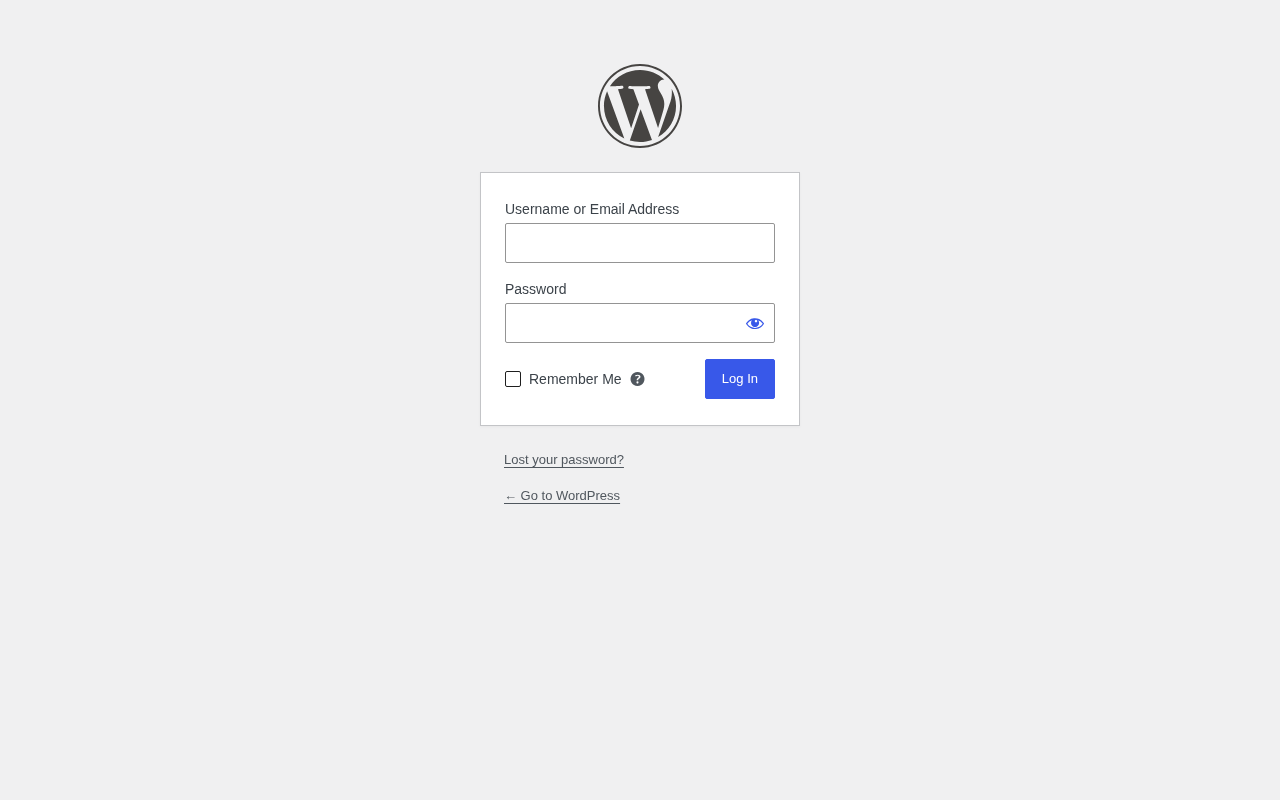 typed: | web: wp-login 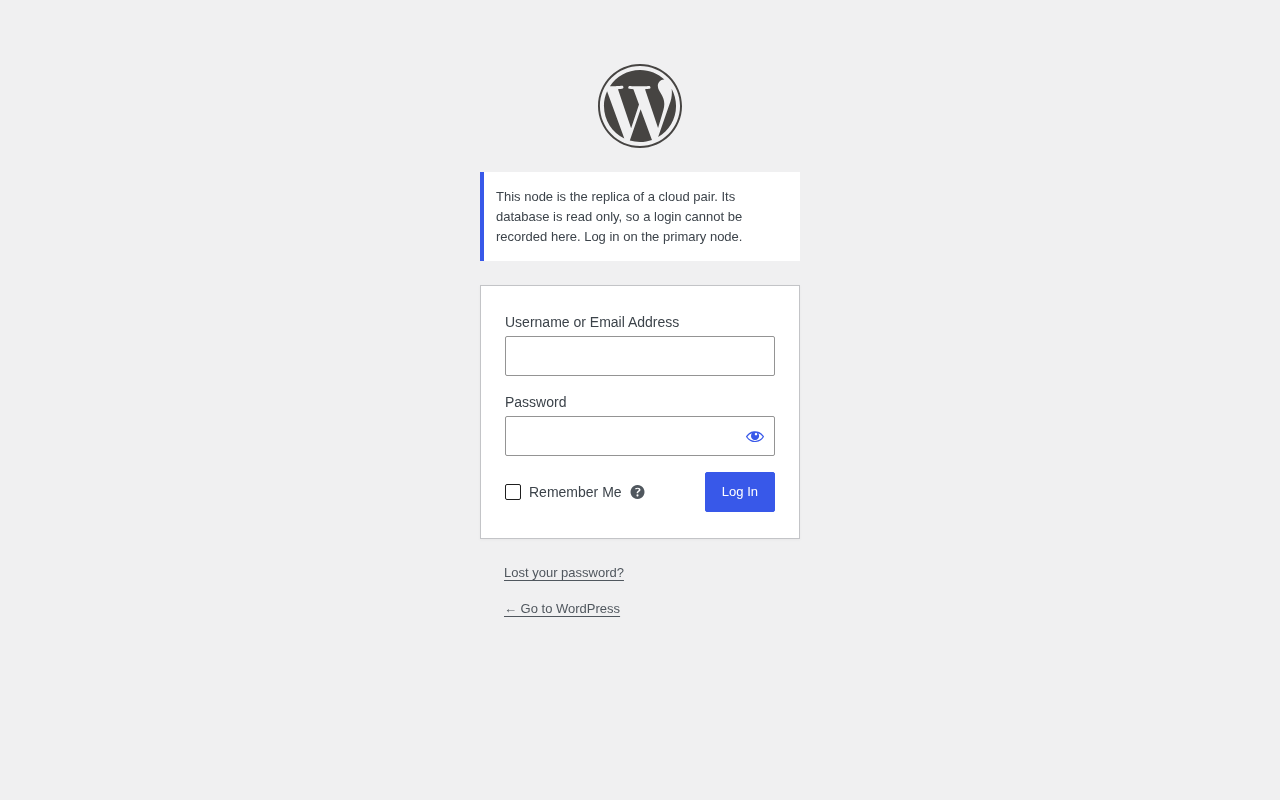 typed: |
| 13 | web: wp-admin-after  typed: | web: webmin 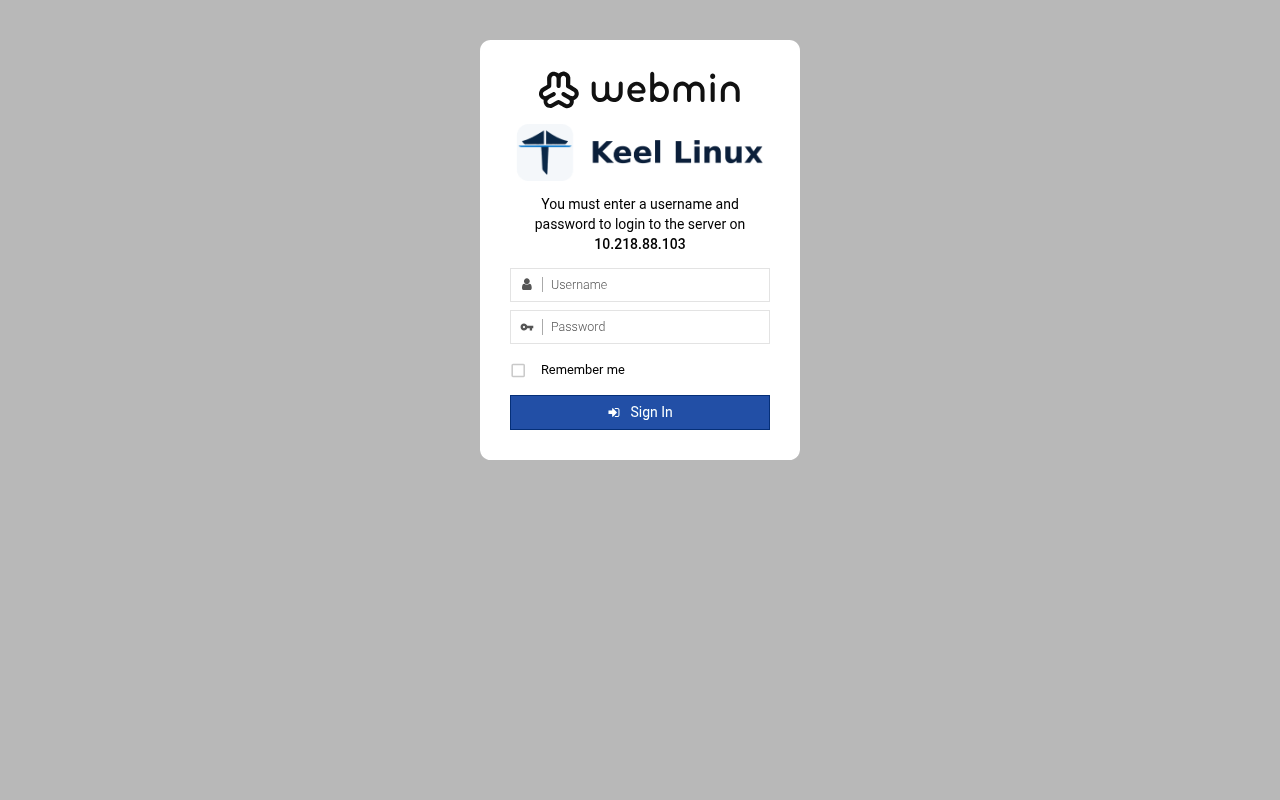 typed: |
| 14 | web: webmin 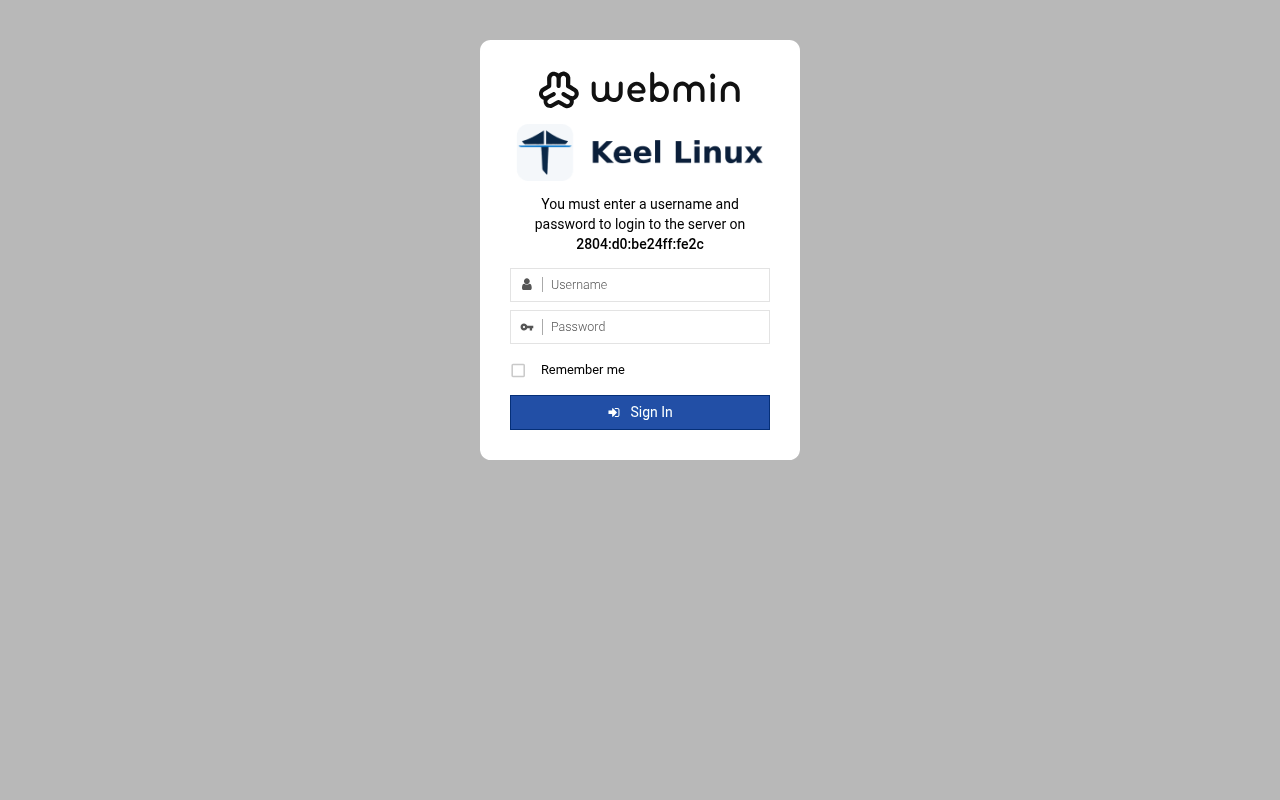 typed: | web: webmin-after 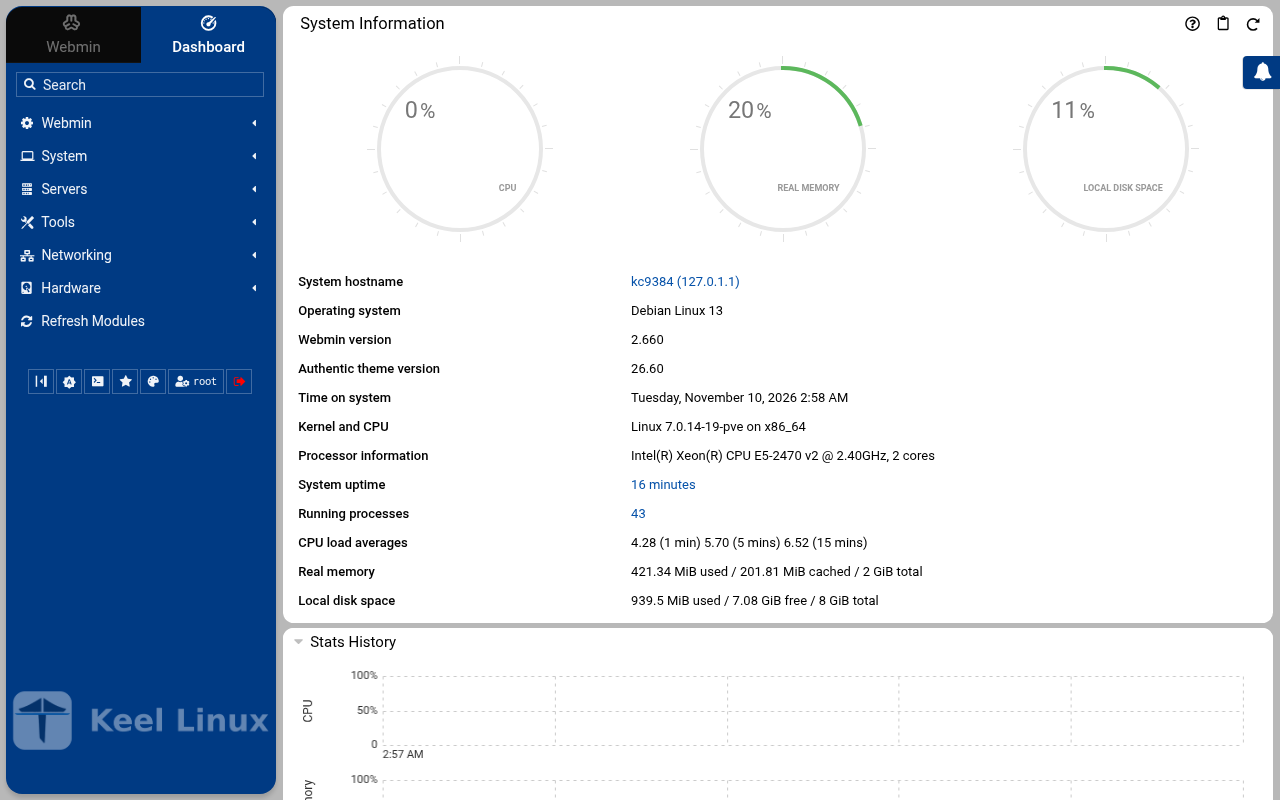 typed: |
| 15 | web: webmin-after 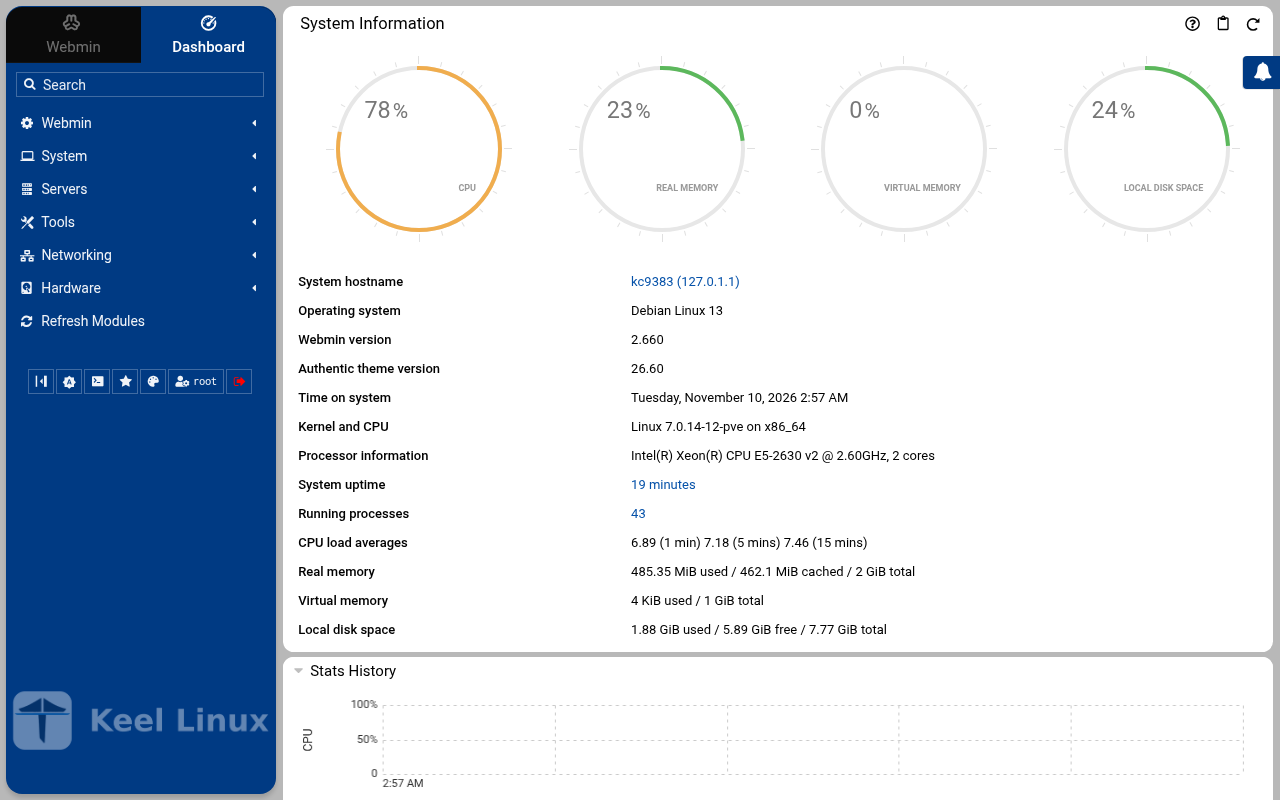 typed: |
Cloud advanced: two data nodes and a witness
| Step | Primary, BR1 | Replica, BR2 | Witness, BR1 |
|---|---|---|---|
| 1 | root password the screen, as textConnected to tty 1 Type <Ctrl+a q> to exit the console, <Ctrl+a Ctrl+a> to enter Ctrl+a itself press Enter within 5 s to answer first-boot questions Keel Linux Configuration Console KC9385 appliance services < Quit > Blog:https://[2804:710:d0:5:be24:11ff:fe4c:ada1]Admin:https://[2804:710:d0:5:be24:11ff:fe4c:ada1]/wp-admin/Webmin: https://[2804:710:d0:5:be24:11ff:fe4c:ada1]:12321SSH/SFTP: root@2804:710:d0:5:be24:11ff:fe4c:ada1 (port 22) Keel Linux Configuration Console KC9385 appliance services < Quit > Blog:https://[2804:710:d0:5:be24:11ff:fe4c:ada1]Admin:https://[2804:710:d0:5:be24:11ff:fe4c:ada1]/wp-admin/Webmin: https://[2804:710:d0:5:be24:11ff:fe4c:ada1]:12321SSH/SFTP: root@2804:710:d0:5:be24:11ff:fe4c:ada1 (port 22) Debian GNU/Linux 13 kc9385 tty1 kc9385 login: root Password: Keel Linux wordpress 19.0-trixie-amd64 IPv6 SSH: root@2804:710:d0:5:be24:11ff:fe4c:ada1 Welcome to kc9385, Keel Linux 19.0 (Debian 13/Trixie) System information for Tue Nov 10 03:01:43 2026 (UTC+0000) System load: 8.03 Memory usage: 17.4% Processes: 36 Swap usage: 0.0% Usage of /: 18.7% of 7.78GB Networking not configured This system is not initialized yet: run keel-init to set it up. For Advanced commandline config run: confconsole For more info see: https://github.com/Keel-Linux/confconsole Linux kc9385 7.0.14-12-pve #1 SMP PREEMPT_DYNAMIC PMX 7.0.14-12 (2026-08-11T11:05Z) x86_64 === Keel Linux - First boot configuration Root Password Please enter new password for the root account. Choose how to set this password: Generate A strong random password (recommended) Manual Type my own password < OK >Generate A strong random password (recommended)Manual Type my own password Keel Linux - First boot configuration Root Password Please enter new password for the root account. Password Requirements - must be at least 8 characters long - must contain characters from at least 3 of the following categories: uppercase, lowercase, numbers, symbols < OK >x typed: | root password the screen, as textConnected to tty 1 Type <Ctrl+a q> to exit the console, <Ctrl+a Ctrl+a> to enter Ctrl+a itself press Enter within 5 s to answer first-boot questions Keel KC9386 appliance services < Quit > Blog:https://[fd00:218:88:0:fae3:6f81:d3c6:8f6b]Admin:https://[fd00:218:88:0:fae3:6f81:d3c6:8f6b]/wp-admin/Webmin: https://[fd00:218:88:0:fae3:6f81:d3c6:8f6b]:12321SSH/SFTP: root@fd00:218:88:0:fae3:6f81:d3c6:8f6b (port 22)Blog:https://10.218.88.106Admin:https://10.218.88.106/wp-admin/Webmin: https://10.218.88.106:12321SSH/SFTP: root@10.218.88.106 (port 22) Keel Linux Configuration Console KC9386 appliance services < Quit > Blog:https://[fd00:218:88:0:fae3:6f81:d3c6:8f6b]Admin:https://[fd00:218:88:0:fae3:6f81:d3c6:8f6b]/wp-admin/Webmin: https://[fd00:218:88:0:fae3:6f81:d3c6:8f6b]:12321SSH/SFTP: root@fd00:218:88:0:fae3:6f81:d3c6:8f6b (port 22)Blog:https://10.218.88.106Admin:https://10.218.88.106/wp-admin/Webmin: https://10.218.88.106:12321SSH/SFTP: root@10.218.88.106 (port 22) Debian GNU/Linux 13 kc9386 tty1 kc9386 login: root Password: Keel Linux wordpress 19.0-trixie-amd64 IPv6 SSH: root@2804:7f0:9880:6c3:99ad:bd77:488e:94fb IPv4 SSH: root@10.218.88.106 Welcome to kc9386, Keel Linux 19.0 (Debian 13/Trixie) System information for Tue Nov 10 03:05:40 2026 (UTC+0000) System load: 7.20 Memory usage: 13.3% Processes: 39 Swap usage: 0.0% Usage of /: 11.4% of 8.00GB IP address for eth0: 10.218.88.106 This system is not initialized yet: run keel-init to set it up. For Advanced commandline config run: confconsole For more info see: https://github.com/Keel-Linux/confconsole Linux kc9386 7.0.14-19-pve #1 SMP PREEMPT_DYNAMIC PMX 7.0.14-19 (2026-09-18T07:31Z) x86_64 === Keel Linux - First boot configuration Root Password Please enter new password for the root account. Choose how to set this password: Generate A strong random password (recommended) Manual Type my own password < OK >Generate A strong random password (recommended)Manual Type my own password Keel Linux - First boot configuration Root Password Please enter new password for the root account. Password Requirements - must be at least 8 characters long - must contain characters from at least 3 of the following categories: uppercase, lowercase, numbers, symbols < OK >x typed: | root password the screen, as textConnected to tty 1 Type <Ctrl+a q> to exit the console, <Ctrl+a Ctrl+a> to enter Ctrl+a itself press Enter within 5 s to answer first-boot questions Keel Linux Configuration Console KC9387 appliance services < Quit > Webmin: https://[2804:710:d0:5:be24:11ff:fec3:4749]:12321SSH/SFTP: root@2804:710:d0:5:be24:11ff:fec3:4749 (port 22) Keel Linux Configuration Console KC9387 appliance services < Quit > Webmin: https://[2804:710:d0:5:be24:11ff:fec3:4749]:12321SSH/SFTP: root@2804:710:d0:5:be24:11ff:fec3:4749 (port 22) Debian GNU/Linux 13 kc9387 tty1 kc9387 login: root Password: Keel Linux core 19.0-trixie-amd64 IPv6 SSH: root@2804:710:d0:5:be24:11ff:fec3:4749 Welcome to kc9387, Keel Linux 19.0 (Debian 13/Trixie) System information for Tue Nov 10 03:08:24 2026 (UTC+0000) System load: 8.39 Memory usage: 9.0% Processes: 29 Swap usage: 0.0% Usage of /: 9.9% of 7.78GB Networking not configured This system is not initialized yet: run keel-init to set it up. For Advanced commandline config run: confconsole For more info see: https://github.com/Keel-Linux/confconsole Linux kc9387 7.0.14-12-pve #1 SMP PREEMPT_DYNAMIC PMX 7.0.14-12 (2026-08-11T11:05Z) x86_64 === Keel Linux - First boot configuration Root Password Please enter new password for the root account. Choose how to set this password: Generate A strong random password (recommended) Manual Type my own password < OK >Generate A strong random password (recommended)Manual Type my own password Keel Linux - First boot configuration Root Password Please enter new password for the root account. Password Requirements - must be at least 8 characters long - must contain characters from at least 3 of the following categories: uppercase, lowercase, numbers, symbols < OK >x typed: |
| 2 | root password the screen, as text******** Keel Linux - First boot configuration Root Password Confirm password Password Requirements - must be at least 8 characters long - must contain characters from at least 3 of the following categories: uppercase, lowercase, numbers, symbols < OK >x typed: | root password the screen, as text******** Keel Linux - First boot configuration Root Password Confirm password Password Requirements - must be at least 8 characters long - must contain characters from at least 3 of the following categories: uppercase, lowercase, numbers, symbols < OK >x typed: | root password the screen, as text******** Keel Linux - First boot configuration Root Password Confirm password Password Requirements - must be at least 8 characters long - must contain characters from at least 3 of the following categories: uppercase, lowercase, numbers, symbols < OK >x typed: |
| 3 | db password the screen, as text******** Keel Linux - First boot configuration kc9385.pop.coop Domain name xxx The name this machine is reached by, with its domain, xx for example blog.example.org. It becomes the hostname, xx the name /etc/hosts answers for this machine, and the xx domain a TLS certificate is requested for in xx confconsole.xxxx Leave the field empty to keep the name the machine has. xxxx Fully qualified domain name:x <Apply>x >fqdn: /etc/keel/instance.yaml already declares the name, not written === Keel - First boot configuration MariaDB password Enter the password for the MariaDB administrative account. Choose how to set this password: Generate A strong random password (recommended) Manual Type my own password < OK >Generate A strong random password (recommended)Manual Type my own password Keel - First boot configuration MariaDB password Enter the password for the MariaDB administrative account. Password Requirements - must be at least 8 characters long - must contain characters from at least 3 of the following categories: uppercase, lowercase, numbers, symbols tq qu x< OK >x typed: | db password the screen, as text******** Keel Linux - First boot configuration kc9386.pop.coop Domain name xxx The name this machine is reached by, with its domain, xx for example blog.example.org. It becomes the hostname, xx the name /etc/hosts answers for this machine, and the xx domain a TLS certificate is requested for in xx confconsole.xxxx Leave the field empty to keep the name the machine has. xxxx Fully qualified domain name:x <Apply>x >fqdn: /etc/keel/instance.yaml already declares the name, not written === Keel - First boot configuration MariaDB password Enter the password for the MariaDB administrative account. Choose how to set this password: Generate A strong random password (recommended) Manual Type my own password < OK >Generate A strong random password (recommended)Manual Type my own password Keel - First boot configuration MariaDB password Enter the password for the MariaDB administrative account. Password Requirements - must be at least 8 characters long - must contain characters from at least 3 of the following categories: uppercase, lowercase, numbers, symbols tq qu x< OK >x typed: | mode the screen, as text******** Keel Linux - First boot configuration kc9387.pop.coop Domain name xxx The name this machine is reached by, with its domain, xx for example blog.example.org. It becomes the hostname, xx the name /etc/hosts answers for this machine, and the xx domain a TLS certificate is requested for in xx confconsole.xxxx Leave the field empty to keep the name the machine has. xxxx Fully qualified domain name:x <Apply>x >fqdn: /etc/keel/instance.yaml already declares the name, not written === Keel Linux - First boot configuration Installation mode How this appliance is installed (decision 0028). You choose it once. Simple: one node. Everything is on this machine, with no mesh. Cloud simple: two nodes, a primary and a replica on a WireGuard mesh. The data follows the primary. When the primary stops, you promote the replica by hand. Cloud advanced: two data nodes and a witness, three sites, etcd of three. When the primary stops, the replica takes over by itself. Choose the same mode on every node of the set. Simple one node, no mesh Cloud simple two nodes, failover by hand Cloud advanced two nodes and a witness, failover by itself <Select> typed: |
| 4 | db password the screen, as text******** Keel - First boot configuration MariaDB password Confirm password Password Requirements - must be at least 8 characters long - must contain characters from at least 3 of the following categories: uppercase, lowercase, numbers, symbols < OK >x typed: | db password the screen, as text******** Keel - First boot configuration MariaDB password Confirm password Password Requirements - must be at least 8 characters long - must contain characters from at least 3 of the following categories: uppercase, lowercase, numbers, symbols < OK >x typed: | role the screen, as textSimpleone node, no meshCloud simple two nodes, failover by handCloud simple two nodes, failover by handCloud advanced two nodes and a witness, failover by itself> == Keel Linux - First boot configuration Installation mode < ok >x /etc/keel/instance.yaml: installation.mode: cloud_advanced$ keel spec apply --system-only --non-interactive --skip-network --defer-certificate --spec/etc/keel/instance.yamlapply --system-only: /etc/inithooks.conf not read or writteninstance.hostname: unchanged (kc9387)instance.fqdn: unchanged (/etc/hosts maps kc9387 to kc9387.pop.coop)derived.monit: crowdsec not watched: crowdsec.service starts only when /etc/crowdsec/local_api_credentials.yamlexists (ConditionPathExists)derived.monit: crowdsec-lapi not watched: its process crowdsec is not watched: crowdsec.service starts only when/etc/crowdsec/local_api_credentials.yaml exists (ConditionPathExists)derived.monit: write /etc/keel/monit/keel-manifest.conf: 5 unit(s) and 4 probe(s) of core (mode 0600): doneoverlays.vip: unchanged (disabled: keel-vip.service)overlays.etcd: etcd waits for its cluster: it forms at the third cloud advanced member's join, or with keel meshetcd form; nothing is started until thenoverlays.crowdsec: create /etc/crowdsec/online_api_credentials.yaml empty, which CrowdSec's unit needs and whichsays not registered yet (mode 0600): doneoverlays.crowdsec: register this machine with CrowdSec's local API; cscli writes the password to/etc/crowdsec/local_api_credentials.yaml (cscli --error machines add --auto --force): doneoverlays.crowdsec: register with CrowdSec's central API (cscli --error capi register): doneoverlays.crowdsec: register CrowdSec's firewall bouncer (cscli bouncers add) and write its key to/etc/crowdsec/bouncers/crowdsec-firewall-bouncer.yaml.local (mode 0600, never printed) and its name to/etc/crowdsec/bouncers/crowdsec-firewall-bouncer.yaml.id, mode: nftables: doneoverlays.crowdsec: enable crowdsec.service: the overlay is enabled (systemctl enable crowdsec.service): doneoverlays.crowdsec: start crowdsec.service (systemctl start crowdsec.service): doneoverlays.crowdsec: enable crowdsec-firewall-bouncer.service: the overlay is enabled (systemctl enablecrowdsec-firewall-bouncer.service): doneoverlays.crowdsec: start crowdsec-firewall-bouncer.service (systemctl start crowdsec-firewall-bouncer.service):doneapply --system-only: 9 change(s), 0 failed94% Keel Linux - First boot configuration Role of this node What this node is in its set of three (cloud advanced). Primary: the first node. It makes the mesh and invites the replica, then the witness, each with a line you copy to it. Replica: the second node. It joins with the first line, and its data follows the primary. Witness: the third node, Keel Core on a third site. It joins with the second line and gives etcd its third vote. It holds no data. Primary the first node: makes the mesh, invites Replica joins the primary; its data follows it Witness Keel Core on a third site: a vote, no data <Select> typed: |
| 5 | wordpress password the screen, as text********>WARNING: option --ssl-verify-server-cert is disabled, because of an insecure passwordless login. MariaDB account 'admin' set from DB_PASS (24 characters), verified on [::1]:3306 === Keel - First boot configuration WordPress password Enter the password for the WordPress administrator account. Choose how to set this password: Generate A strong random password (recommended) Manual Type my own password < OK >Generate A strong random password (recommended)Manual Type my own password Keel - First boot configuration WordPress password Enter the password for the WordPress administrator account. Password Requirements - must be at least 8 characters long - must contain characters from at least 3 of the following categories: uppercase, lowercase, numbers, symbols tq qu x< OK >x typed: | wordpress password the screen, as text********>WARNING: option --ssl-verify-server-cert is disabled, because of an insecure passwordless login. MariaDB account 'admin' set from DB_PASS (24 characters), verified on [::1]:3306 === Keel - First boot configuration WordPress password Enter the password for the WordPress administrator account. Choose how to set this password: Generate A strong random password (recommended) Manual Type my own password < OK >Generate A strong random password (recommended)Manual Type my own password Keel - First boot configuration WordPress password Enter the password for the WordPress administrator account. Password Requirements - must be at least 8 characters long - must contain characters from at least 3 of the following categories: uppercase, lowercase, numbers, symbols tq qu x< OK >x typed: | join the screen, as textPrimary the first node: makes the mesh, invitesWitness Keel Core on a third site: a vote, no data Keel Linux - First boot configuration Join a mesh Paste the line that Invite a node shows on the inviting node: keel mesh join - <<< keel2:... The token alone (keel2:...) is accepted too. It goes to keel on its standard input, never on a command line. < OK > <Cancel>x typed: |
| 6 | wordpress password the screen, as text******** Keel - First boot configuration WordPress password Confirm password Password Requirements - must be at least 8 characters long - must contain characters from at least 3 of the following categories: uppercase, lowercase, numbers, symbols < OK >x typed: | wordpress password the screen, as text******** Keel - First boot configuration WordPress password Confirm password Password Requirements - must be at least 8 characters long - must contain characters from at least 3 of the following categories: uppercase, lowercase, numbers, symbols < OK >x typed: | alert email the screen, as text<invite 1><invite 1><invite 1><invite 1><invite 1><invite 1><invite 1><invite 1><invite 1><invite 1><invite 1><invite 1><invite 1><invite 1><invite 1><invite 1><invite 1><invite 1><invite 1><invite 1>x<invite 1>xW<invite 1><invite 1><invite 1><invite 1><invite 1><invite 1><invite 1><invite 1><invite 1><invite 1><invite 2><invite 1><invite 2><invite 1><invite 2><invite 1><invite 2><invite 1><invite 2><invite 1><invite 2><invite 1><invite 2><invite 1><invite 2><invite 1><invite 2><invite 1><invite 2><invite 1><invite 2><invite 1><invite 2><invite 1><invite 2><invite 1><invite 2><invite 1><invite 2><invite 1><invite 2><invite 1><invite 2><invite 1><invite 2><invite 1><invite 2><invite 1><invite 2><invite 1><invite 2><invite 1><invite 2><invite 1><invite 2><invite 1><invite 2><invite 1><invite 2><invite 1><invite 2><invite 1><invite 2><invite 1><invite 2><invite 1><invite 2><invite 1><invite 2><invite 1><invite 2><invite 1><invite 2><invite 1><invite 2><invite 1><invite 2><invite 1><invite 2><invite 2><invite 2><invite 2><invite 2><invite 2><invite 2><invite 2><invite 2><invite 2><invite 2><invite 1><invite 2><invite 1><invite 2><invite 2><invite 2><invite 2><invite 2><invite 2><invite 2><invite 2>F<invite 2>FA<invite 2><invite 2><invite 2><invite 2><invite 2><invite 2><invite 2><invite 2><invite 2><invite 1><invite 2><invite 1><invite 2><invite 1><invite 2><invite 1><invite 2><invite 1><invite 2><invite 1><invite 2><invite 1><invite 2><invite 1><invite 2><invite 1><invite 2><invite 1><invite 2><invite 1>B<invite 2><invite 1>BU<invite 2><invite 1><invite 2><invite 1><invite 2><invite 1><invite 2><invite 1><invite 2><invite 1><invite 2><invite 1><invite 2><invite 1><invite 2><invite 1><invite 2><invite 1><invite 2><invite 1><invite 2><invite 2><invite 1><invite 2><invite 2><invite 1><invite 2><invite 1><invite 2><invite 1><invite 1><invite 1><invite 1><invite 1><invite 1><invite 1><invite 1><invite 1><invite 1><invite 1><invite 1><invite 1><invite 1><invite 1><invite 1>9Q<invite 1><invite 1>Q<invite 1><invite 1><invite 1><invite 1><invite 1><invite 1><invite 1><invite 1><invite 1><invite 1><invite 1><invite 1><invite 1><invite 1><invite 2><invite 1><invite 2><invite 1><invite 2><invite 1><invite 2><invite 1><invite 2><invite 1><invite 2><invite 1><invite 2><invite 1><invite 2><invite 1><invite 2><invite 1><invite 2><invite 1><invite 2><invite 1><invite 2><invite 1><invite 2><invite 1><invite 2><invite 1><invite 2><invite 1><invite 2><invite 1><invite 2><invite 1><invite 2><invite 1><invite 2><invite 1><invite 2><invite 1><invite 2><invite 1><invite 2><invite 1><invite 2>Q_<invite 1><invite 2>_<invite 1><invite 2><invite 1><invite 2><invite 1><invite 2><invite 1><invite 2><invite 1><invite 2><invite 1><invite 2><invite 1><invite 2><invite 1><invite 2><invite 1><invite 2><invite 1><invite 2><invite 1><invite 2><invite 2><invite 2><invite 2><invite 2><invite 2><invite 2><invite 2><invite 2><invite 2><invite 2><invite 2><invite 2><invite 2><invite 2><invite 2><invite 2><invite 2><invite 2><invite 2><invite 2><invite 2><invite 2><invite 2><invite 2><invite 2><invite 2><invite 1><invite 2><invite 1><invite 2><invite 2><invite 2>D<invite 2>D_<invite 2><invite 2><invite 2><invite 2><invite 2><invite 2><invite 2><invite 2><invite 2><invite 2><invite 2>>Join a mesh Join a mesh: keel joins this node to the mesh. When the inviting node cannot be reached, keel prints a line keel mesh accept keel1a:... and waits: run that line on the inviting node, or paste it into its Paste accept line screen. endpoint 2804:710:d0:5:be24:11ff:fec3:4749, found on eth0 (--endpoint overrides it) confirming over the overlay confirmed from the inviter's answer over the overlay (invite ef77948a2738a9cf) the overlay was tested: the inviter's answer over the overlay (invite ef77948a2738a9cf) arrived at fd52:7b7:ccf5::5443 on wg0, from fd52:7b7:ccf5::1 wg-quick@wg0 enabled: the overlay comes back up at boot the network change stays; the revert is cancelled joined the mesh: this node is fd52:7b7:ccf5::5443/64 on wg0 peer: <public key> at fd52:7b7:ccf5::1, through [2804:710:d0:5:be24:11ff:fe4c:ada1]:51820 the mesh has 3 nodes: this node has them all as peers, and the inviter announces this node to the 1 other(s) over the overlay (one offline now learns of it at its next keel mesh sync) etcd: this node forms with 2 other member(s) vip: fd52:7b7:ccf5::ffff:1, proposed by the inviter for the pair (appliance.vip on both nodes; keel mesh status --json gives it) Press Enter to go on: == Keel Linux - First boot configuration Status of this node < ok >x $ keel mesh statusthis node: fd52:7b7:ccf5::5443/64 on wg0, WireGuard on UDP 51820mesh identity: f78f43f5fd50ec518ff045741f24fa95public key: <public key>peers: 2<public key> fd52:7b7:ccf5::1/128 [2804:710:d0:5:be24:11ff:fe4c:ada1]:51820handshake 13 s ago<public key> fd52:7b7:ccf5::b03d/128[2804:7f0:9880:6c3:99ad:bd77:488e:94fb]:51820 handshake 0 s agopending invites: 0etcd: 3 voter(s), 0 learner(s)keel-fd52-7b7-ccf5--1 fd52:7b7:ccf5::1 voter healthykeel-fd52-7b7-ccf5--5443 fd52:7b7:ccf5::5443 voter healthykeel-fd52-7b7-ccf5--b03d fd52:7b7:ccf5::b03d voter healthyleader: keel-fd52-7b7-ccf5--1etcd: this member's certificate expires 2026-12-10 03:08 UTCvip: none (this node declares no appliance.vip and routes no other pair's)>keelfirstboot cloud: Keel Cloud is not available yet: no key is asked, and this node runs standalone. It is offered once /etc/keel/cloud-endpoint names the service. === Keel Linux - First boot configuration System Notifications and Critical Security Alerts Enable local system notifications (root@localhost) to be forwarded to your regular inbox. Notifications include security updates and system messages. Email: <Enable> < Skip >x typed: |
| 7 | mode the screen, as text********>wp-config.php written: database 'wordpress' as 'www-data' over the socket of localhost, with no password and no salt Success: WordPress installed successfully. WordPress installed: 'WordPress' at http://localhost, administrator 'admin' the salts are options of the database WordPress administrator 'admin' set from APP_PASS (24 characters), authenticated against the site itself === Keel Linux - First boot configuration Installation mode How this appliance is installed (decision 0028). You choose it once. Simple: one node. Everything is on this machine, with no mesh. Cloud simple: two nodes, a primary and a replica on a WireGuard mesh. The data follows the primary. When the primary stops, you promote the replica by hand. Cloud advanced: two data nodes and a witness, three sites, etcd of three. When the primary stops, the replica takes over by itself. Choose the same mode on every node of the set. Simple one node, no mesh Cloud simple two nodes, failover by hand Cloud advanced two nodes and a witness, failover by itself <Select> typed: | mode the screen, as text********>wp-config.php written: database 'wordpress' as 'www-data' over the socket of localhost, with no password and no salt Success: WordPress installed successfully. WordPress installed: 'WordPress' at http://localhost, administrator 'admin' the salts are options of the database WordPress administrator 'admin' set from APP_PASS (24 characters), authenticated against the site itself === Keel Linux - First boot configuration Installation mode How this appliance is installed (decision 0028). You choose it once. Simple: one node. Everything is on this machine, with no mesh. Cloud simple: two nodes, a primary and a replica on a WireGuard mesh. The data follows the primary. When the primary stops, you promote the replica by hand. Cloud advanced: two data nodes and a witness, three sites, etcd of three. When the primary stops, the replica takes over by itself. Choose the same mode on every node of the set. Simple one node, no mesh Cloud simple two nodes, failover by hand Cloud advanced two nodes and a witness, failover by itself <Select> typed: | web: webmin 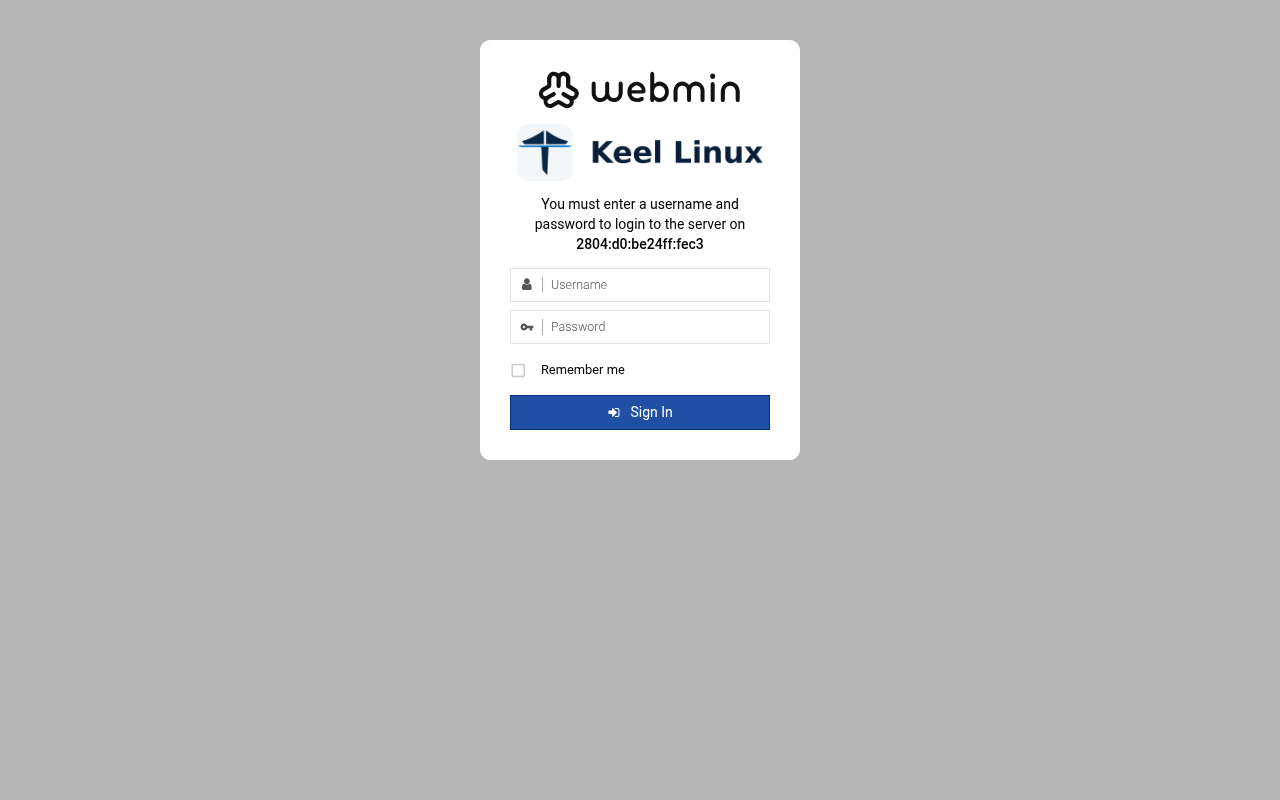 typed: |
| 8 | role the screen, as textSimpleone node, no meshCloud simple two nodes, failover by handCloud simple two nodes, failover by handCloud advanced two nodes and a witness, failover by itself> == Keel Linux - First boot configuration Installation mode < ok >x /etc/keel/instance.yaml: installation.mode: cloud_advanced$ keel spec apply --system-only --non-interactive --skip-network --defer-certificate --spec/etc/keel/instance.yaml2026-11-10 03:02:12 INF Generating key and certificate (cn=syncthing log.pkg=syncthing)2026-11-10 03:02:12 INF Calculated device ID(device=OZVQKML-2PCGGPT-XOCTLXO-AO6JAGC-CU4Y4UL-SWGZTFM-5HPYS7Q-VJ75YQD log.pkg=github)apply --system-only: /etc/inithooks.conf not read or writteninstance.hostname: unchanged (kc9385)instance.fqdn: unchanged (/etc/hosts maps kc9385 to kc9385.pop.coop)derived.monit: crowdsec not watched: crowdsec.service starts only when /etc/crowdsec/local_api_credentials.yamlexists (ConditionPathExists)derived.monit: crowdsec-lapi not watched: its process crowdsec is not watched: crowdsec.service starts only when/etc/crowdsec/local_api_credentials.yaml exists (ConditionPathExists)derived.monit: write /etc/keel/monit/keel-manifest.conf: 10 unit(s) and 9 probe(s) of wordpress (mode 0600):doneoverlays.vip: unchanged (disabled: keel-vip.service)overlays.etcd: etcd waits for its cluster: it forms at the third cloud advanced member's join, or with keel meshetcd form; nothing is started until thenoverlays.crowdsec: create /etc/crowdsec/online_api_credentials.yaml empty, which CrowdSec's unit needs and whichsays not registered yet (mode 0600): doneoverlays.crowdsec: register this machine with CrowdSec's local API; cscli writes the password to/etc/crowdsec/local_api_credentials.yaml (cscli --error machines add --auto --force): doneoverlays.crowdsec: register with CrowdSec's central API (cscli --error capi register): doneoverlays.crowdsec: register CrowdSec's firewall bouncer (cscli bouncers add) and write its key to/etc/crowdsec/bouncers/crowdsec-firewall-bouncer.yaml.local (mode 0600, never printed) and its name to/etc/crowdsec/bouncers/crowdsec-firewall-bouncer.yaml.id, mode: nftables: doneoverlays.crowdsec: enable crowdsec.service: the overlay is enabled (systemctl enable crowdsec.service): doneoverlays.crowdsec: start crowdsec.service (systemctl start crowdsec.service): doneoverlays.crowdsec: enable crowdsec-firewall-bouncer.service: the overlay is enabled (systemctl enablecrowdsec-firewall-bouncer.service): done48% Keel Linux - First boot configuration Role of this node What this node is in its set of three (cloud advanced). Primary: the first node. It makes the mesh and invites the replica, then the witness, each with a line you copy to it. Replica: the second node. It joins with the first line, and its data follows the primary. Witness: the third node, Keel Core on a third site. It joins with the second line and gives etcd its third vote. It holds no data. Primary the first node: makes the mesh, invites Replica joins the primary; its data follows it <Select> typed: | role the screen, as textSimpleone node, no meshCloud simple two nodes, failover by handCloud simple two nodes, failover by handCloud advanced two nodes and a witness, failover by itself> == Keel Linux - First boot configuration Installation mode < ok >x /etc/keel/instance.yaml: installation.mode: cloud_advanced$ keel spec apply --system-only --non-interactive --skip-network --defer-certificate --spec/etc/keel/instance.yaml2026-11-10 03:06:13 INF Generating key and certificate (cn=syncthing log.pkg=syncthing)2026-11-10 03:06:13 INF Calculated device ID(device=OK4QEQK-R6IGWR5-PSP2P4F-BYYDXMS-R6YIIY2-HMYQKFD-ROXOIX3-E4B7TAC log.pkg=github)apply --system-only: /etc/inithooks.conf not read or writteninstance.hostname: unchanged (kc9386)instance.fqdn: unchanged (/etc/hosts maps kc9386 to kc9386.pop.coop)derived.monit: crowdsec not watched: crowdsec.service starts only when /etc/crowdsec/local_api_credentials.yamlexists (ConditionPathExists)derived.monit: crowdsec-lapi not watched: its process crowdsec is not watched: crowdsec.service starts only when/etc/crowdsec/local_api_credentials.yaml exists (ConditionPathExists)derived.monit: write /etc/keel/monit/keel-manifest.conf: 10 unit(s) and 9 probe(s) of wordpress (mode 0600):doneoverlays.vip: unchanged (disabled: keel-vip.service)overlays.etcd: etcd waits for its cluster: it forms at the third cloud advanced member's join, or with keel meshetcd form; nothing is started until thenoverlays.crowdsec: create /etc/crowdsec/online_api_credentials.yaml empty, which CrowdSec's unit needs and whichsays not registered yet (mode 0600): doneoverlays.crowdsec: register this machine with CrowdSec's local API; cscli writes the password to/etc/crowdsec/local_api_credentials.yaml (cscli --error machines add --auto --force): doneoverlays.crowdsec: register with CrowdSec's central API (cscli --error capi register): doneoverlays.crowdsec: register CrowdSec's firewall bouncer (cscli bouncers add) and write its key to/etc/crowdsec/bouncers/crowdsec-firewall-bouncer.yaml.local (mode 0600, never printed) and its name to/etc/crowdsec/bouncers/crowdsec-firewall-bouncer.yaml.id, mode: nftables: doneoverlays.crowdsec: enable crowdsec.service: the overlay is enabled (systemctl enable crowdsec.service): doneoverlays.crowdsec: start crowdsec.service (systemctl start crowdsec.service): doneoverlays.crowdsec: enable crowdsec-firewall-bouncer.service: the overlay is enabled (systemctl enablecrowdsec-firewall-bouncer.service): done48% Keel Linux - First boot configuration Role of this node What this node is in its set of three (cloud advanced). Primary: the first node. It makes the mesh and invites the replica, then the witness, each with a line you copy to it. Replica: the second node. It joins with the first line, and its data follows the primary. Witness: the third node, Keel Core on a third site. It joins with the second line and gives etcd its third vote. It holds no data. Primary the first node: makes the mesh, invites Replica joins the primary; its data follows it <Select> typed: | web: webmin-after 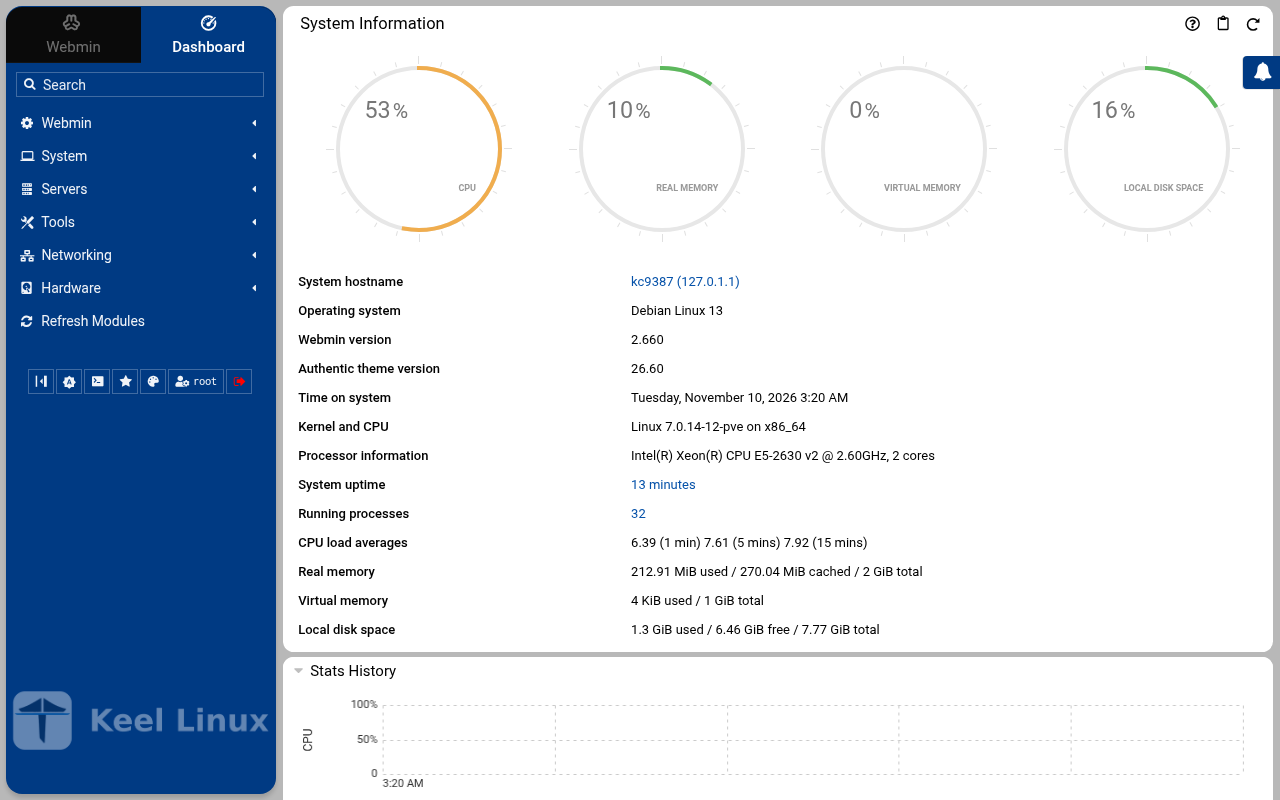 typed: |
| 9 | invite the screen, as textKeel Linux - First boot configuration keel mesh create: making the mesh... Keel Linux - First boot configuration Make the mesh < ok >x $ keel mesh createcreated the mesh: this node is fd52:7b7:ccf5::1/64 on wg0, WireGuard on UDP 51820keel mesh invite prints the line that joins the next nodeconfirming the new overlayconfirmed from keel mesh createthe overlay has no peer, so nothing can cross it: keel mesh create confirmed it once the routes to the gatewaysand to the operator's session were found to still leave through the uplinkwg-quick@wg0 enabled: the overlay comes back up at bootthe network change stays; the revert is cancelledetcd: this node holds the mesh's root CA; etcd forms when the third cloud advanced member joinskeel mesh: exit 0, done>Invite a node This node invites the replica (node 2) into its mesh. Copy the line below to the replica (node 2): paste it into its Join a mesh screen, or run it there as root. It can be used once, until 2026-11-10T04:02:51Z. The line carries the service address of the pair, shown below: this node writes it as its appliance.vip, and the replica takes it from the join. Nobody types it. Copy this line to the replica (node 2), on one line, as it is. It is a secret: it lets one node join this mesh. keel mesh join - <<< <invite 1> VIP: fd52:7b7:ccf5::ffff:1 Expires: 2026-11-10T04:02:51Z Press Enter to go on: typed: | join the screen, as textPrimary the first node: makes the mesh, invitesReplica joins the primary; its data follows it Keel Linux - First boot configuration Join a mesh Paste the line that Invite a node shows on the inviting node: keel mesh join - <<< keel2:... The token alone (keel2:...) is accepted too. It goes to keel on its standard input, never on a command line. < OK > <Cancel>x typed: | |
| 10 | invite2 the screen, as textKeel Linux - First boot configuration Waiting for the nodes Waiting for the replica (node 2) to join with the line, checked every 5 s. Back gives a menu: Paste accept line, when the join printed one (keel mesh accept keel1a:...), or the line again. This node: fd52:7b7:ccf5::1/64 etcd: not_formed, voters 0 VIP: fd52:7b7:ccf5::ffff:1, holder none yet 5 <Select> < Back >x 4 3 2 1 0 Keel Linux - First boot configuration Waiting for the nodes Waiting for the replica (node 2) to join with the line, checked every 5 s. Back gives a menu: Paste accept line, when the join printed one (keel mesh accept keel1a:...), or the line again. This node: fd52:7b7:ccf5::1/64 etcd: not_formed, voters 0 VIP: fd52:7b7:ccf5::ffff:1, holder none yet 5 <Select> < Back >x 4 3 2 1 0 Keel Linux - First boot configuration Waiting for the nodes Waiting for the replica (node 2) to join with the line, checked every 5 s. Back gives a menu: Paste accept line, when the join printed one (keel mesh accept keel1a:...), or the line again. This node: fd52:7b7:ccf5::1/64 Member: fd52:7b7:ccf5::b03d, not reached etcd: not_formed, voters 0 VIP: fd52:7b7:ccf5::ffff:1, holder none yet 5 <Select> < Back >x 4 3 2 1 0>Invite a node This node invites the witness (node 3, Keel Core) into its mesh. Copy the line below to the witness (node 3, Keel Core): paste it into its Join a mesh screen, or run it there as root. It can be used once, until 2026-11-10T04:06:48Z. The line carries the service address of the pair, shown below: this node writes it as its appliance.vip, and the replica takes it from the join. Nobody types it. Copy this line to the witness (node 3, Keel Core), on one line, as it is. It is a secret: it lets one node join this mesh. keel mesh join - <<< <invite 1><invite 2><invite 1><invite 1><invite 2><invite 1> VIP: fd52:7b7:ccf5::ffff:1 Expires: 2026-11-10T04:06:48Z Press Enter to go on: typed: | alert email the screen, as textetcd: not_formed, voters 0 VIP: fd52:7b7:ccf5::ffff:1, holder none yet 5 <Select> < Back >x 4 3 2 1 0> == Keel Linux - First boot configuration < Yes >< No >x Becoming a replica REPLACES the data on this node with a copy of the primary at [fd52:7b7:ccf5::1].If this server holds any database that is not its own, keel refuses and this console asks once more, namingthem; a Yes there drops them and cannot be undone. Move anything you need elsewhere first.This screen configures THIS node only. It does not create replicas, does not change any other machine, andcannot know what the others are doing. It changes the database server and leaves the network and the TLScertificate alone.Go on and make this node a replica? Keel Linux - First boot configuration Pair with the primary < ok >x $ keel vip pair fd52:7b7:ccf5::1fd52:7b7:ccf5::ffff:1 is the VIP of <public key> and<public key>, signed by bothetcd: fd52:7b7:ccf5::ffff:1: its pair's role is grantedkeel vip: exit 0, done Keel Linux - First boot configuration Pair with the primary Paired. Waiting for the primary to take the VIP: its screen does it once this node has paired. This node: fd52:7b7:ccf5::b03d/64 Member: fd52:7b7:ccf5::1, reached Member: fd52:7b7:ccf5::5443, reached etcd: formed, voters 3 VIP: fd52:7b7:ccf5::ffff:1, holder none yet 5 <Select> < Back >x 4 3 2 1 0> == Keel Linux - First boot configuration Pair with the primary < ok >x /etc/keel/instance.yaml: database.server.role: replica$ keel spec apply --system-only --non-interactive --skip-network --defer-certificate --spec/etc/keel/instance.yamlapply --system-only: /etc/inithooks.conf not read or writteninstance.hostname: unchanged (kc9386)instance.fqdn: unchanged (/etc/hosts maps kc9386 to kc9386.pop.coop)database.server: make or renew the database certificate for fd52:7b7:ccf5::b03d and fd52:7b7:ccf5::ffff:1,signed by the mesh's root CA (here, or asked of its holder over the members' channel), under the engine's TLSdirectory (etc/mysql/keel-tls or etc/postgresql/keel-tls): kept: the certificate is not due for renewal, and nofile changeddatabase.server: write /etc/sysctl.d/90-keel-database.conf: both nodes bind the VIP (mode 0644): donedatabase.server: let the server bind the VIP before it carries it (sysctl -q -w net.ipv6.ip_nonlocal_bind=1):donedatabase.server: write /etc/mysql/mariadb.conf.d/99-keel-database.cnf: a paired node, server id 1092860075,binary log, GTID strict, semi-synchronous replication, TLS, the VIP fd52:7b7:ccf5::ffff:1 bound (mode 0644):donedatabase.server: restart the server, which is the only way these take effect (systemctl restart mariadb): donedatabase.server.replication.allowed_from: authorize replication from fd52:7b7:ccf5::1 with the certificate/CN=keel-fd52-7b7-ccf5--1 mariadb of the mesh's root, outside the binary log (runuser -u mysql -- mariadb--batch, 5 statement(s) on standard input): donedatabase.server.role: the role is the VIP's: replica here (epoch known, held at fd52:7b7:ccf5::1); the declaredreplica is the installation's (0020)database.server.role: make the server follow the pair's VIP (keel database follow): the holder writable, theother node read only and replicating from the holder over TLS, an old primary rejoined by GTID when it holdsnothing the holder lacks: donederived.monit: write /etc/keel/monit/keel-manifest.conf: 12 unit(s) and 10 probe(s) of wordpress (mode 0600):doneoverlays.etcd: unchanged (enabled: etcd.service)overlays.crowdsec: unchanged (enabled: crowdsec.service, crowdsec-firewall-bouncer.service)overlays.vip: enable keel-vip.service: the overlay is enabled (systemctl enable keel-vip.service): done57% Keel Linux - First boot configuration Status of this node < ok >x $ keel vip statusvip fd52:7b7:ccf5::ffff:1: this node's appliance.viprole: replicaepoch 1, held by <public key> at fd52:7b7:ccf5::1carried here: norouted to: <public key>$ keel mesh statusthis node: fd52:7b7:ccf5::b03d/64 on wg0, WireGuard on UDP 51820mesh identity: f78f43f5fd50ec518ff045741f24fa95public key: <public key>peers: 2<public key> fd52:7b7:ccf5::1/128 [2804:710:d0:5:be24:11ff:fe4c:ada1]:51820handshake 55 s ago<public key> fd52:7b7:ccf5::5443/128[2804:710:d0:5:be24:11ff:fec3:4749]:51820 handshake 43 s agopending invites: 0etcd: 3 voter(s), 0 learner(s)keel-fd52-7b7-ccf5--1 fd52:7b7:ccf5::1 voter healthykeel-fd52-7b7-ccf5--5443 fd52:7b7:ccf5::5443 voter healthykeel-fd52-7b7-ccf5--b03d fd52:7b7:ccf5::b03d voter healthyleader: keel-fd52-7b7-ccf5--1etcd: this member's certificate expires 2026-12-10 03:06 UTCvip fd52:7b7:ccf5::ffff:1: this node's appliance.viprole: replicaepoch 1, held by <public key> at fd52:7b7:ccf5::1carried here: norouted to: <public key>$ keel database statuspair: VIP fd52:7b7:ccf5::ffff:1; role here replica68% >keelfirstboot cloud: Keel Cloud is not available yet: no key is asked, and this node runs standalone. It is offered once /etc/keel/cloud-endpoint names the service. === Keel Linux - First boot configuration System Notifications and Critical Security Alerts Enable local system notifications (root@localhost) to be forwarded to your regular inbox. Notifications include security updates and system messages. Email: <Enable> < Skip >x typed: | |
| 11 | alert email the screen, as textTake the VIP Waiting for the replica to pair with this node (keel vip pair on the replica). Then this node applies its description and takes the VIP. If the replica says it paired and nothing moves here, choose Back and Take it now. This node: fd52:7b7:ccf5::1/64 Member: fd52:7b7:ccf5::b03d, reached Member: fd52:7b7:ccf5::5443, reached e Vx 5 <Select> < Back >x 4 3 2 Keel Linux - First boot configuration Take the VIP Waiting for the replica to pair with this node (keel vip pair on the replica). Then this node applies its description and takes the VIP. If the replica says it paired and nothing moves here, choose Back and Take it now. This node: fd52:7b7:ccf5::1/64 Member: fd52:7b7:ccf5::b03d, reached Member: fd52:7b7:ccf5::5443, reached e Vx 5 <Select> < Back >x 4 3 2 1> == Keel Linux - First boot configuration Take the VIP < ok >x $ keel vip promotethis node holds fd52:7b7:ccf5::ffff:1 at epoch 1, by etcd's lease 3434172576609867855the peers are told in the backgroundvip fd52:7b7:ccf5::ffff:1: fd52:7b7:ccf5::5443: appliedvip fd52:7b7:ccf5::ffff:1: fd52:7b7:ccf5::b03d: appliedkeel vip: exit 0, done Keel Linux - First boot configuration Status of this node < ok >x $ keel vip statusvip fd52:7b7:ccf5::ffff:1: this node's appliance.viprole: primaryepoch 1, held by <public key> at fd52:7b7:ccf5::1etcd lease 3434172576609867855carried here: yesrouted to: no peer$ keel mesh statusthis node: fd52:7b7:ccf5::1/64 on wg0, WireGuard on UDP 51820mesh identity: f78f43f5fd50ec518ff045741f24fa95public key: <public key>peers: 2<public key> fd52:7b7:ccf5::b03d/128[2804:7f0:9880:6c3:99ad:bd77:488e:94fb]:51820 handshake 35 s ago<public key> fd52:7b7:ccf5::5443/128[2804:710:d0:5:be24:11ff:fec3:4749]:51820 handshake 36 s agopending invites: 0etcd: 3 voter(s), 0 learner(s)keel-fd52-7b7-ccf5--1 fd52:7b7:ccf5::1 voter healthykeel-fd52-7b7-ccf5--5443 fd52:7b7:ccf5::5443 voter healthykeel-fd52-7b7-ccf5--b03d fd52:7b7:ccf5::b03d voter healthyleader: keel-fd52-7b7-ccf5--1etcd: this member's certificate expires 2026-12-10 03:02 UTCvip fd52:7b7:ccf5::ffff:1: this node's appliance.viprole: primaryepoch 1, held by <public key> at fd52:7b7:ccf5::1etcd lease 3434172576609867855carried here: yesrouted to: no peer62%>keelfirstboot cloud: Keel Cloud is not available yet: no key is asked, and this node runs standalone. It is offered once /etc/keel/cloud-endpoint names the service. === Keel Linux - First boot configuration System Notifications and Critical Security Alerts Enable local system notifications (root@localhost) to be forwarded to your regular inbox. Notifications include security updates and system messages. Email: <Enable> < Skip >x typed: | web: site  typed: | |
| 12 | web: site  typed: | web: wp-login  typed: | |
| 13 | web: wp-admin  typed: | web: webmin  typed: | |
| 14 | web: wp-admin-after  typed: | web: webmin-after 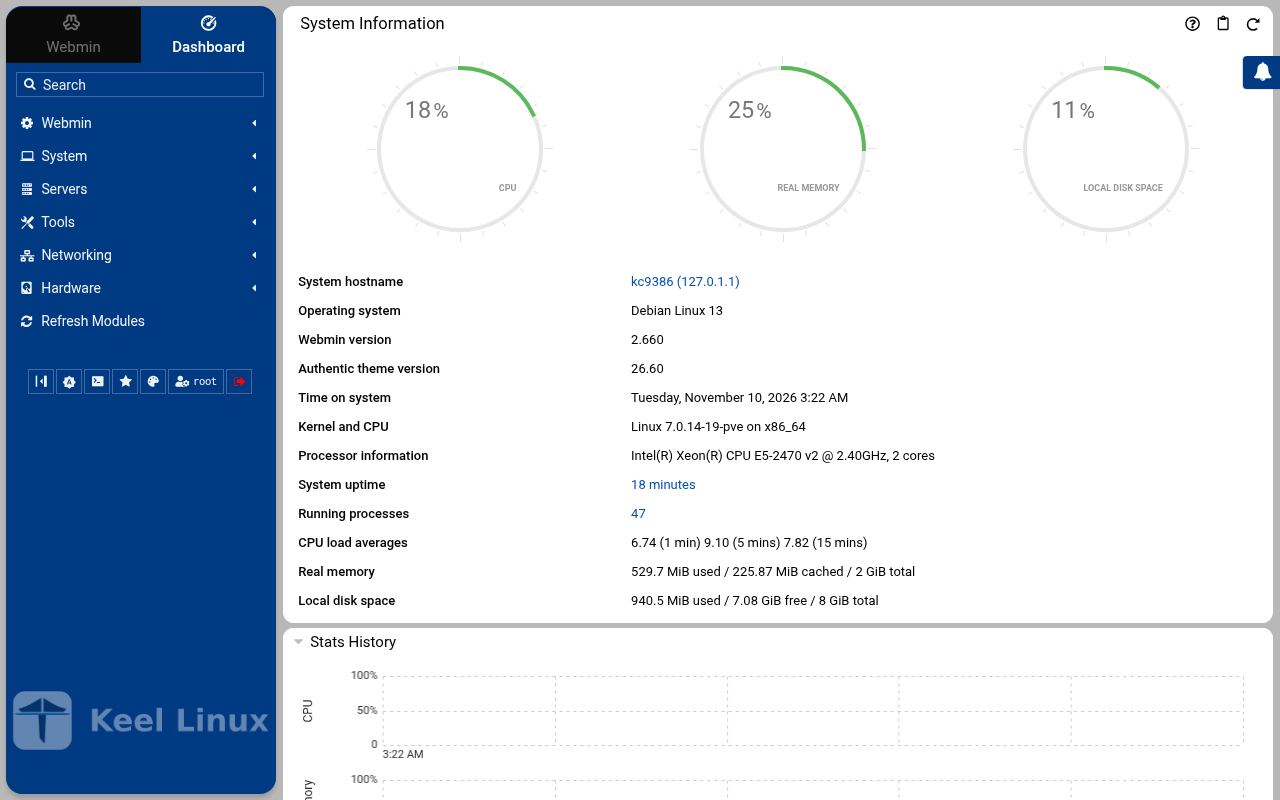 typed: | |
| 15 | web: webmin  typed: | ||
| 16 | web: webmin-after 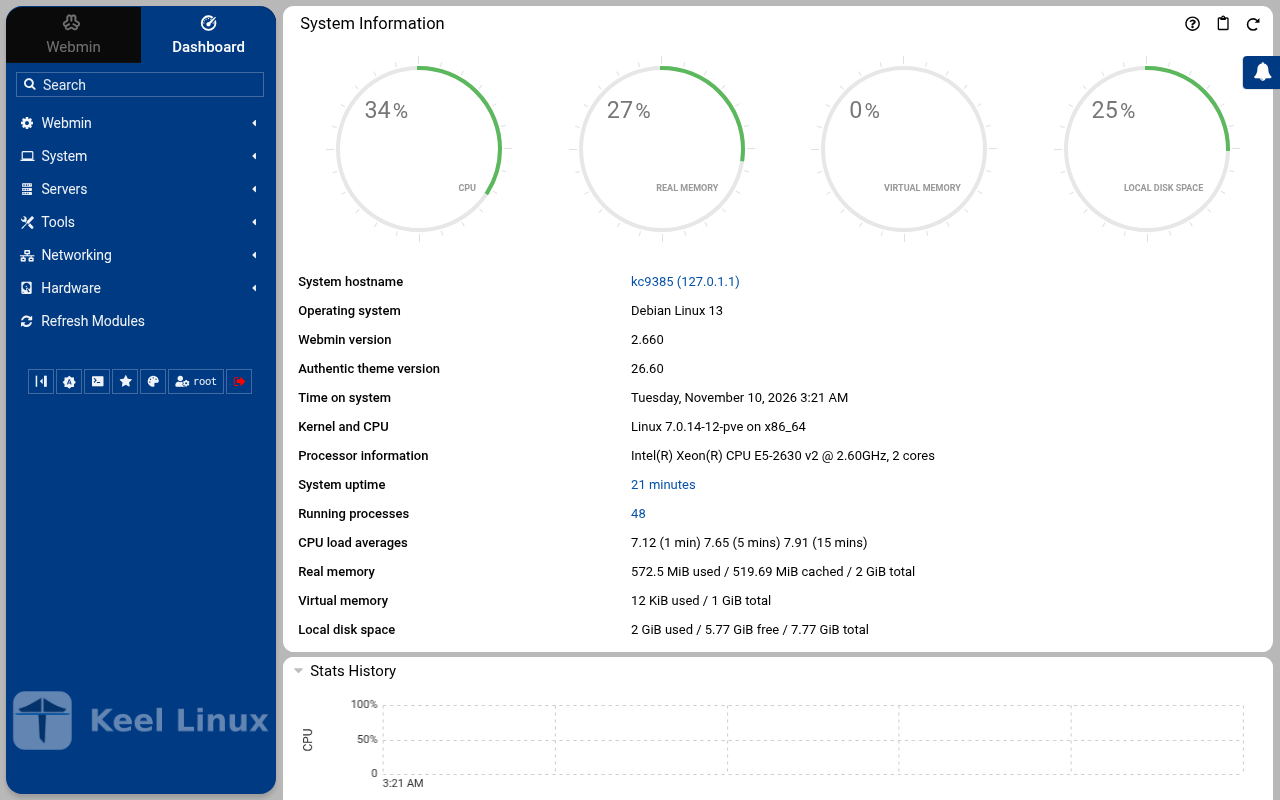 typed: |
Commissioning
8 passes on the sites BR1, BR2, 2026-11-10: 532 checks, all passed.
Every pass below passed every check (decision 0075). A page never shows an image that did not pass.
| Pass | Nodes | Date | Checks passed |
|---|---|---|---|
| the LXC template, answered on the console | br1 | 2026-11-10T01:29:04Z | 29 of 29 |
| the LXC template, described before the boot | br1 | 2026-11-10T01:43:48Z | 26 of 26 |
| the ISO in a virtual machine | br1 | 2026-11-10T01:19:15Z | 33 of 33 |
| the LXC template, answered on the console | br2 | 2026-11-10T01:36:01Z | 29 of 29 |
| the LXC template, described before the boot | br2 | 2026-11-10T01:54:27Z | 26 of 26 |
| the ISO in a virtual machine | br2 | 2026-11-10T01:33:03Z | 33 of 33 |
| Cloud simple: two nodes, failover by hand | primary br1, replica br2 | 2026-11-10T02:36:56Z | 150 of 150 |
| Cloud advanced: two data nodes and a witness | primary br1, replica br2, witness br1 | 2026-11-10T02:59:29Z | 206 of 206 |